Walk is an MIT-licensed terminal file manager written in Go that replaces the familiar pairing of cd and ls with an interactive navigator, aimed at developers and other command-line users who want to move through the filesystem with arrow keys or hjkl instead of typing paths.
What it is
Walk describes itself as a terminal navigator and a cd and ls replacement. It is a command-line program, invoked as walk from the shell, that shows the contents of the current directory and lets the user move through the tree with the arrow keys or hjkl, descending with enter and going back up with backspace. It lives in the CLI ecosystem alongside other terminal utilities, and it is written in Go, which is why go install github.com/antonmedv/walk@latest is one of its documented installation routes. The project is MIT licensed and developed in the open on GitHub, with a topic list of cli, file-manager, and terminal.
The concrete problem it solves is the grind of positional navigation in a shell. Rather than running ls to see what is in a directory, running cd into it, and repeating, the user browses visually and then decides what should happen to the shell itself. Pressing esc or q exits and hands the chosen location back so the shell can change into it, while ctrl+c exits without changing anything. That exit-with-a-path behaviour is what makes it a replacement for two commands rather than just another viewer, and it is wired up through a small shell function named lk.
Key capabilities
- Interactive navigation with the arrow keys or
hjkl, shift plus arrows to jump to the start or end of a listing, enter to enter a directory and backspace to leave it.
- Preview mode, toggled with
space or started automatically with the --preview flag, optionally framed using --with-border.
- Image preview, which the README states requires no additional setup.
- Deletion from inside the navigator with
dd and an undo with u, with the removal command overridable through WALK_REMOVE_CMD — for example, trash.
- Fuzzy search bound to
/, or enabled at launch with the --fuzzy flag.
- File-type-aware opening through
WALK_OPEN_WITH, for example txt:less -N;go:vim;md:glow -p, alongside EDITOR or WALK_EDITOR for the default handler.
- Display and appearance flags including
--icons for Nerd Fonts, --dir-only, and --hide-hidden, with WALK_MAIN_COLOR and WALK_STATUS_BAR for colour and status bar customisation.
Who uses it and how
- Shell users add a small wrapper function to
.bashrc or an equivalent config file, with documented variants for Bash/Zsh, Fish and PowerShell, so that lk runs walk and cds into whatever directory is selected on exit.
- macOS users install it through Homebrew with
brew install walk, and BSD users through the system package tool with pkg_add walk.
- Go developers install directly from source with
go install github.com/antonmedv/walk@latest, while others use the provided curl install script or download prebuilt release binaries.
- Users who want per-extension behaviour, such as opening Markdown in
glow -p or Go files in vim, configure WALK_OPEN_WITH rather than accepting the editor default.
- Users who prefer recoverable deletes point
WALK_REMOVE_CMD at a command such as trash instead of the default rm.
Getting started
Install with brew install walk, pkg_add walk, go install github.com/antonmedv/walk@latest, the project's curl install script, or a prebuilt binary from the releases page, then add the lk shell function from the README to your shell configuration and run lk.
How it compares
The facts provided do not name any paid products that Walk replaces, and the related projects listed — fx, a terminal JSON viewer; howto, a terminal command LLM helper; and countdown, a terminal countdown timer — are sibling terminal utilities rather than alternative file managers. On the evidence available it stands alone in this registry as a terminal file manager, so the meaningful comparison is with the cd and ls commands it is explicitly built to replace.
When to use it — and when not to
Walk is a client-side terminal program, so there is no database, storage layer or mail service for a self-hoster to operate; installation is by package manager, the Go toolchain, an install script or a prebuilt binary. The main setup requirement is the shell wrapper, since without the lk function the exit-and-cd behaviour has nowhere to go, and the icon feature additionally requires Nerd Fonts to be installed. Anyone who needs scriptable bulk file operations, a graphical file manager, or a tool that works without touching shell configuration should look elsewhere; the documented install paths also cover Homebrew, pkg_add, the Go toolchain, a shell script and prebuilt binaries, with no Windows package-manager command listed.
project readme (upstream, from github) — read inline
🥾 walk
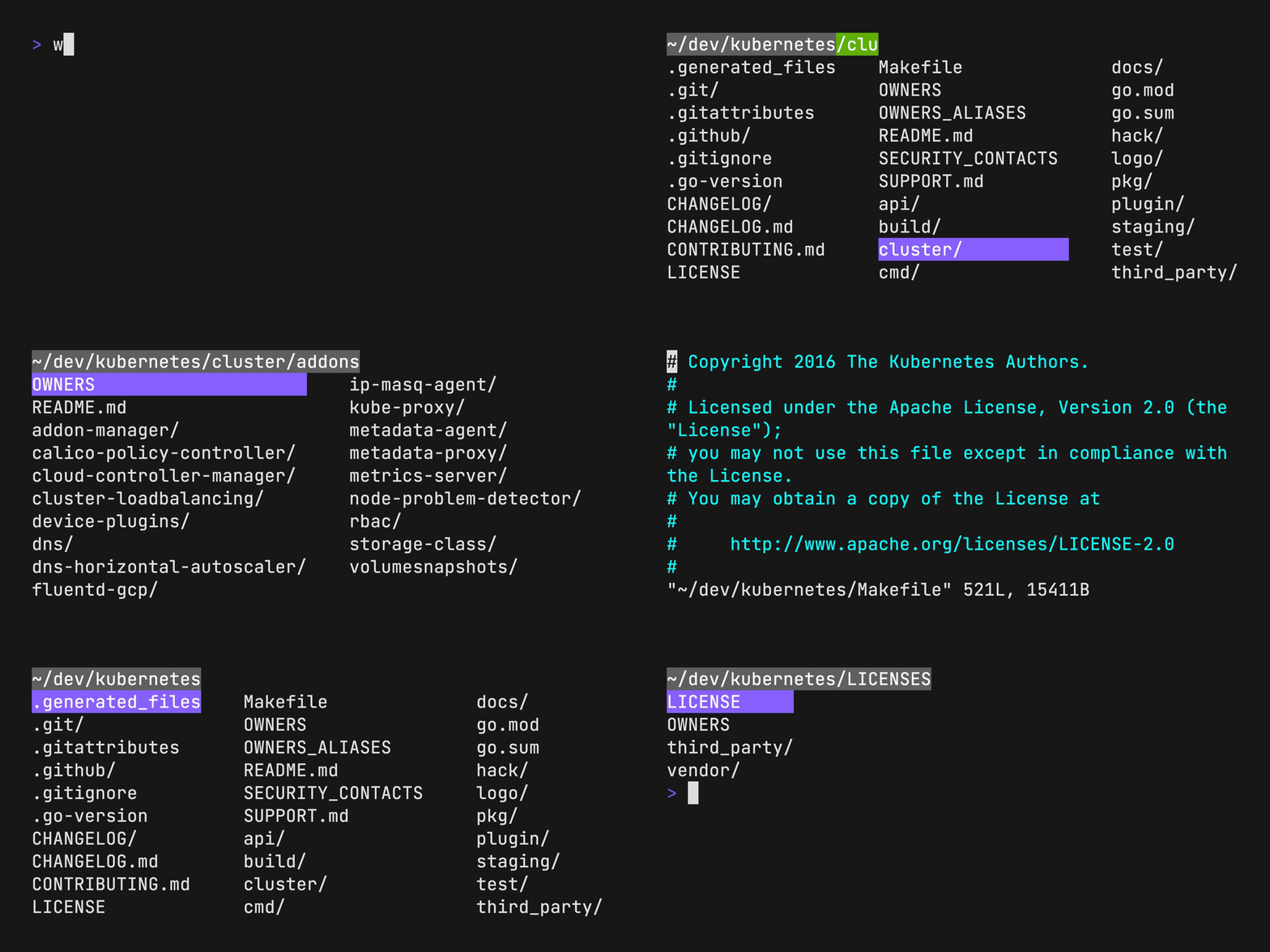
Walk — a terminal navigator; a cd and ls replacement.
Run lk, navigate using arrows or hjkl. Press, esc to jump to a new location; or ctrl+c to stay.
Install
brew install walk
pkg_add walk
go install github.com/antonmedv/walk@latest
curl https://raw.githubusercontent.com/antonmedv/walk/master/install.sh | sh
Or download prebuild binaries.
Setup
Put the next function into the .bashrc or a similar config:
Now use lk command to start walking.
Features
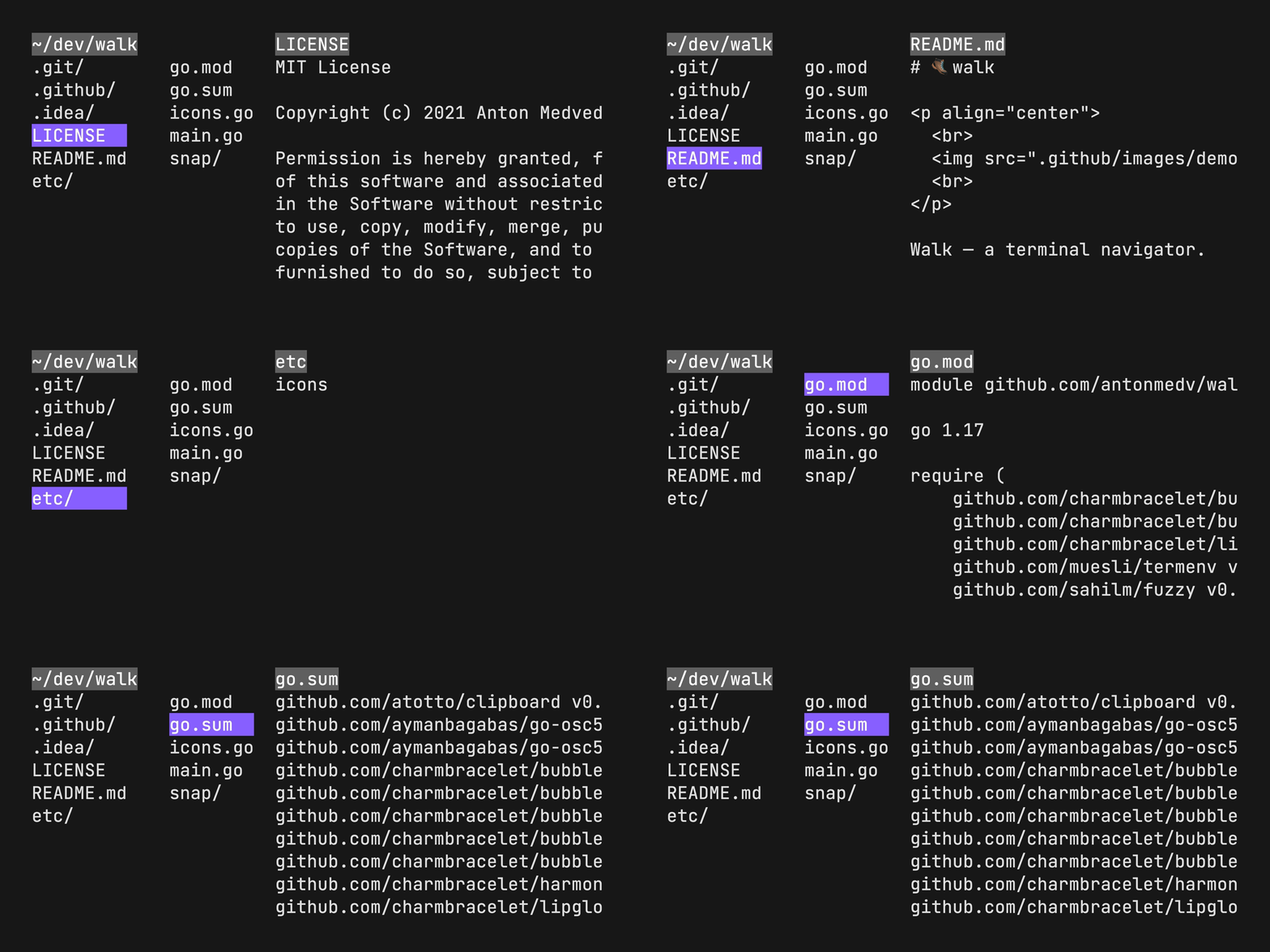
Preview mode
Press Space to toggle preview mode.
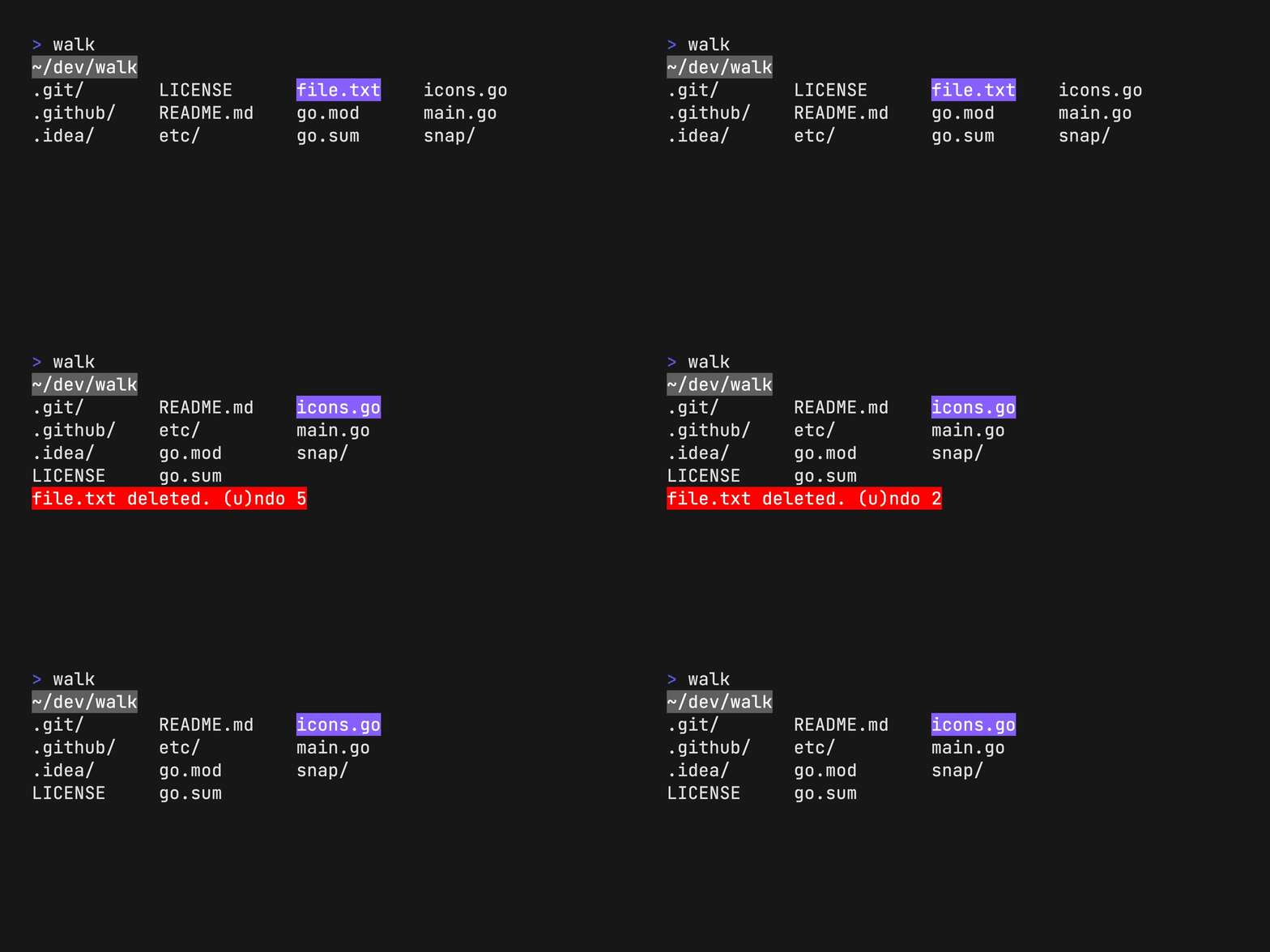
Delete file or directory
Press dd to delete file or directory. Press u to undo.
Display icons
Install Nerd Fonts and add --icons flag.
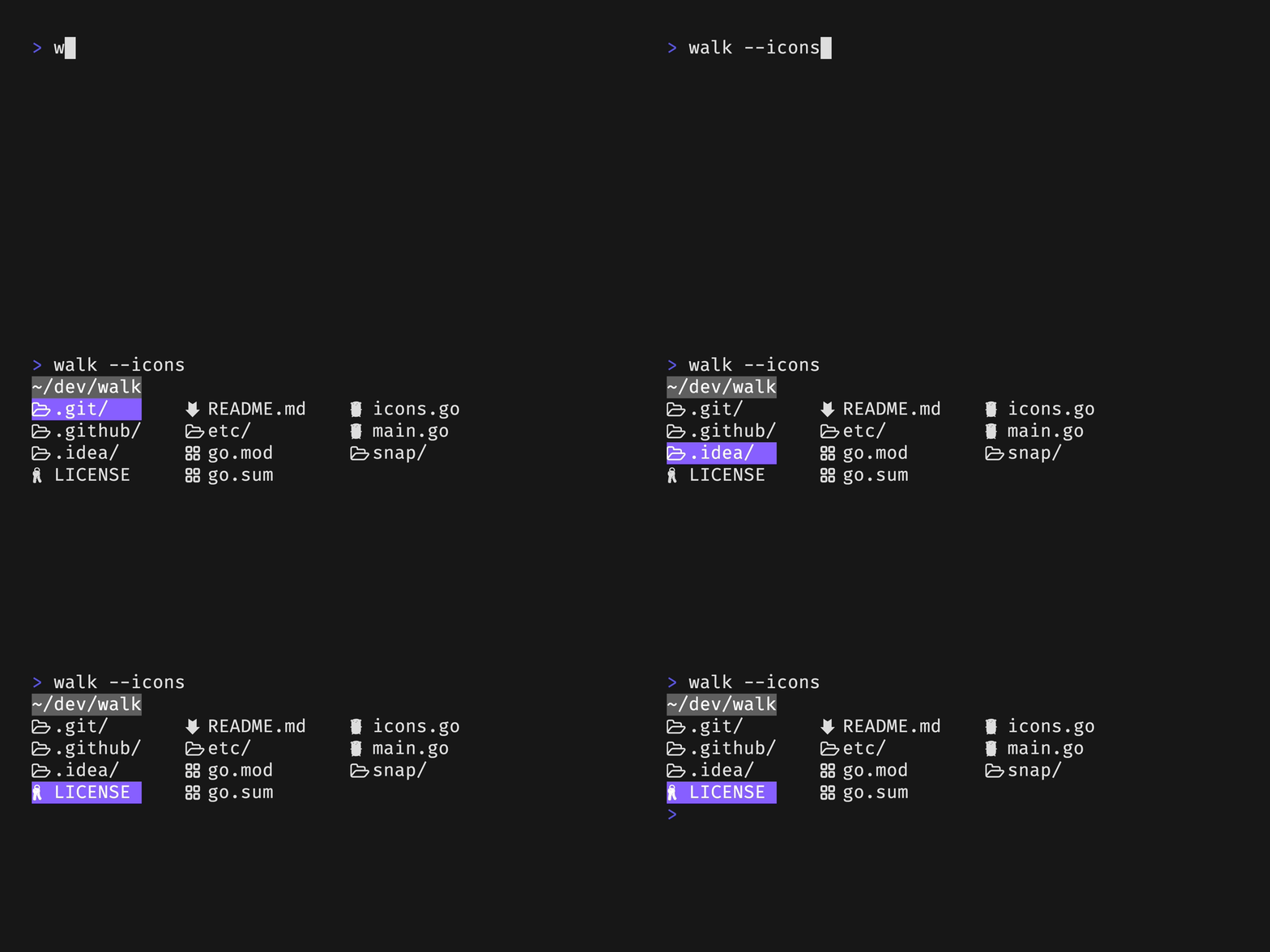
Image preview
No additional setup is required.
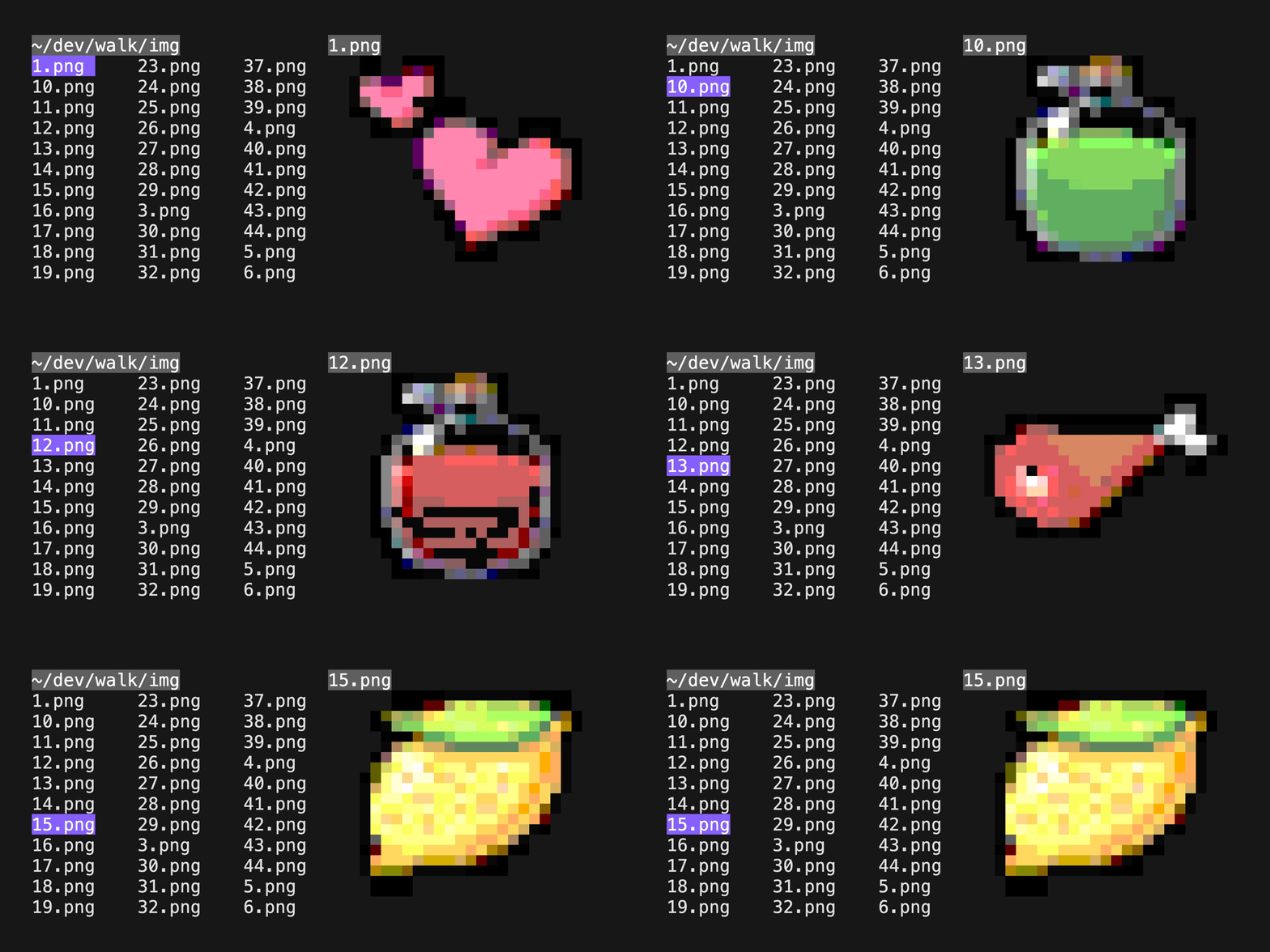
Usage
Configuration
The EDITOR or WALK_EDITOR environment variable used for opening files from
the walk.
export EDITOR=vim
To specify a command to be used to open files per extension, use the WALK_OPEN_WITH environment variable.
export WALK_OPEN_WITH="txt:less -N;go:vim;md:glow -p"
The WALK_REMOVE_CMD environment variable can be used to specify a command to
be used to remove files. This is useful if you want to use a different
command to remove files than the default rm.
export WALK_REMOVE_CMD=trash
Change main color with WALK_MAIN_COLOR environment variable. Available colors
are here.
export WALK_MAIN_COLOR="#0000FF"
Use WALK_STATUS_BAR environment variable to specify a status bar program.
export WALK_STATUS_BAR="Size() + ' ' + Mode()"
Flags
Flags can be used to change the default behavior of the program.
Related
- fx – terminal JSON viewer
- howto – terminal command LLM helper
- countdown – terminal countdown timer
License
MIT