Screenity
✨ Screenity's open source work is sponsored by
Recall.ai - API for desktop recording
If you’re looking for a hosted desktop recording API, consider checking out Recall.ai, an API that records Zoom, Google Meet, Microsoft Teams, in-person meetings, and more.
The free and privacy-friendly screen recorder with no limits 🎥
Screenity is a powerful privacy-friendly screen recorder and annotation tool to make better videos for work, education, and more. You can create stunning product demos, tutorials, presentations, or share feedback with your team - all for free.

Want to support the project (and the solo developer behind it)?
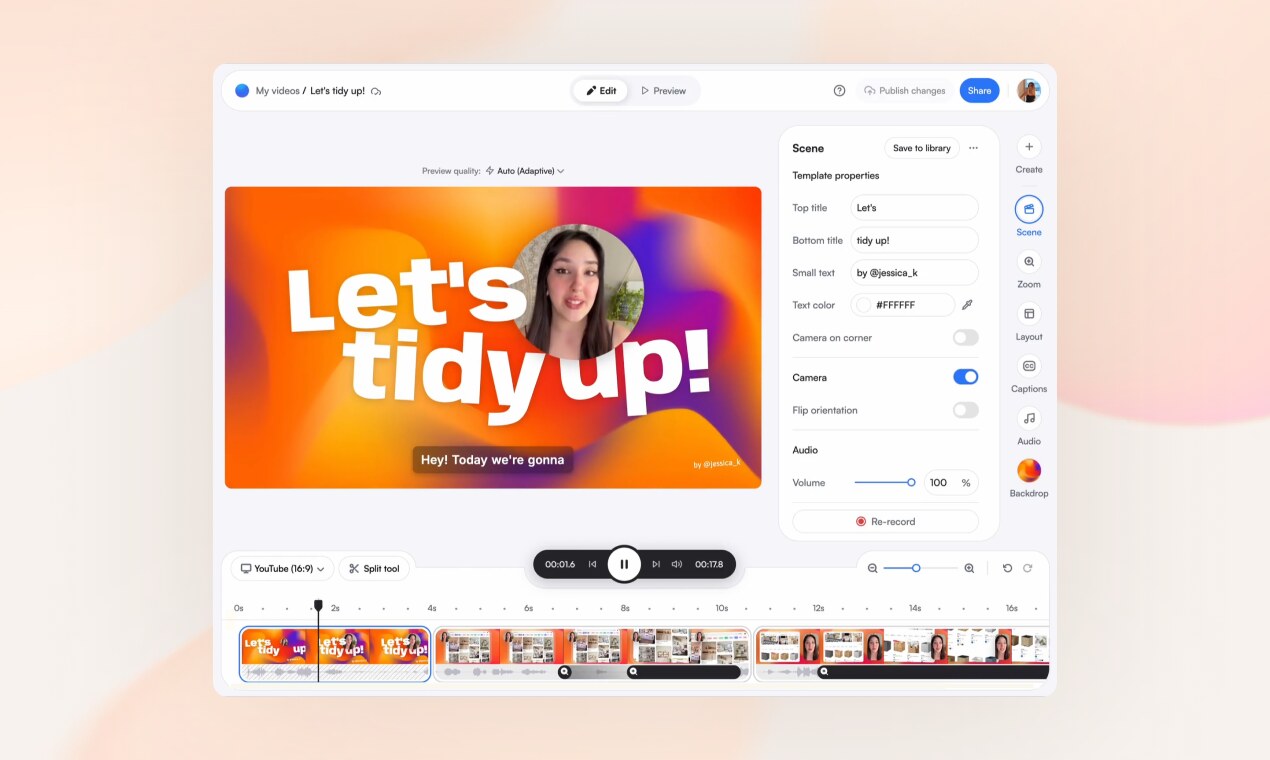
Check out Screenity Pro: a privacy-friendly, EU-hosted platform with link sharing, multi-scene editing, zoom keyframes, captions, and more ❤️
Made by Alyssa X
Table of contents
Features
🎥 Make unlimited recordings of your tab, a specific area, desktop, any application, or camera
🎙️ Record your microphone or internal audio, and use features like push to talk
✏️ Annotate by drawing anywhere on the screen, adding text, arrows, shapes, and more
✨ Use AI-powered camera backgrounds or blur to enhance your recordings
🔎 Zoom in smoothly in your recordings to focus on specific areas
🪄 Blur out any sensitive content of any page to keep it private
✂️ Remove or add audio, cut, trim, or crop your recordings with a comprehensive editor
👀 Highlight your clicks and cursor, and go in spotlight mode
⏱️ Set up alarms to automatically stop your recording
💾 Export as mp4, gif, and webm, or save the video directly to Google Drive to share a link
⚙️ Set a countdown, hide parts of the UI, or move it anywhere
🔒 Only you can see your videos, we don’t collect any of your data. You can even go offline!
💙 No limits, make as many videos as you want, for as long as you want
…and much more - all for free & no sign in needed!
Self-hosting Screenity
🛠️ Note: When self-hosted, the extension runs entirely in local-only mode.
No API calls, sign-in flows, or platform features are enabled, nothing is sent anywhere.
Some internal code paths connect to Screenity Pro, but these are only active in the official Chrome Store version.
You can run Screenity locally without having to install it from the Chrome Store. Here's how:
- Download the latest Build.zip from the releases page
- Load the extension by pasting
chrome://extensions/in the address bar, and enabling developer mode. - Drag the folder that contains the code (make sure it's a folder and not a ZIP file, so unzip first), or click on the "Load unpacked" button and locate the folder.
- That's it, you should now be able to use Screenity locally. Follow these instructions to set up the Google Drive integration.
Self-hosting is totally fine for personal, educational, or internal use. If you’re thinking of building a commercial product from this, feel free to reach out, I’m open to chatting 💜
Creating a development version
❗️ Note that the license has changed to GPLv3 for the current MV3 version (Screenity version 3.0.0 and higher). Make sure to read the license and the Terms of Service regarding intellectual property.
- Check if your Node.js version is >= 14.
- Clone this repository.
- Run
npm installto install dependencies. - Run
npm startto start the local development server. - Open
chrome://extensions/in your browser and enable developer mode. - Click Load unpacked and select the
buildfolder. - The extension should now be available locally.
To rebuild after code changes, runnpm run build.
Enabling Save to Google Drive
To enable the Google Drive Upload (authorization consent screen) you must change the client_id in the manifest.json file with your linked extension key.
You can create it accessing Google Cloud Console and selecting Create Credential > OAuth Client ID > Chrome App. To create a persistent extension key, you can follow the steps detailed here.
Acknowledgements
- Thanks to HelpKit for sponsoring this project by hosting the Screenity Help Center.
- Thanks to Mei Xuan for helping with the Chinese translation of the extension.
If you need any help, or want to become a Screenity expert, you can browse articles and guides in the help center. You can also submit any feedback or ideas in this form, or contact through this page