OpenWiki is a free, MIT-licensed desktop application for macOS and Windows that watches what you copy, keeps only what you approve, and uses an AI provider of your choice to organise it into a personal wiki stored in a local SQLite database.
What it is
OpenWiki is a Tauri desktop application in the Productivity & Utilities / Note Taking & Knowledge Management category, written in Rust with a React front end. It combines a clipboard capture popup, a content manager, an AI-generated wiki, a knowledge graph and weekly insight reports in one window that stays available in the system tray, with all captured material held in a local SQLite database rather than on a vendor server. The project is published under the MIT licence.
The problem it addresses is the gap between capturing a snippet and filing it usefully. The step it replaces is manual filing: instead of dropping a link or a paragraph into a folder, a bookmark list or a note file and hoping to find it later, the user reviews a popup that auto-dismisses after ten seconds, keeps only what is worth keeping, and lets the AI compile those items into Wiki pages covering concepts, entities and topics.
Key capabilities
- Capture of text, images and URLs through a desktop popup with automatic source-app detection, and manual triggering with ⌘⇧C on macOS or Ctrl+Shift+C on Windows.
- Full-article retrieval from URLs, including WeChat and X/Twitter posts.
- Automatic compilation of captured content into Wiki pages for concepts, entities and topics, with a knowledge graph visualisation of how ideas connect.
- An Ask sidebar for querying the knowledge base, plus automatic detection of orphaned pages, broken links and structural issues.
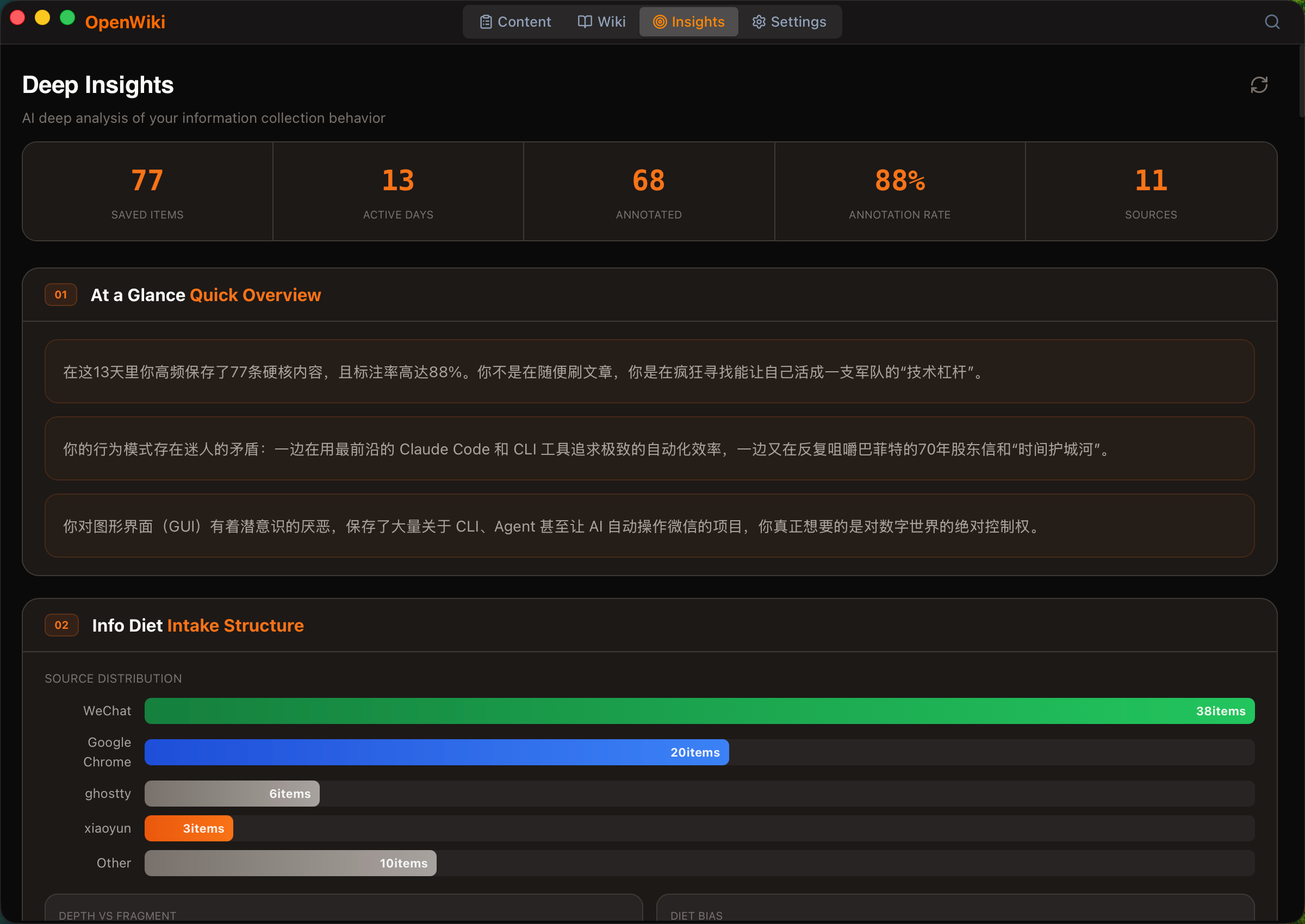
- Insight Reports offering a one-click AI weekly summary and a seven-dimension attention analysis covering At a Glance, Subconscious, Graveyard, Blind Spots, Hot Topics, Heatmap and Action Items.
- Pluggable AI providers — Anthropic (Claude), OpenAI and Google Gemini — connected by API key or OAuth login, with a different model selectable per provider.
- Content management with filtering by type (text, image, link) and time range, global search and one-click export to Markdown.
Who uses it and how
- Individual knowledge workers on macOS 13+ or Windows 10/11 who want a personal research wiki without operating a server or a shared database.
- Privacy-conscious users who rely on local SQLite storage and can independently disable URL reading through Jina Reader and foreign-language translation through Google Translate in Settings.
- People who already hold Claude, OpenAI or Gemini credentials and prefer to bring their own model rather than pay for a bundled one.
- Chinese-language users reading WeChat articles, for whom Chinese documentation and a translated interface are maintained, and Claude Desktop users who connect over the MCP protocol.
Getting started
Downloads are published on the Releases page as OpenWiki_X.Y.Z_aarch64.dmg for Apple Silicon, OpenWiki_X.Y.Z_x64.dmg for Intel Macs, and OpenWiki_X.Y.Z_x64-setup.exe or the corresponding .msi for Windows x64, with the AI provider configured afterwards in Settings → AI. Building from source requires Node.js 18+ and stable Rust, then npm install followed by npm run tauri dev or npm run tauri build.
How it compares
The facts supplied for this page name no competing or comparable note-taking, clipboard or knowledge-management products, so OpenWiki stands alone in this registry on that axis. The third parties it does name — Anthropic, OpenAI and Google Gemini as providers, Jina Reader for URL reading, Google Translate for foreign-language page text and Claude Desktop over MCP — are services it consumes rather than alternatives it replaces.
When to use it — and when not to
Adopting OpenWiki means supplying your own AI provider credentials and accepting a single-machine desktop tool with no documented sync or team features. Two defaults deserve scrutiny first: URL reading can send the full URL to Jina Reader and the Chinese interface can send foreign-language page text to Google Translate, both enabled by default, and platform-specific readers may still contact the source platform or its API, so anyone unwilling to send data off the device should not choose it. Only macOS and Windows downloads are published, and the Windows build is unsigned, which will not suit Linux users or teams that require signed installers everywhere.
project readme (upstream, from github) — read inline





Copy anything → popup appears on desktop → choose to keep → AI organizes it into a knowledge base
You decide what to keep. AI makes sense of it.
Privacy first — all data stored in local SQLite database.
Network transparency: URL reading can send the full URL to Jina Reader, and the Chinese UI can send foreign-language page text to Google Translate. Both are enabled by default for compatibility and can be disabled independently in Settings. Platform-specific readers may still contact the source platform or its API.
🌐 Website · 中文文档
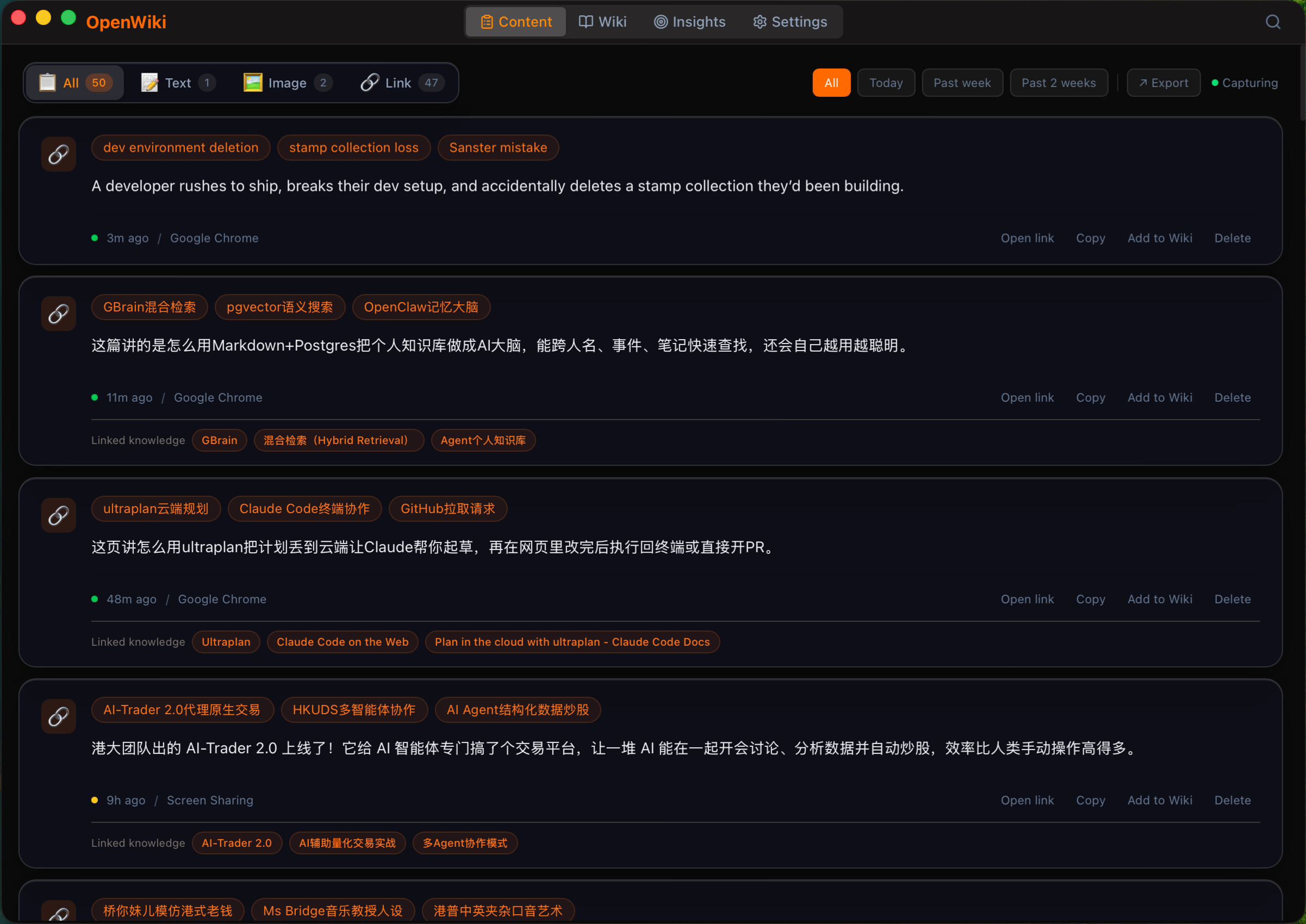
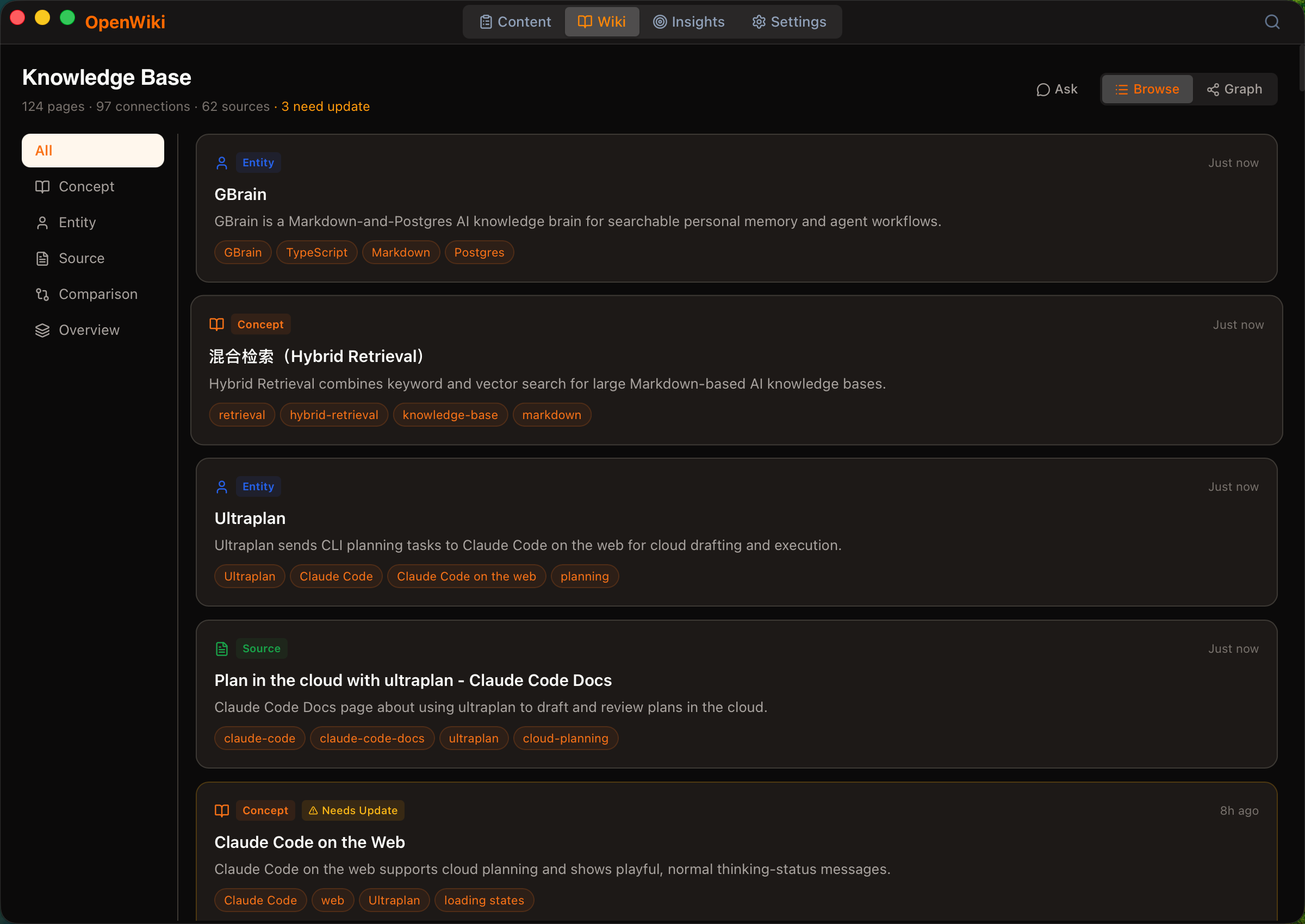
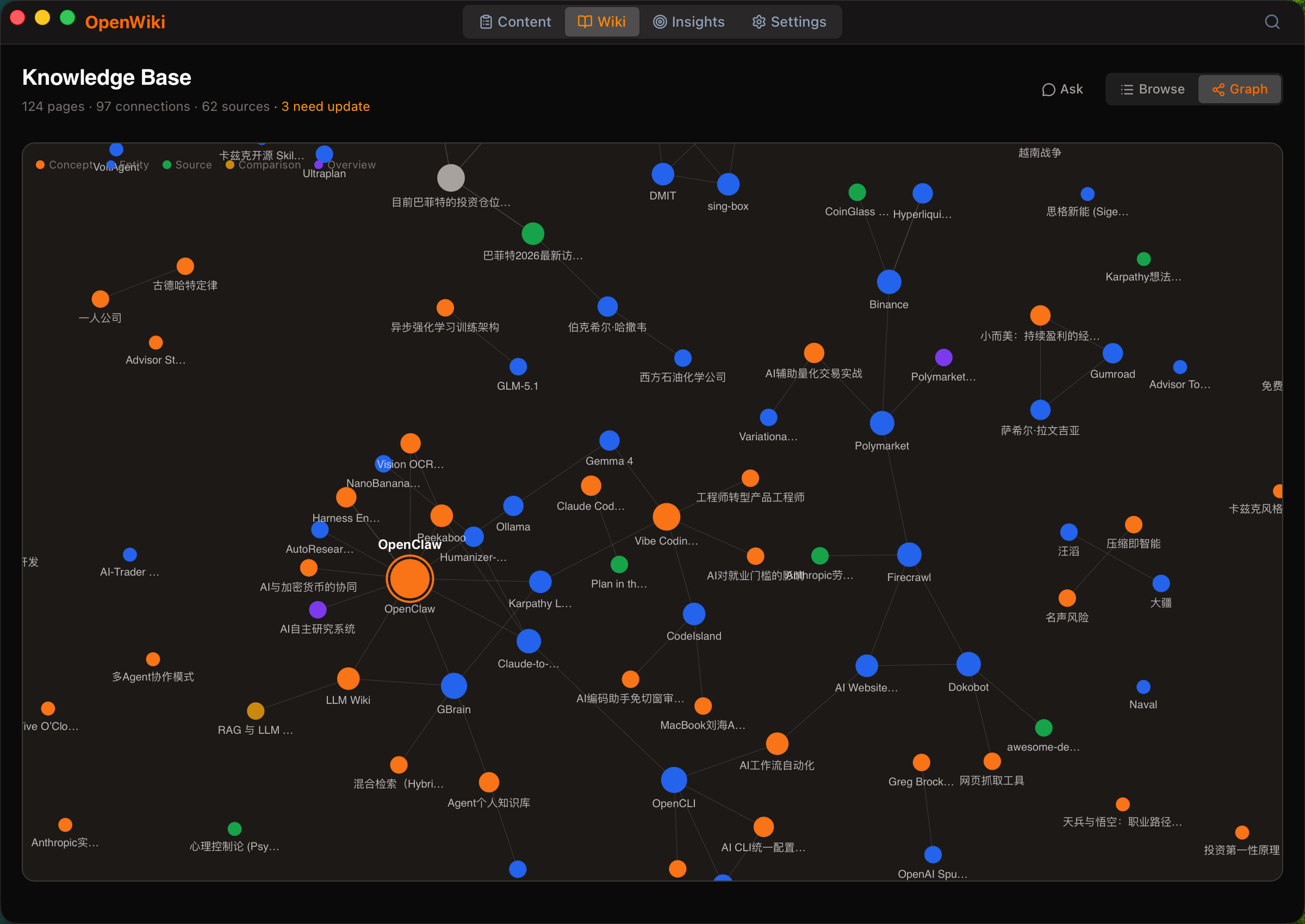
Screenshots
Features
📋 Capture Popup
- A popup appears on your desktop when you copy something (auto-dismisses after 10 seconds)
- Only content you actively choose to keep gets saved — no silent hoarding
- Supports text, images, and URLs with automatic source app detection
- Fetches full article content from WeChat, X/Twitter, and other URLs
⌘⇧C on macOS or Ctrl+Shift+C on Windows to manually trigger the capture window
📂 Content Management
- Filter by type (text / image / link) and time range
- Global search across content and knowledge base
- One-click export to Markdown
🧠 AI Knowledge Base
- AI automatically compiles captured content into Wiki pages (concepts, entities, topics)
- Knowledge graph visualization — see how ideas connect
- Ask sidebar — ask questions about your knowledge base, AI answers based on your content
- Auto-detect orphaned pages, broken links, and structural issues
📊 Insight Reports
- One-click AI weekly report summarizing captured content
- Attention analysis — 7-dimension insights into your information habits:
- At a Glance / Subconscious / Graveyard / Blind Spots / Hot Topics / Heatmap / Action Items
- Like or dismiss report items — AI learns your preferences
⚙️ AI Providers
- Supports Anthropic (Claude) / OpenAI / Google Gemini
- API Key or OAuth login — two ways to connect
- Choose different models for each provider
🖥 Desktop Experience
- System tray — closing the window keeps the app running
⌘⇧Y on macOS or Ctrl+Shift+Y on Windows to show the main window- Dark / Light / System theme
- MCP protocol integration — connect to Claude Desktop
Download
- macOS (Apple Silicon): download
OpenWiki_X.Y.Z_aarch64.dmg
- macOS (Intel): download
OpenWiki_X.Y.Z_x64.dmg
- Windows (x64): download
OpenWiki_X.Y.Z_x64-setup.exe (recommended) or OpenWiki_X.Y.Z_x64_en-US.msi
👉 Go to Releases
⚠️ First Launch Guide (Important)
Choose the steps for your operating system.
macOS
The app is signed and notarized by Apple — just double-click to open, no security bypass needed:
- Open the
.dmg and drag OpenWiki into the Applications folder
- Launch the app and click "Allow" in the authorization prompt
- Go to Settings → AI to configure your AI provider
Windows
The Windows build is unsigned, so Microsoft Defender SmartScreen may warn on first launch:
- Run
OpenWiki_X.Y.Z_x64-setup.exe
- If SmartScreen appears, choose More info → Run anyway
- Launch OpenWiki from the Start menu or desktop shortcut
- Go to Settings → AI to configure your AI provider
Development
Prerequisites
- Node.js 18+
- Rust (latest stable)
- macOS 13+ or Windows 10/11
- macOS: Xcode Command Line Tools (
xcode-select --install)
- Windows: Microsoft C++ Build Tools / Visual Studio Build Tools and WebView2 Runtime
Getting Started
# Clone the repo
git clone https://github.com/kdsz001/OpenWiki.git
cd OpenWiki

# Install dependencies
npm install

# Development mode
npm run tauri dev

# Build the app
npm run tauri build
Before creating release bundles, prepare the bundled document converter:
# macOS / Linux
./src-tauri/scripts/setup_markitdown.sh

# Windows PowerShell
./src-tauri/scripts/setup_markitdown.ps1
Contributing
Contributions welcome! Read CONTRIBUTING.md for development workflow and guidelines.
Acknowledgments
Special Thanks
Thanks to everyone who helped spread the word:
Author
Ray — @BitcoinRui
License
MIT
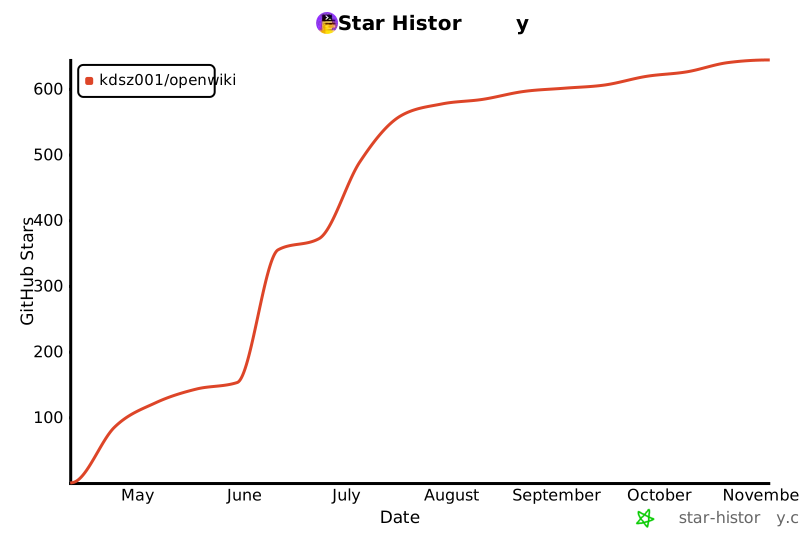
Star History