SquirrelDisk
See what's using your disk space, and clean it up safely.
For macOS, Windows and Linux. Free.


[!NOTE] SquirrelDisk 2 is here. After a few quiet years, SquirrelDisk is back, rebuilt from the ground up by its original author in native Rust: faster, better looking, and with many long-standing bugs fixed on every platform. Completely free, and actively maintained here in this repository.
Download
| Platform | Download |
|---|---|
| macOS (Apple silicon and Intel) | SquirrelDisk-macOS.dmg |
| Windows 10 / 11 | Installer (.msi) · Portable (.exe) |
| Linux (x86_64) | AppImage · Archive (.tar.gz) |
All builds are on the releases page. SquirrelDisk updates itself when a new version comes out.
macOS says the app can't be opened
SquirrelDisk is distributed outside the App Store, so macOS asks for confirmation the first time.
- Open SquirrelDisk once and close the warning.
- Go to System Settings → Privacy & Security, scroll down and click Open Anyway next to the SquirrelDisk message, then confirm.
If macOS reports the app as damaged, run this in Terminal and open it again:
xattr -dr com.apple.quarantine /Applications/SquirrelDisk.app
Windows shows "Windows protected your PC"
Click More info, then Run anyway. For the portable .exe you can also right-click the file, choose Properties, tick Unblock and press OK.
Portable mode (Windows and Linux)
To keep everything on a USB stick or in a single folder, create an empty folder named portable next to the Windows .exe, the .AppImage file or the squirreldisk binary from the archive:
SquirrelDisk/
├── squirreldisk-x86_64-pc-windows-msvc.exe
└── portable/
SquirrelDisk then keeps its settings there instead of in your user profile, along with the rclone it installs and your cloud accounts (rclone.conf). If you set RCLONE_CONFIG yourself, that file is used instead.
Self-update replaces the executable in place, so the folder must be writable.
To use a specific folder instead, set the SQUIRRELDISK_CONFIG_DIR environment variable. It takes priority over the portable folder and works on macOS too.
Features
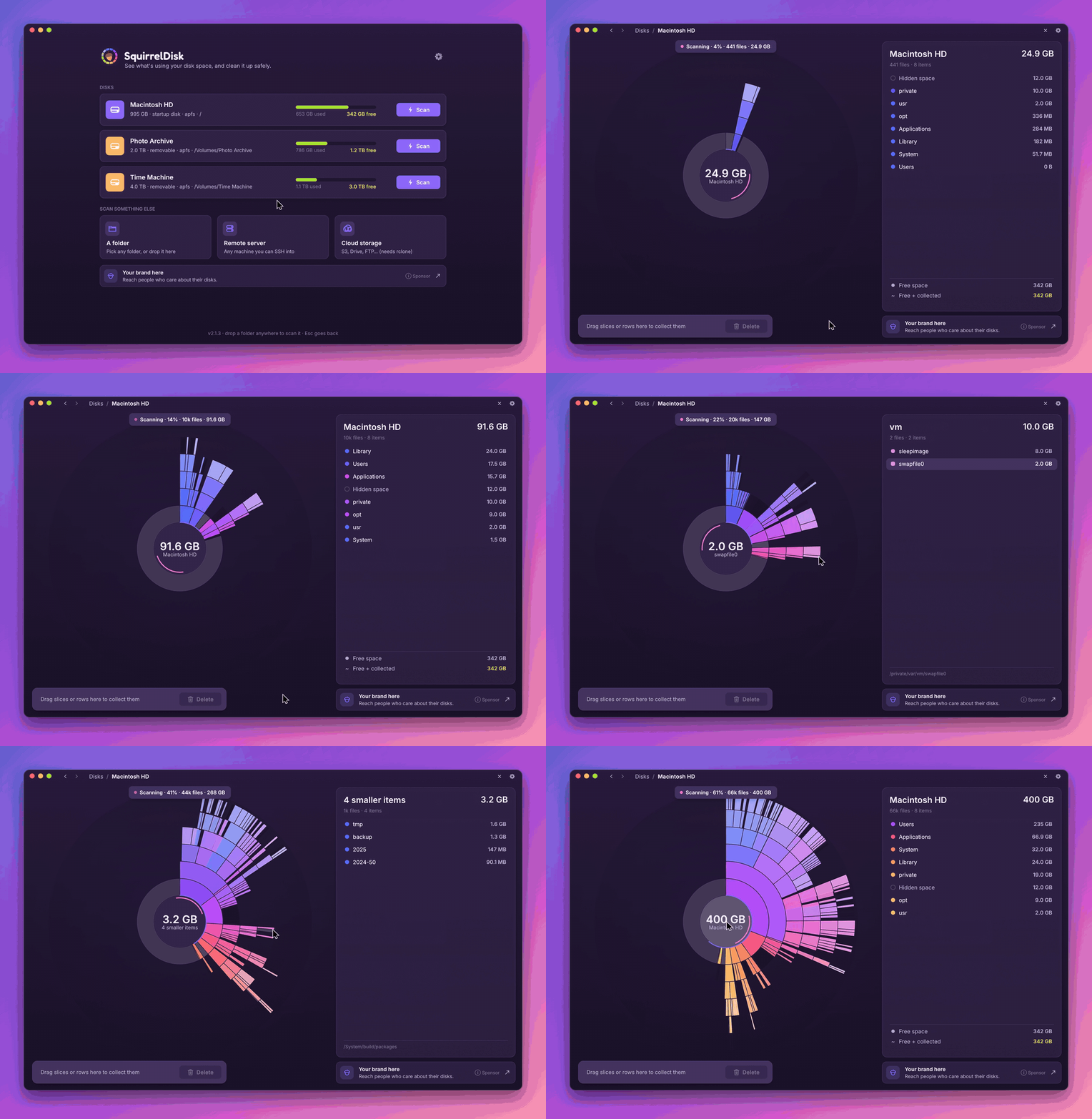
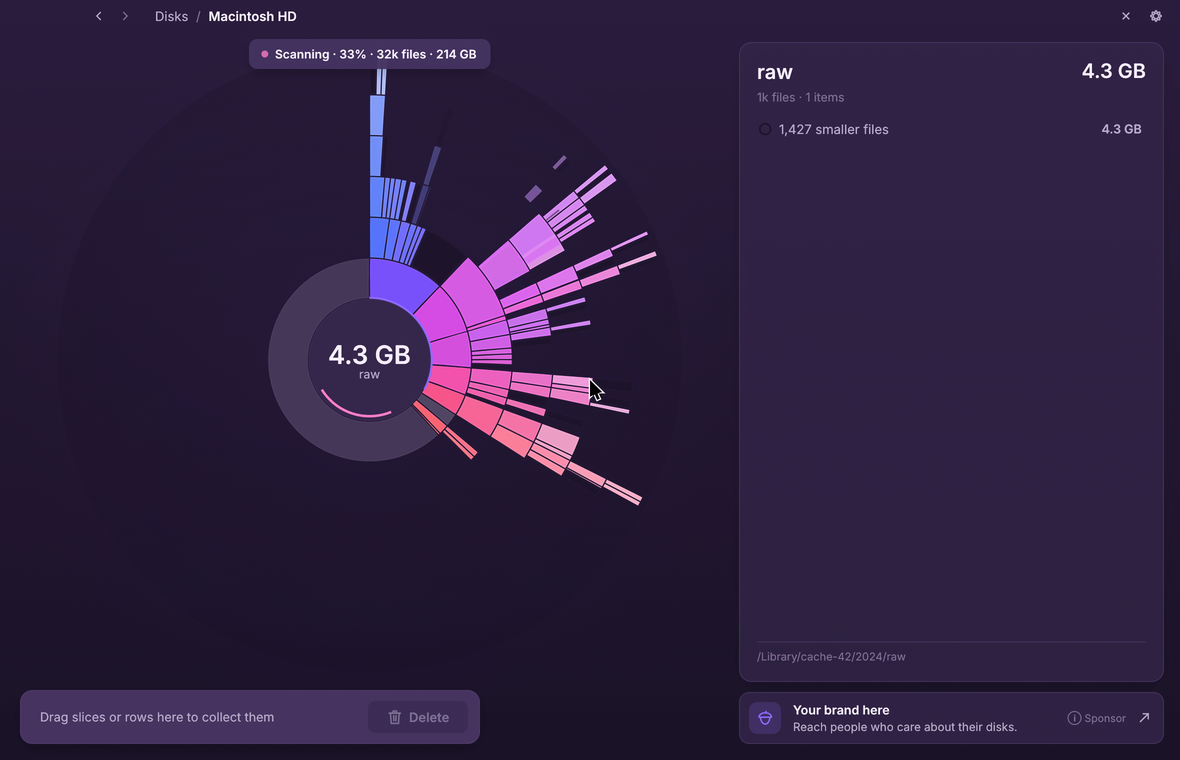
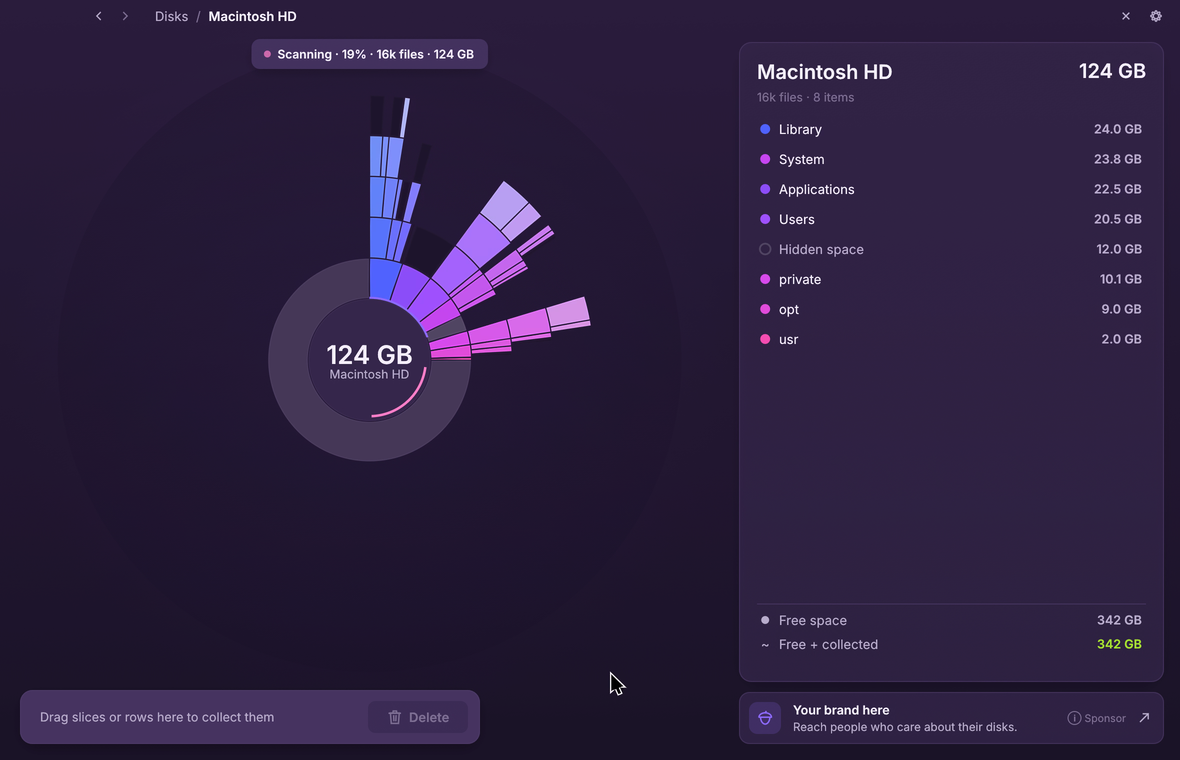
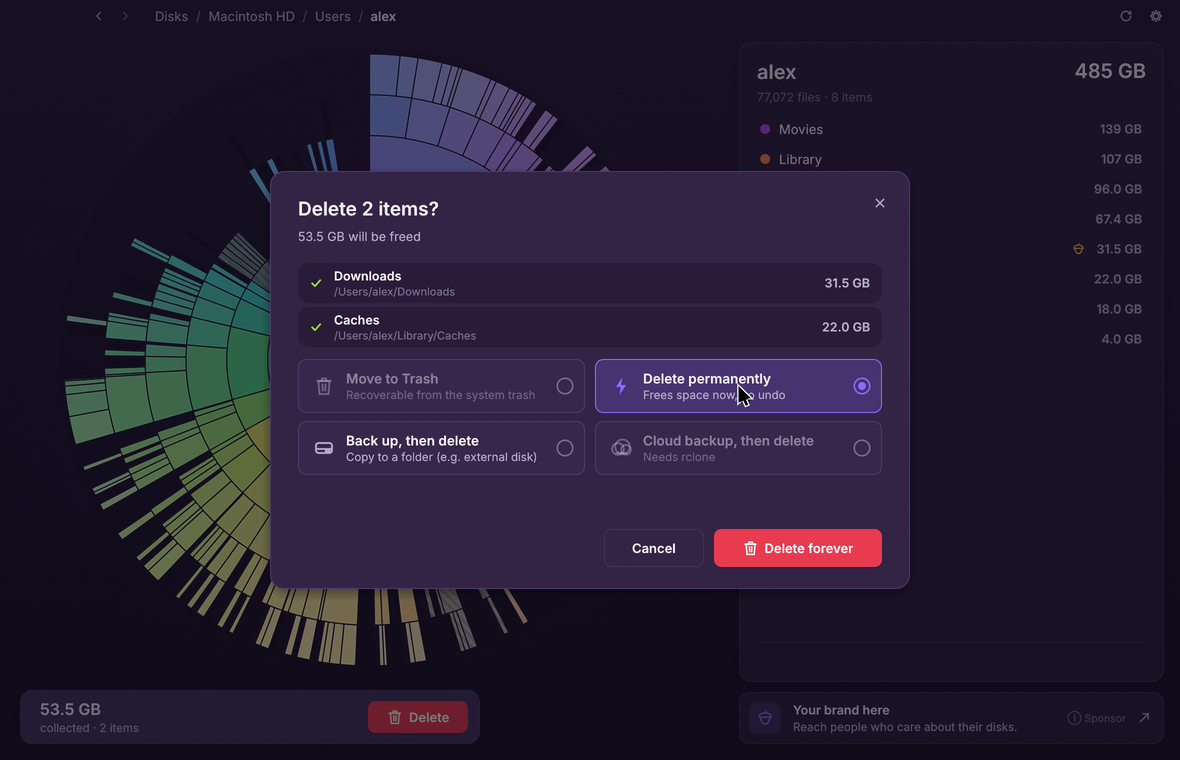
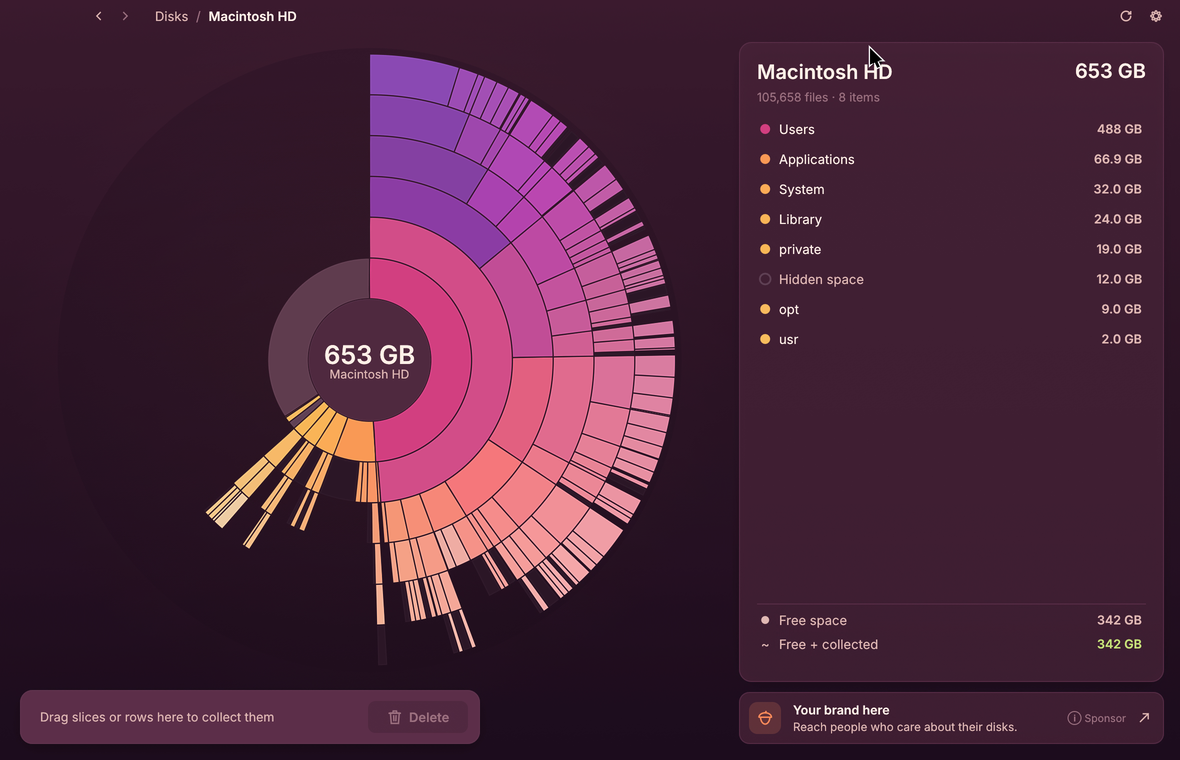
The whole disk at a glance. Every folder becomes a slice of a colourful sunburst, sized by the space it takes. The chart builds up live while the scan runs, so the big offenders show up in seconds.
Explore by clicking. Click a slice to zoom in, click the centre to go back. Hover any slice and the side list shows what's inside, biggest first. Tiny files are grouped so the chart stays readable, and you can open any group to see everything in it.
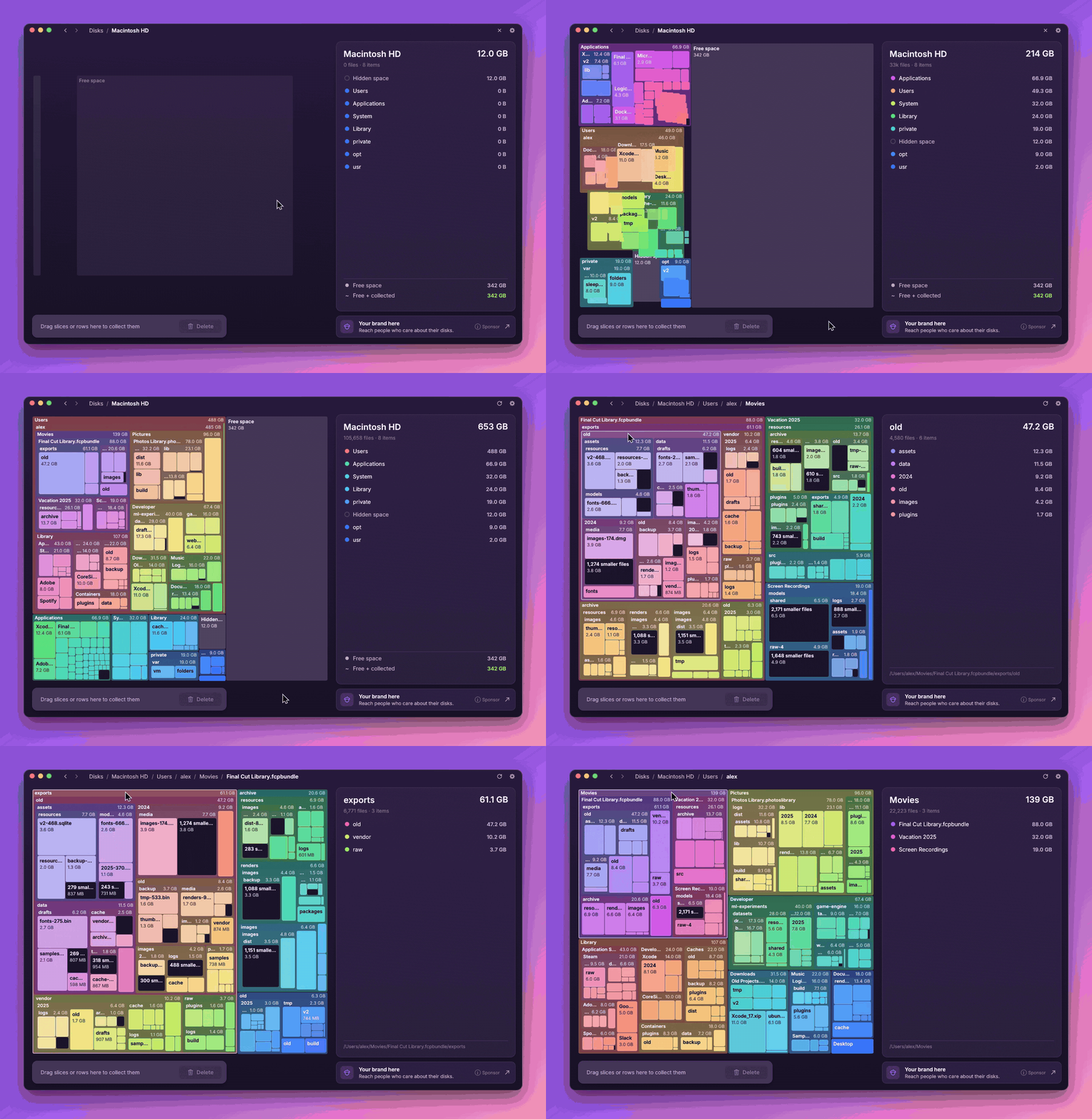
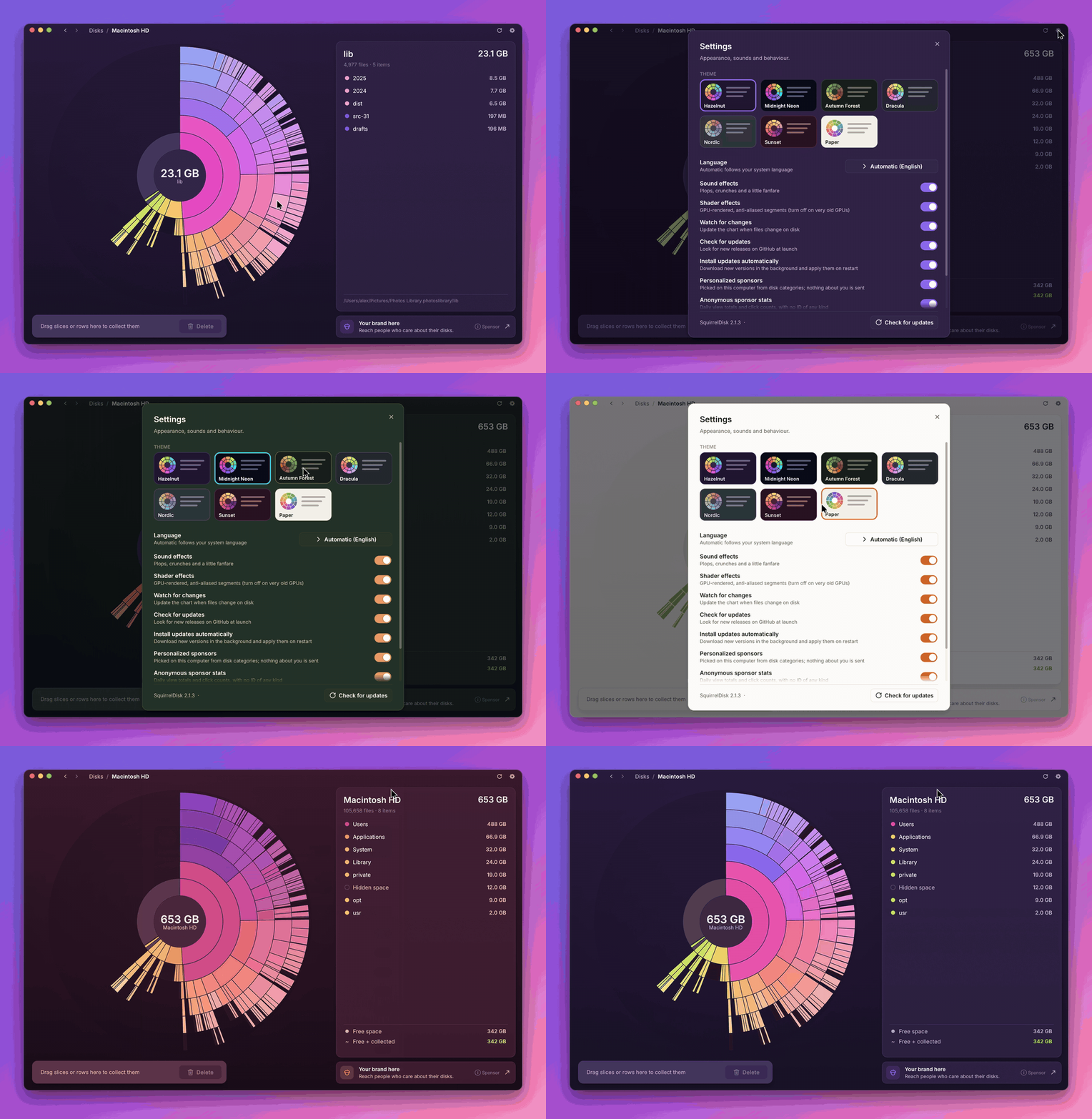
Sunburst or treemap. Prefer boxes to rings? Switch to the treemap in Settings: every folder becomes a box inside its parent, with names and sizes, and everything else works the same way.
Collect, then clean up. Drag slices or list rows into the collector at the bottom. When you're ready, move everything to the Trash, delete it for good, or copy it to an external drive or to the cloud first. A progress view keeps you posted, with a little celebration at the end.
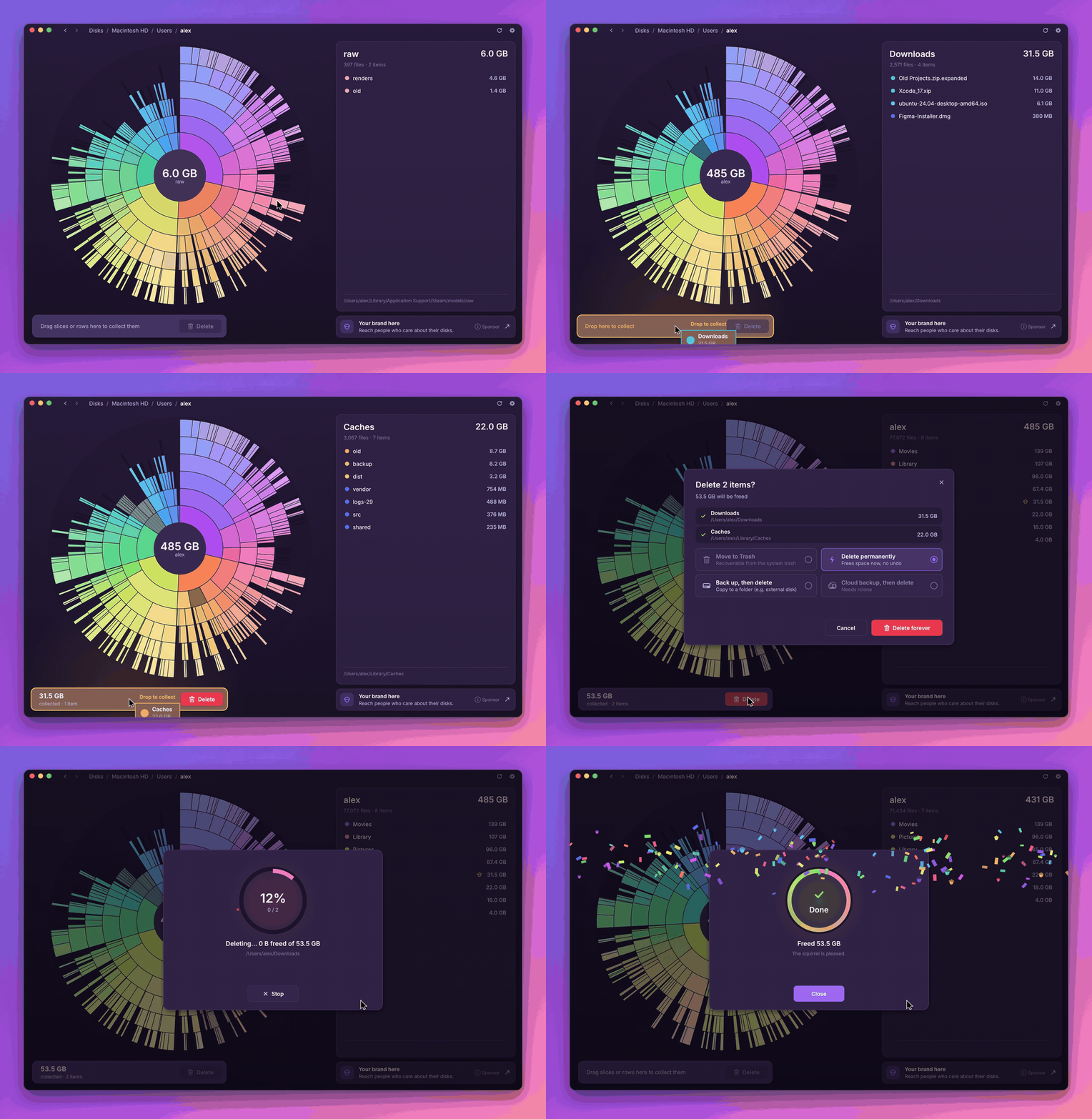
Secure erase. When you delete for good, you can have every file overwritten three times with zeros, ones and random data (DoD 5220.22-M) before it's removed.
Safe by design. System folders, your home folder, whole drives and other essential locations are protected. App and settings folders ask for an extra confirmation before anything happens.
Accurate numbers. SquirrelDisk shows the space files really take on disk. Files that live only in the cloud (iCloud, Dropbox, Google Drive, OneDrive) count as zero, and linked folders are counted once.
Always up to date. Delete something in Finder, Explorer or your file manager and the chart updates on its own.
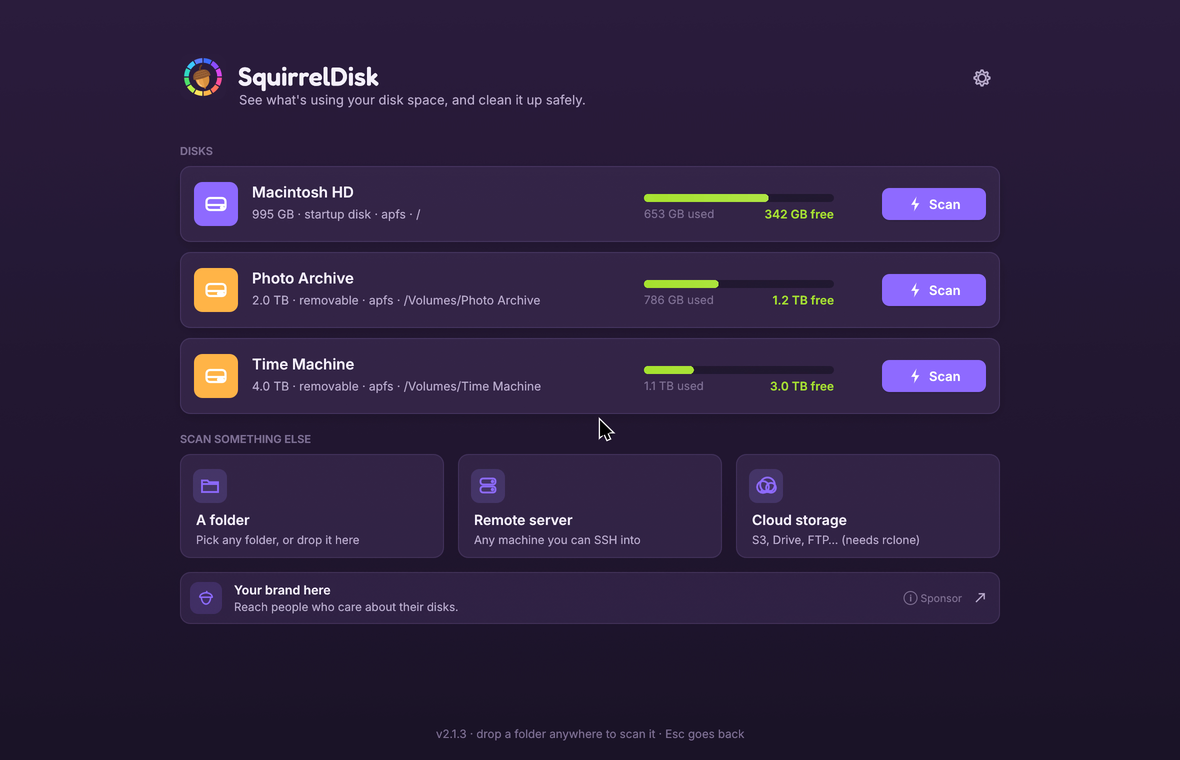
Servers and cloud storage too. Scan any machine you can reach over SSH, or S3 buckets, Google Drive, Dropbox, FTP and many more cloud services through rclone. No rclone yet? SquirrelDisk installs it with one click, and you can add, edit and remove your cloud accounts right from the app.
Light on your machine. The app is about 8 MB, starts instantly, and maps millions of files with a small amount of memory. It runs smoothly on older computers too.
Speaks your language. SquirrelDisk is available in 25 languages, including English, 简体中文, हिन्दी, Español, Français, العربية, Português, Русский, Deutsch, 日本語, 한국어 and Italiano. It picks your system language automatically, and you can change it in Settings.
Make it yours. Seven colour themes, optional sound effects, and an adjustable chart depth.
Screenshots
Sponsors
SquirrelDisk is free, and sponsors help keep it that way. Sponsors appear in a small banner inside the app. The banner is chosen on each user's computer, so personal data stays private.
Interested? Head to squirreldisk.com/sponsors.
Community
Build from source
With Rust installed:
cargo run --release
On Linux you also need the ALSA, X11 and Wayland development packages (libasound2-dev libxkbcommon-dev libwayland-dev libx11-dev on Debian and Ubuntu).
AI usage disclaimer
SquirrelDisk is designed, written and maintained by one developer. I use AI tools as an assistant in a few specific areas, and I review every change myself:
- Translations. AI helped me translate the app into 25 languages, which I couldn't have done on my own.
- Interface polish. Fine-tuning animations and interactions, and building parts of the website.
- Issues and replies. Phrasing answers more clearly in English, and in some routine cases posting them automatically. Either way, every reply goes through me.
- Chores. Small refactors, build tweaks and similar mechanical changes.
The core of SquirrelDisk 2 (the scanner, the chart and the cleanup logic) is my own from-scratch rewrite. Every release is reviewed and tested by hand on macOS, Windows and Linux before it ships.
AI-assisted contributions
Often the most useful contribution isn't code. A bug report with logs, the steps to reproduce it and an example of what you see helps more than a feature implemented without discussion. For small fixes, open an issue instead of a pull request: it's usually quicker for me to fix it directly.
Fully AI-generated pull requests are not welcome. Code written with the help of AI tools is fine, as long as you meet the same standard as everyone else:
- Say so in the pull request if AI wrote a meaningful part of it.
- Show your testing. Describe how you tested the change and on which systems.
- Attach screenshots or a short recording for anything visible in the app, where possible.
- Be ready to explain your choices. If asked, you should be able to justify the technical decisions in the code you submit.
Pull requests that haven't been tested, or whose author can't explain them, may be closed. If in doubt just open an issue.