someday is a free, open source scheduling & event management project written in TypeScript and released under MIT. It has 1,062 GitHub stars, 59 forks and 5 open issues, and was last pushed 2 months ago. On this registry it ranks #15 of 23 tracked projects in Scheduling & Event Management, with 5 head-to-head comparisons available.

What is someday?

Someday is a free-to-host, open-source calendar availability picker built on Google Apps Script for Gmail users, and it is aimed at individuals, small teams, and developers who want a Calendly-style booking page without paying for or operating a separate scheduling service.

What it is

Someday is an open-source scheduling tool designed specifically for Gmail users. It is hosted on Google Apps Script as a web app and managed with clasp, the Apps Script command-line tool. The frontend is written in TypeScript and built with React, Shadcn/UI, and Vite, and the project is distributed under the MIT licence in the Business Software / Scheduling & Event Management category. The topics attached to the repository are google-apps-script, react, scheduling, shadcn-ui, typescript, and vite, which matches the stack described in the README.

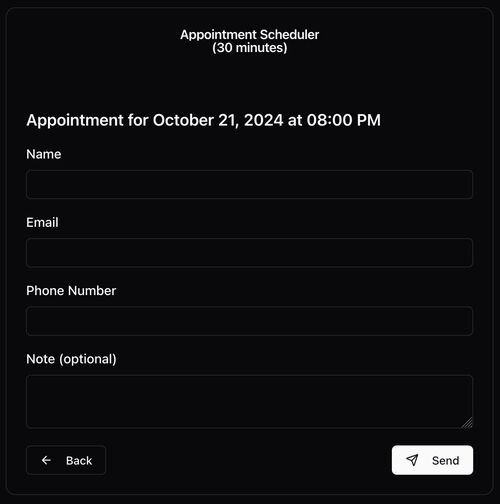
The concrete problem it solves is the cost and the data path of a hosted booking service. The README describes Someday as a simple alternative to traditional scheduling apps such as Calendly, and its pitch is that hosting is free through a Google account rather than through a paid scheduling vendor. Availability is read from Google Calendar by a Apps Script web app pointed at the primary calendar by default, and a visitor picks a date and time slot and submits a short form containing a name, email, phone number, and an optional note. Because the whole loop runs inside Google Apps Script and Google Calendar, the project states that no data is shared with third-party apps beyond Google itself.

Key capabilities

  • Free hosting: the app runs as a Google Apps Script web app, so hosting costs nothing beyond the Google account that owns it.
  • Availability configuration in backend/src/app.ts through four variables: CALENDAR, TIME_ZONE, WORKDAYS, WORKHOURS, plus TIMESLOT_DURATION.
  • Booking flow where a visitor selects a date and time slot and submits a form with name, email, phone, and an optional note.
  • Apps Script backend function fetchAvailability in dist/app.gs, which must be run once to complete the OAuth authorization and calendar access consent.
  • Self-hosted iframe option: hosted-iframe-example.html embeds the script in your own page, with GitHub Pages suggested as a host, to remove the "This application was created by a Google Apps Script user" banner.
  • clasp-based deployment: clasp create --type webapp followed by npm run deploy publishes the web app.
  • Development mode with generated dummy data via generateDummyData in frontend/hooks/useGoogleTimeSlots.ts, so the UI can run without live calendar access.

Who uses it and how

  • Gmail and Google Calendar users who want a booking link but do not want to pay for a scheduling subscription, and who are content to have availability read from their own calendar.
  • Developers extending the project, who change the workday, work hour, and timeslot settings in backend/src/app.ts and redeploy with npm run deploy.
  • Teams that want the interface embedded in an existing site, using the iframe example and hosting the HTML themselves.
  • Privacy-conscious users, since the README states data is not shared with third-party apps beyond Google.
  • Contributors working on the React and TypeScript frontend, who run cd ./frontend, npm install, and npm run dev against mock data.

Getting started

Install clasp globally with npm install -g @google/clasp@^2.5.0, log in with clasp login, enable the Apps Script API, then create a web app project with clasp create --type webapp and publish it with npm run deploy. A browser demo with mocked endpoints is available at https://someday-demo.vercel.app.

How it compares

The README positions Someday against Calendly and against cal.com, presenting it as a simpler alternative for Gmail users rather than a full scheduling platform. On the axes the facts support, the difference is hosting and cost model: Someday is MIT licensed and hosted on a Google Apps Script account at no charge, whereas the named alternatives are conventional hosted scheduling products. Ownership follows from that choice, because availability lives in Google Calendar and the app runs under the user's own Google account.

When to use it — and when not to

Choose Someday if your calendar already lives in Google and you want a booking page you can deploy and host for free, accepting that setup means enabling the Apps Script API, running fetchAvailability once to grant calendar authorization, and dealing with the Google consent screens. Skip it if you are not a Gmail or Google Calendar user, if you need a richer booking product, or if you do not want to operate an Apps Script project at all — the install flow is manual, and the README excerpt ends mid-sentence when describing how to add calendars other than the primary one.

project readme (upstream, from github) — read inline

Someday

Free to host calendar availability picker - open-source cal.com / calendly alternative built on Google-Apps-Script for Gmail users.

Demo (mocked endpoints)

https://someday-demo.vercel.app/

What is Someday?

Someday is a simple, open-source scheduling tool designed specifically for Gmail users. Uses Google Apps Scripts to host and clasp to manage. Built with modern technologies like React, TypeScript, Shadcn/UI, and Vite. A simple alternative to traditional scheduling apps like Calendly.

Key Features

  • Free to Host: Using Google Apps Script, hosting is free via your google account.
  • Open Source: Someday is completely free to use and open for contributions.
  • Effortless Integration: Designed as a Google Apps Script, Someday integrates seamlessly with your Gmail, making it easy to manage your schedule directly from your inbox.
  • Developer-Friendly: Built with modern, developer-preferred technologies, Someday is easy to customize and extend to meet your specific needs.
  • Customizable Work Hours: Set your availability with precision, allowing others to book time slots that fit your schedule perfectly.
  • Simple Booking Process: Users can select a date and time slot, then fill out a straightforward form with their name, email, phone, and an optional note.
  • Privacy First: No data sharing beyond google to 3rd party apps

Getting Started

Customize

Change the following variables in backend/src/app.ts to customize your availability settings:

// backend/src/app.ts
const CALENDAR = "primary";
const TIME_ZONE = "America/New_York";
const WORKDAYS = [1, 2, 3, 4, 5];
const WORKHOURS = {
  start: 9,
  end: 13,
};
const TIMESLOT_DURATION = 30;

Self host iframe html / remove google app scripts banner

  • Google apps script has a banner that says "This application was created by a Google Apps Script user", to remove you can host the html file yourself and embed the script as an iframe

  • Use the hosted-iframe-example.html file, github pages is a good option for this, add your script url to the iframe src

Develop

  • cd ./frontend
  • npm install
  • npm run dev
  • dummyData will be generated on the fly using the generateDummyData function ~line 42 in frontend/hooks/useGoogleTimeSlots.ts

Install

Step 1: Set Up Your Environment

you may need to sign out of all accounts, and only into your target account

  1. Install clasp:

    • Ensure you have Node.js installed.
    • Install clasp globally using npm:
      npm install -g @google/clasp@^2.5.0
      
  2. Login with clasp:

    • Execute the following command to log in:
      clasp login
      
  3. Remove Existing Configuration (if necessary):

    • If you encounter issues, remove the existing .clasp.json file:
      rm .clasp.json
      
  4. Enable Apps Script API:

Step 2: Create and Deploy the Script

  1. Create a New Project:

    • Create a new Apps Script project as a web app:
      clasp create --type webapp
      
  2. Deploy the Script:

    • Use the following command to deploy your script:
      npm run deploy
      
  3. Access the Web App:

    • Visit the URL provided after deployment.
    • You will see the message "Authorization is required to perform that action."
  4. Authorize the Web App: (!!! IMPORTANT !!!)

    • run clasp open to open the editor
    • go to dist/app.gs
    • in the drop down at the top, select fetchAvailability then hit run
    • Authorization modal will pop up, 'Review permissions', select your account, you will see a warning, go to advanced, then Go to (unsafe) then click Allow
    • if it worked, refresh the page/editor then run the function again and it should complete without issue.
  5. Calendar Access:

    • By default, the script uses your primary calendar
    • To use other calendars, make sure they are added to your Google Calendar with appropriate permissions
    • You can change which calendar to use by modifying the CALENDAR variable in backend/src/app.ts
    • Note: The script needs at least read access to the calendar you specify
    • To use multiple calendars, you'll need to add them as Script Properties in the Apps Script editor:
      1. Open the script editor with clasp open
      2. Go to Project Settings (⚙️ icon)
      3. Under "Script Properties", click "Add Script Property"
      4. Add a property named "CALENDARS" with a comma-separated list of calendar IDs

Cheat Sheet

  • npm run deploy - build and delpoy

  • npm run build - build only

  • undeployall.sh - undeploy all versions of the script

  • deployments.sh - list all deployments web-urls

  • clasp open - open the script editor

Screen Captures
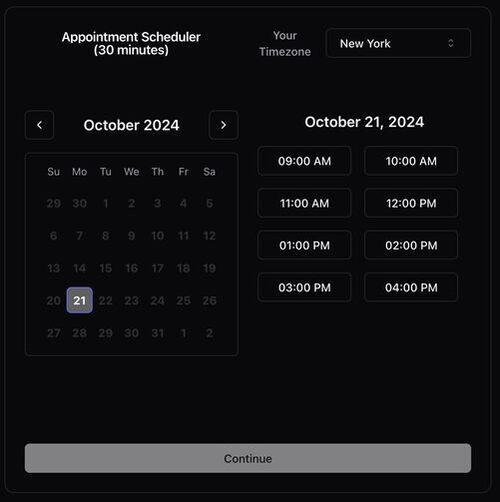
Contributing

Open a pull request or issue to contribute to Someday. welcoming all contributions, including bug fixes, feature requests, and documentation improvements.

License

MIT

Frequently asked questions

Is someday free to use?

someday is open source under the MIT licence. There is no licence fee and no seat count — you can self-host it or, where the project offers one, pay a vendor for a managed version instead.

What does someday do?

Free to host calendar availability picker - open-source cal.com / calendly alternative built on Google-Apps-Script for Gmail users. Built with modern technologi

What is someday written in?

someday is primarily written in TypeScript. Its source is publicly available at https://github.com/rbbydotdev/someday, and it has 1,062 GitHub stars.