Rembg is a tool to remove image backgrounds. It can be used as a CLI, Python library, HTTP server, or Docker container.





Sponsors

|
PhotoRoom Remove Background API
https://photoroom.com/api
Fast and accurate background remover API |
If this project has helped you, please consider making a donation.
Requirements
python: >=3.11, <3.14
Installation
Choose one of the following backends based on your hardware:
CPU support
pip install "rembg[cpu]" # for library
pip install "rembg[cpu,cli]" # for library + cli
GPU support (NVIDIA/CUDA)
First, check if your system supports onnxruntime-gpu by visiting onnxruntime.ai and reviewing the installation matrix.
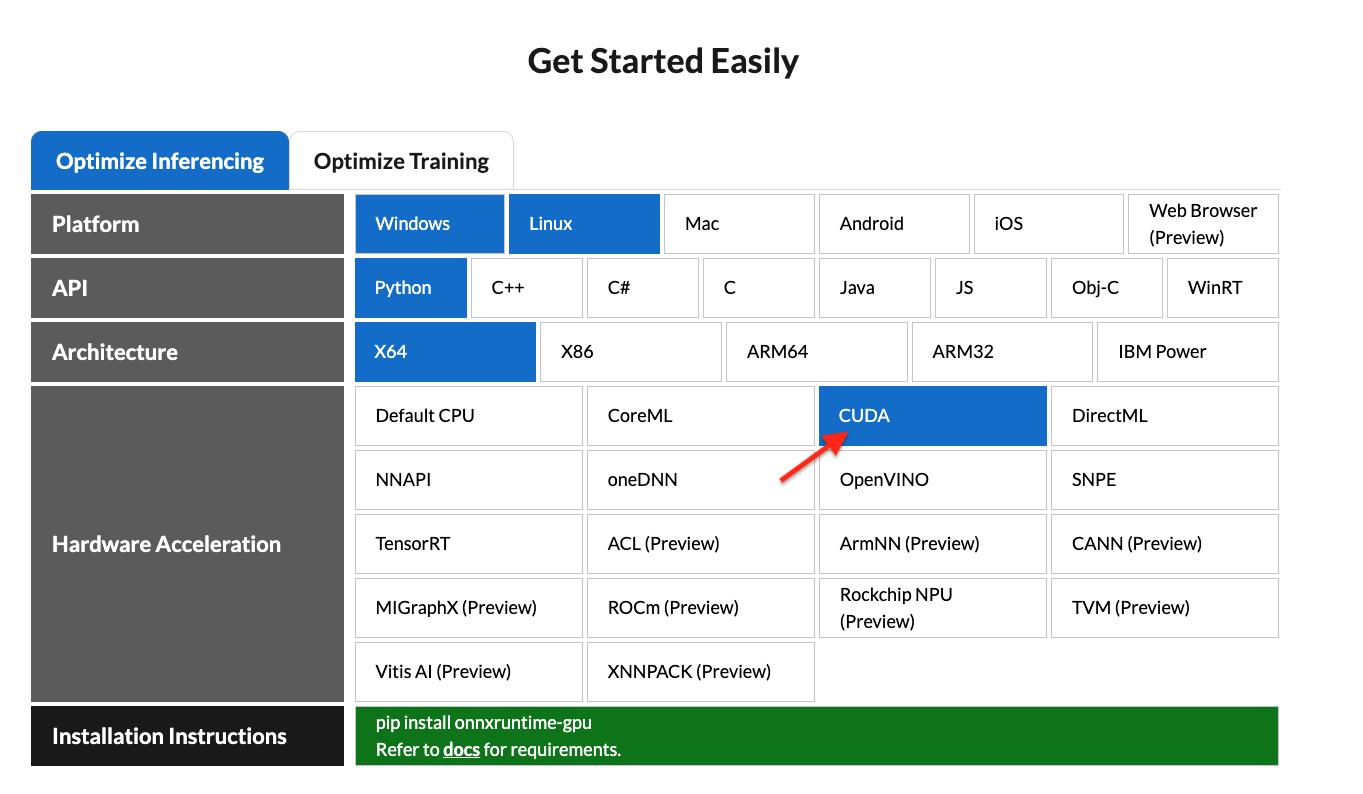
If your system is compatible, run:
pip install "rembg[gpu]" # for library
pip install "rembg[gpu,cli]" # for library + cli
Note: NVIDIA GPUs may require
onnxruntime-gpu, CUDA, andcudnn-devel. See #668 for details. Ifrembg[gpu]doesn't work and you can't install CUDA orcudnn-devel, userembg[cpu]withonnxruntimeinstead.
GPU support (AMD/ROCm)
ROCm support requires the onnxruntime-rocm package. Install it by following AMD's documentation.
Once onnxruntime-rocm is installed and working, install rembg with ROCm support:
pip install "rembg[rocm]" # for library
pip install "rembg[rocm,cli]" # for library + cli
Usage as a CLI
After installation, you can use rembg by typing rembg in your terminal.
The rembg command has these subcommands:
i- single filesp- folders (batch processing)s- HTTP serverb- RGB24 pixel binary streamd- download models ahead of timem- migrate models from the legacy~/.u2netdirectory
You can get help about the main command using:
rembg --help
You can also get help for any subcommand:
rembg <COMMAND> --help
rembg i
Used for processing single files.
Remove background from a remote image:
curl -s http://input.png | rembg i > output.png
Remove background from a local file:
rembg i path/to/input.png path/to/output.png
Omit the output path (writes .out.png next to the input):
rembg i path/to/input.png
# → path/to/input.out.png
If stdout is redirected (e.g. rembg i input.png > out.png), the output is written to stdout instead.
Specify a model:
rembg i -m u2netp path/to/input.png path/to/output.png
Return only the mask:
rembg i -om path/to/input.png path/to/output.png
Apply alpha matting:
rembg i -a path/to/input.png path/to/output.png
Remove color fringing from soft edges:
rembg i -dc path/to/input.png path/to/output.png
See Color decontamination for what this does.
Pass extra parameters (SAM example):
rembg i -m sam -x '{ "sam_prompt": [{"type": "point", "data": [724, 740], "label": 1}] }' examples/plants-1.jpg examples/plants-1.out.png
Pass extra parameters (custom model):
rembg i -m u2net_custom -x '{"model_path": "~/.u2net/u2net.onnx"}' path/to/input.png path/to/output.png
Use the withoutBG cloud API:
Get 50 free credits with signup. Sample results.
export WITHOUTBG_API_KEY=sk_...
rembg i -m withoutbg path/to/input.png path/to/output.png
Or pass the key via extras:
rembg i -m withoutbg -x '{"api_key":"sk_..."}' path/to/input.png path/to/output.png
rembg p
Used for batch processing entire folders.
Process all images in a folder:
rembg p path/to/input path/to/output
Watch mode (process new/changed files automatically):
rembg p -w path/to/input path/to/output
rembg s
Used to start an HTTP server.
rembg s --host 0.0.0.0 --port 7000 --log_level info
For complete API documentation, visit: http://localhost:7000/api
Disable the Gradio UI (reduces idle CPU usage):
rembg s --no-ui
Remove background from an image URL:
curl -s "http://localhost:7000/api/remove?url=http://input.png" -o output.png
Remove background from an uploaded image:
curl -s -F file=@/path/to/input.jpg "http://localhost:7000/api/remove" -o output.png
rembg b
Process a sequence of RGB24 images from stdin. This is intended to be used with programs like FFmpeg that output RGB24 pixel data to stdout.
rembg b <width> <height> -o <output_specifier>
Arguments:
| Argument | Description |
|---|---|
width |
Width of input image(s) |
height |
Height of input image(s) |
output_specifier |
Printf-style specifier for output filenames (e.g., output-%03u.png produces output-000.png, output-001.png, etc.). Omit to write to stdout. |
Example with FFmpeg:
ffmpeg -i input.mp4 -ss 10 -an -f rawvideo -pix_fmt rgb24 pipe:1 | rembg b 1280 720 -o folder/output-%03u.png
Note: The width and height must match FFmpeg's output dimensions. The flags
-an -f rawvideo -pix_fmt rgb24 pipe:1are required for FFmpeg compatibility.
Usage as a Library
Input and output as bytes:
from rembg import remove

with open('input.png', 'rb') as i:
    with open('output.png', 'wb') as o:
        input = i.read()
        output = remove(input)
        o.write(output)
Input and output as a PIL image:
from rembg import remove
from PIL import Image

input = Image.open('input.png')
output = remove(input)
output.save('output.png')
Input and output as a NumPy array:
from rembg import remove
import cv2

input = cv2.imread('input.png')
output = remove(input)
cv2.imwrite('output.png', output)
Force output as bytes:
from rembg import remove

with open('input.png', 'rb') as i:
    with open('output.png', 'wb') as o:
        input = i.read()
        output = remove(input, force_return_bytes=True)
        o.write(output)
Batch processing with session reuse (recommended for performance):
from pathlib import Path
from rembg import remove, new_session

session = new_session()

for file in Path('path/to/folder').glob('*.png'):
    input_path = str(file)
    output_path = str(file.parent / (file.stem + ".out.png"))

    with open(input_path, 'rb') as i:
        with open(output_path, 'wb') as o:
            input = i.read()
            output = remove(input, session=session)
            o.write(output)
withoutBG cloud API:
Get 50 free credits with signup. Sample results.
from rembg import remove, new_session

session = new_session("withoutbg", api_key="sk_...")
# or set WITHOUTBG_API_KEY and omit api_key=

with open('input.png', 'rb') as i:
    with open('output.png', 'wb') as o:
        output = remove(i.read(), session=session)
        o.write(output)
For more examples, see the examples page.
Choosing an edge mode
Rembg has three ways to turn a mask into a cutout. They differ only in how they treat the soft pixels along an edge — hair, fur, fabric, motion blur.
| Mode | Flag | Fixes edge color | Refines the mask | Cost |
|---|---|---|---|---|
| Naive | (default) | No | No | Free |
| Decontaminate | -dc |
Yes | No | Negligible |
| Alpha matting | -a |
Yes | Yes | Slow |
| ViTMatte | -vm |
Yes | Yes | Slow, extra download |
They are alternatives, not layers — -a already decontaminates internally, so
passing both changes nothing. Pick one:
Use the default (naive) when the subject has hard edges — products, cars, logos, screenshots — or when the background was already close in color to the subject. There is nothing to correct, so the extra work buys nothing.
Use -dc when the cutout has a colored halo: the subject was shot against
a strongly colored background (green grass, blue sky, a painted wall) and that
color survives as a rim around hair or fine detail. This is the common case,
and it is cheap enough to leave on for a whole batch.
Use -a when the shape of the mask is wrong, not just its color — the
model cut through strands of hair, or left a hard stair-stepped edge where the
subject is genuinely soft. It re-estimates coverage with a closed-form solver,
and it is much slower than -dc. That solver can fail to converge on some
images; rembg falls back to a decontaminated cutout when that happens.
Use -vm for the same problem as -a, when you want the fine detail back.
ViTMatte predicts the alpha with a network instead of solving for it, so it
recovers more of the wispy strands -a tends to clip, and it cannot fail to
converge. It costs an extra ~110 MB download on first use and runs slower than
-a. Pick a different checkpoint with
-x '{"vitmatte_model": "base-distinctions-646"}':
| Checkpoint | Download | Notes |
|---|---|---|
small-distinctions-646 |
~110 MB | The default. Best quality per byte. |
small-composition-1k |
~110 MB | Trained on synthetic composites. |
base-distinctions-646 |
~380 MB | Slightly more detail, ~2.5x the runtime. |
base-composition-1k |
~380 MB | Larger, synthetic training set. |
Which model to pair it with
The newer models (bria-rmbg, birefnet-*, isnet-general-use) already
produce a soft, well-shaped alpha, so their masks rarely need -a — reach for
-dc first and only try -a if the edge shape itself is wrong. bria-rmbg is
the default, so this is the advice that applies unless you pass -m.
The older models (u2net, u2netp, silueta) tend to produce firmer, blockier
edges. They benefit most from -a on hair-heavy portraits, and are also where
its solver is most likely to struggle.
For portraits specifically, birefnet-portrait with -dc is a good starting
point, and -vm when the hair detail matters more than the runtime. If you are
batch-processing and cannot inspect each result, prefer -dc over -a: it is
faster and cannot fail.
Note:
-ppm(post-process mask) thresholds the mask into a fully binary one, which leaves no partially transparent pixels at all. Combining it with-dcis pointless — there is nothing left to correct. Use one or the other.
Color decontamination
On a soft edge — hair, fur, motion blur — a pixel is not purely foreground or purely background. The camera captured a blend of the two:
captured = alpha * foreground + (1 - alpha) * background
Making that pixel semi-transparent does not undo the blend, so the background color stays mixed into it and shows up as a colored halo around fine detail. A subject shot against green grass keeps a green rim; against a blue wall, a blue one. This is the same operation Photoshop calls Decontaminate Colors and Nuke calls decontamination.
Rembg can estimate the true foreground color and write that instead. This is opt-in:
from rembg import remove

output = remove(input, decontaminate=True)
rembg i -dc path/to/input.png path/to/output.png   # single file
rembg p -dc path/to/input path/to/output           # folder
curl -s "http://localhost:7000/api/remove?url=...&dc=true" > output.png
Notes:
- It only changes color, never coverage — the alpha channel is untouched.
- The cost is negligible next to model inference, which dominates runtime.
--alpha-mattingalready does this internally, so the flag is ignored there.
Usage with Docker
CPU Only
Replace the rembg command with docker run danielgatis/rembg:
docker run -v .:/data danielgatis/rembg i /data/input.png /data/output.png
NVIDIA CUDA GPU Acceleration
Requirements: Your host must have the NVIDIA Container Toolkit installed.
CUDA acceleration requires cudnn-devel, so you need to build the Docker image yourself. See #668 for details.
Build the image:
docker build -t rembg-nvidia-cuda-cudnn-gpu -f Dockerfile_nvidia_cuda_cudnn_gpu .
Note: This image requires ~11GB of disk space (CPU version is ~1.6GB). Models are not included.
Run the container:
sudo docker run --rm -it --gpus all -v /dev/dri:/dev/dri -v $PWD:/data rembg-nvidia-cuda-cudnn-gpu i -m birefnet-general /data/input.png /data/output.png
Tips:
- You can create your own NVIDIA CUDA image and install
rembg[gpu,cli]in it. - Use
-v /path/to/models/:/root/.rembgto store model files outside the container, avoiding re-downloads.
Models
Local ONNX models are automatically downloaded on first use and saved under ~/.rembg/models/ (see Where models are stored). The withoutbg model is a cloud API backend and does not download a local model.
Available Models
- u2net (download, source): A pre-trained model for general use cases.
- u2netp (download, source): A lightweight version of u2net model.
- u2net_human_seg (download, source): A pre-trained model for human segmentation.
- u2net_cloth_seg (download, source): A pre-trained model for Cloths Parsing from human portrait. Here clothes are parsed into 3 category: Upper body, Lower body and Full body.
- silueta (download, source): Same as u2net but the size is reduced to 43Mb.
- isnet-general-use (download, source): A new pre-trained model for general use cases.
- isnet-anime (download, source): A high-accuracy segmentation for anime character.
- sam (download encoder, download decoder, source): A pre-trained model for any use cases.
- birefnet-general (download, source): A pre-trained model for general use cases.
- birefnet-general-lite (download, source): A light pre-trained model for general use cases.
- birefnet-portrait (download, source): A pre-trained model for human portraits.
- birefnet-dis (download, source): A pre-trained model for dichotomous image segmentation (DIS).
- birefnet-hrsod (download, source): A pre-trained model for high-resolution salient object detection (HRSOD).
- birefnet-cod (download, source): A pre-trained model for concealed object detection (COD).
- birefnet-massive (download, source): A pre-trained model with massive dataset.
- bria-rmbg (download, source): The default. A state-of-the-art background removal model by BRIA AI. At ~1.02 GB it is the largest local model here and runs at 1024x1024, so it is slower than u2net; pass
-m u2netfor a smaller, faster model with blockier edges. Note that RMBG-2.0 is released under a BRIA license that requires a paid agreement for commercial use. Model weights carry their own licenses, independent of rembg's MIT license — check the linked source before using any model commercially. - withoutbg (API, sample results): Cloud API backend. Get 50 free credits with signup. Pass
api_keyvia-x/new_session(...), or setWITHOUTBG_API_KEY. Images are sent to withoutBG's servers; max upload size is 20 MB.
Environment Variables
| Variable | Description |
|---|---|
REMBG_HOME |
Path to the directory where models are stored. Defaults to $XDG_DATA_HOME/rembg (or ~/.rembg if XDG_DATA_HOME is not set). |
XDG_DATA_HOME |
Base data directory used when REMBG_HOME is not set. |
U2NET_HOME |
Deprecated. Still honored, and still takes precedence over REMBG_HOME when set, so existing setups keep working. Prefer REMBG_HOME. |
MODEL_CHECKSUM_DISABLED |
When set (e.g. MODEL_CHECKSUM_DISABLED=1), disables hash verification for downloaded models. This is useful if you want to use your own custom/converted model files without rembg re-downloading the originals. |
OMP_NUM_THREADS |
Sets the number of threads used by ONNX Runtime for inference. |
WITHOUTBG_API_KEY |
API key for the withoutbg cloud session. Get 50 free credits with signup. |
Where models are stored
Each model gets its own directory under ~/.rembg/models/:
~/.rembg/models/u2net/u2net.onnx
~/.rembg/models/birefnet-general/birefnet-general.onnx
~/.rembg/models/sam/sam_vit_b_01ec64.encoder.onnx
~/.rembg/models/sam/sam_vit_b_01ec64.decoder.onnx
Earlier versions put every model straight into ~/.u2net/, regardless of its
architecture. That directory is still read, so upgrading never re-downloads a
model you already have. New downloads go to the layout above.
To move existing downloads across:
rembg m --dry-run     # show what would move
rembg m               # copy into the new layout, leaving the originals alone
The originals are kept unless you pass --delete-source, so a partial run can
never lose a multi-gigabyte download. Interrupted downloads leave tmp* files
behind; --clean-orphans removes those.
Using custom model files
If you need to use a modified version of a model (e.g. converted to a different ONNX IR version for compatibility with an older CUDA toolkit), you can prevent rembg from overwriting it:
- Set
MODEL_CHECKSUM_DISABLED=1 - Place your custom
.onnxfile in that model's directory (e.g.~/.rembg/models/u2net/u2net.onnx) with the expected filename - Rembg will detect the file exists and use it without re-downloading
Paths passed as model_path must sit inside ~/.rembg or the legacy ~/.u2net; anything else is rejected.
FAQ
When will this library support Python version 3.xx?
This library depends on onnxruntime. Python version support is determined by onnxruntime's compatibility.
Support
If you find this project useful, consider buying me a coffee (or a beer):

License
Copyright (c) 2020-present Daniel Gatis
Licensed under the MIT License.