


Website · Quick start · Verification · Documentation · Issues
Pentest-AI connects an AI client or model to a penetration-testing workflow. It investigates applications, records findings, and uses machine oracles to check whether an exploit can be reproduced. Verified findings carry evidence you can replay.
Use it through MCP, from the CLI, or in CI. The model helps drive the investigation; an oracle determines whether a finding earns a verified verdict.
Test only systems you own or have explicit authorization to assess. Read the acceptable-use policy and terms before running an engagement.
Quick start
Recommended: Codex or Claude Code
Use Python 3.10–3.14 and install pipx
first. Run pipx ensurepath and reopen your terminal if needed. pipx isolates
Pentest-AI's dependencies and makes its commands available across folders.
pipx install ptai
ptai setup --mcp
Install your AI client's CLI first. Setup asks before connecting all detected supported clients, including both Codex and Claude Code when installed. It preserves existing registrations. Restart your client afterward.
The wizard uses user-wide settings. It does not install clients, sign you in,
download models or configure Ollama. Your AI client supplies the model; no separate
model API key is required by the MCP server. Use ptai setup --mcp --dry-run to
preview changes. See single-client and per-repository setup
for Codex .codex/config.toml and Claude Code .mcp.json instructions.
For upgrades, use pipx upgrade ptai. In an existing activated virtual environment,
python -m pip install --upgrade ptai is also supported; keep that environment
available after registering it with your AI client.
Alternative: Ollama and local models
Install Pentest-AI as above, but skip MCP setup for this route.
Install and start Ollama, then pull a model
with tool-calling support. Use ollama list to find its exact installed name.
export PENTEST_AI_LLM_PROVIDER=ollama
export PENTEST_AI_MODEL="your-installed-model"
ptai start https://your-authorized-target.example --no-sync
In PowerShell:
$env:PENTEST_AI_LLM_PROVIDER = "ollama"
$env:PENTEST_AI_MODEL = "your-installed-model"
ptai start https://your-authorized-target.example --no-sync
Replace the placeholders before running. A local model needs no cloud API key. Model quality and available memory affect results. See the model guide for endpoint configuration.
Try the bundled demo
No API key or external target required.
pipx install ptai
ptai demo
The demo tests a bundled vulnerable application, replays a finding from its proof capsule, and checks the hardened routes. Inspect the evidence workflow before configuring a real engagement.
Other model providers
For standalone cloud models and optional scanner dependencies, see the installation guide and provider guide. Keep API keys out of source control.
How verification works
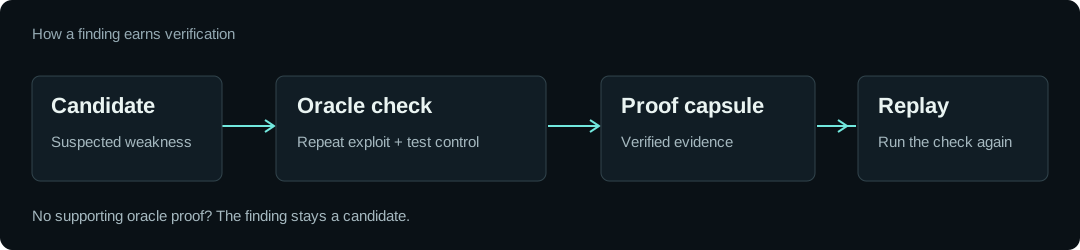
- Find a candidate. A probe or scanner identifies behaviour worth investigating.
- Reproduce it and check a control. A named oracle repeats the exploit and compares it with a control that should not demonstrate the weakness.
- Keep the evidence. A verified finding records the oracle and its results in a portable proof capsule. Use
ptai replayto check it again.
For example, a trusted-header bypass must return privileged content with the attack header and deny access without it. A server that answers every request with HTTP 200 is not sufficient evidence.
The model cannot award a verified verdict. Third-party scanner output remains unverified until an oracle independently proves it. Findings without a supported verification recipe remain candidates.
A verified verdict applies to the tested conditions. It does not mean the entire application is secure. Proof capsules are unsigned; rerunning the check is the trust mechanism.
What you can do
| Workflow | What Pentest-AI provides |
|---|---|
| Investigate web applications | Probes for injection, access control, request handling and other application weaknesses |
| Work through an AI client | MCP tools for engagements, investigation and verification |
| Reproduce a finding | Oracle results and replayable proof capsules |
| Check a fix | Rerun the recorded check against the updated target |
| Report to your team | Reports and SARIF output for existing engineering workflows |
| Keep engagement data local | Findings stored on your machine in SQLite |
Coverage varies by probe and oracle. Optional scanners need their own binaries, and some integrations provide raw output rather than structured findings. Consult the documentation and changelog for your version; main may contain unreleased work.
View the capability inventory checked by CI.
Put verified findings into CI
Configure your model provider, an authorized target and first-run consent in your CI environment. Keep secrets in the CI provider's secret store.
ptai start https://your-authorized-target.example --ci --fail-on verified --no-sync
Export verified findings using the engagement ID from the run:
ptai export YOUR_ENGAGEMENT_ID --sarif pentest.sarif
--sarif is an export option, not a ptai start option. Retain the engagement ID and run the export even when the finding gate fails if you want evidence for failed builds. Upload the resulting file through your CI provider's SARIF integration.
Evidence, benchmarks and limits
Benchmark findings, challenge completion and oracle-verified findings are different measurements. These reports record the versions, targets and methodology behind their results:
- Benchmark reports and artifacts
- Juice Shop methodology
- Vulnerable test harness
- Clean-application checks
Expect incomplete coverage. A scan with no verified findings is not a security assessment of everything an application does. Authentication, application state, unsupported bug classes and environmental changes affect what can be found and reproduced. Review results and keep a human involved in the engagement.
Data and network behaviour
Findings are stored locally. Anonymous usage counters are opt-in through ptai telemetry enable.
Local storage does not mean every operation stays on your machine: model-provider calls and installed scanners have their own network behaviour. Blind-vulnerability checks can use an external out-of-band collaborator; callback metadata is visible to that service.
Use your own collaborator where required, or disable callbacks:
ptai start https://your-authorized-target.example --oast-server https://your-collaborator.example
ptai start https://your-authorized-target.example --no-oast
Get involved
Use Issues for reproducible bugs and Discussions for questions and ideas. See the agent and contributor guide for build and test instructions.
The optional pentest-ai-agents repository contains Claude Code subagent files.
Pentest-AI is open source under the MIT license.