neTV 📺


A fast, self-hosted IPTV experience for the web, Apple TV, iPhone, macOS, Chromecast, and Xtream-compatible players.
What it does: neTV plays your own Xtream Codes or M3U IPTV subscription with a clean, minimal interface — live TV with an EPG grid guide, catchup playback, Intelligent Handoff between devices, movies & series, favorites and playlists, Chromecast and AirPlay, and optional real-time 4K AI upscaling — on desktop, tablet, mobile, and TV.
Quick Start
Requires Python 3.12+ and uv. The server and gateway also require FFmpeg.
Web server
uvx --from 'pynetv[server]' netv
Open http://localhost:8000, create an admin account, and add your IPTV source.
Native-player gateway
uvx --from 'pynetv[server]' netv-gateway
Uses the web server's configured sources and accounts; listens on port 8100.
XMLTV guide: zap2xml
uvx --from pynetv zap2xml --help
HDHomeRun playlist alignment: alignm3u
uvx --from pynetv alignm3u --help
Xtream playlist export: xtream2m3u
uvx --from 'pynetv[xtream2m3u]' xtream2m3u --help
See Installation and Additional Gems for details.
Companion Apps
neTV now comes with native companion apps. Install them, point them at your neTV server, and sign in with your existing neTV account:
- iPhone, iPad, and Apple TV: neTV Personal TV Player on the App Store
- Mac: neTV Personal TV Player on the Mac App Store
The native SwiftUI source for all three apps is in apple/. See
Apple Apps for details and build instructions.
Live TV, upgraded to 4K. neTV can AI-upscale 1080p streams to 4K with GPU decoding, TensorRT inference, and NVENC encoding in one real-time playback pipeline.
New: Intelligent Handoff. Turn off the TV mid-match and pick it up on your phone, Mac, or browser from the exact moment you left -- even though live has moved on. neTV keeps the stream going on the server until the program ends and puts it at the top of every device, one tap from resuming. See how Intelligent Handoff works.
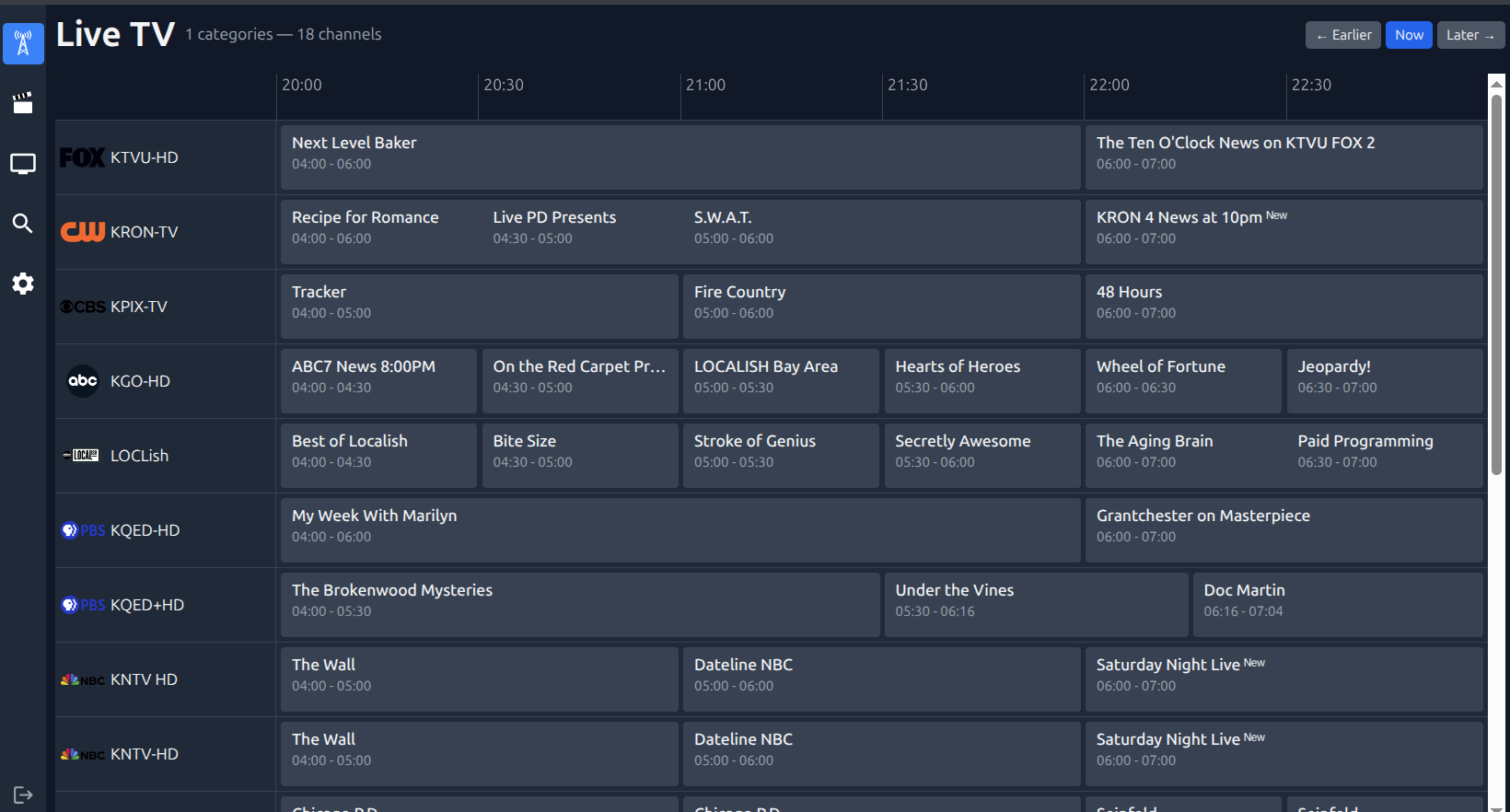
Missed the start? Go back and press play. Browse earlier guide listings and replay supported upstream archives on the web, Mac, Apple TV, iPhone, and iPad -- with full-program seeking and no interruption while browsing. Explore catchup playback.

Why This Exists
We built neTV because we couldn't find a clean, lightweight interface for Xtream IPTV services. Existing solutions were either bloated media centers or clunky apps that didn't work well across devices.
neTV is intentionally minimal. It does one thing: play your IPTV streams with a clean UI that works on desktop, tablet, mobile, and Chromecast.
We also prioritize keyboard navigation throughout (though still rough around the edges). The entire app is theoretically usable with just arrow keys, Enter, and Escape -- perfect for media PCs, HTPCs, or anyone who prefers keeping hands on the keyboard (like me).
Disclaimer
This is a player only -- it does not provide any content. You must have your own IPTV subscription that provides Xtream Codes API access or M3U playlists. Users are responsible for ensuring they have legal rights to access any content through their IPTV providers.
Features
- Live TV with EPG grid guide
- Catchup playback - Browse Earlier / Now / Later, select an available past program, or Start over on supported live content. Replay and seek through upstream archives on the web and across the Apple apps. How it works.
- Intelligent Handoff - Stop a live channel on one device and resume it on the web, Mac, iPhone, iPad, or Apple TV from the exact moment you left, even after live has moved on. How it works.
- Mac, Apple TV, and iPhone apps on the App Store
- Native player gateway - Bring your neTV channels and settings to Apple TV and other Xtream-compatible players
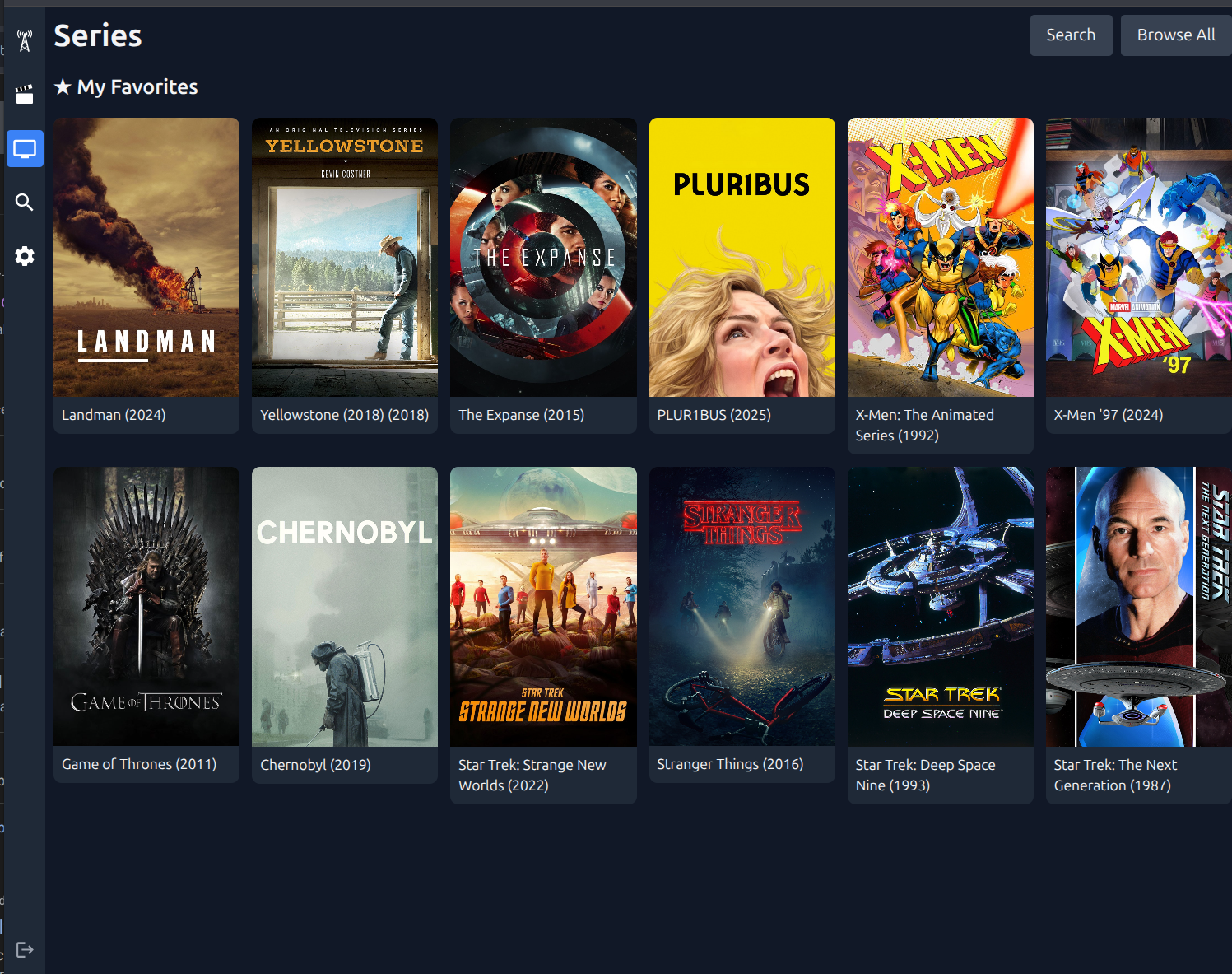
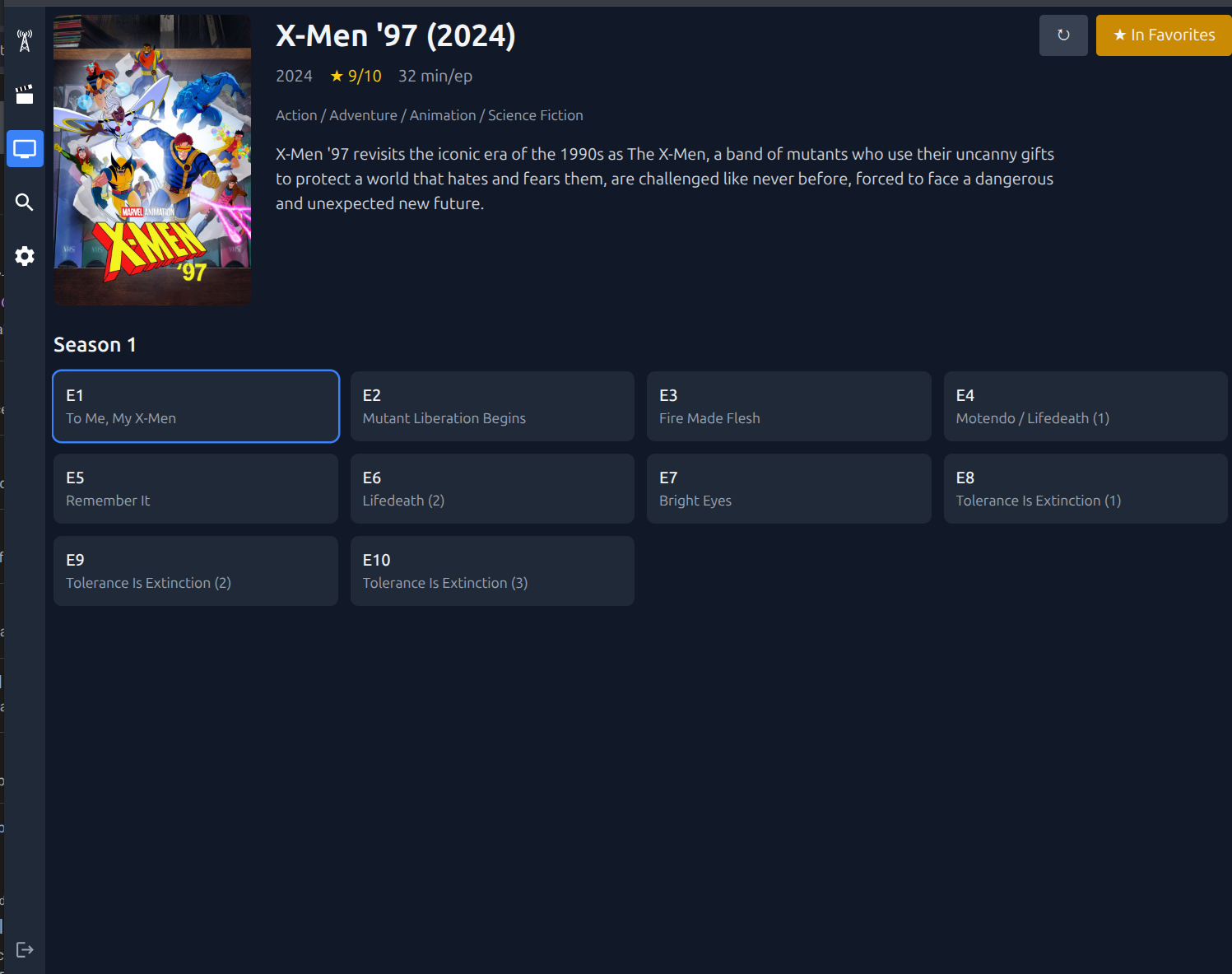
- Movies & Series with metadata, seasons, episodes
- Real-time 4K AI Upscale - 1080p → 4K at 70+ FPS through TensorRT on an RTX 5090
- GPU-accelerated transcoding - NVDEC, TensorRT, and NVENC with low-latency HLS
- Playback resolution badge - Web and Apple players show the actual video resolution, including 720p, 1080p, and 4K
- Chromecast support over your LAN, including HTTP (server-side discovery and controls)
- AirPlay from Safari on Mac, iPhone, and iPad to Apple TV and AirPlay 2 TVs
- Closed captions from upstream content, with native track selection in every Apple app and style customization on the web
- Search across all content (supports regex)
- Favorites with drag-and-drop ordering
- Playlists - Put your favorite content in playlists and organize them your way. Set them up on the web and they show up everywhere
- Personalized guide ordering - Most-played content rises within each category by default
- Resume playback for VOD content
- Responsive - works on desktop, tablet, mobile
- Keyboard navigation - 10-foot UI friendly
Catchup Playback
Your guide is now a way back into programs you missed. When an upstream keeps an archive, neTV lets you open it directly from the guide -- no separate recording setup required.
- Earlier / Now / Later: browse earlier and upcoming schedules without interrupting playback. Apple apps move in three-hour steps, up to seven days in either direction. Now returns the guide to the current window; it does not switch an archive back to live playback.
- Pick a past program: select an available listing to play its archive from the beginning. Unavailable past listings are dimmed and disabled; Apple apps also disable upcoming programs. Guide times use your device's time zone.
- Start over: restart the program airing now when its upstream archive supports it.
- Seek through the whole program: drag the timeline on the web, Mac, iPhone, or iPad. The web also supports arrow keys and Jump; on Apple TV, use Left/Right to preview a position and Select or Play to seek.
- Keep browsing: playback continues while you explore another guide window. On Apple TV, selecting the playing program again expands playback.
Seeking beyond the available video releases the previous upstream connection before reopening the archive at the selected time, so a seek may briefly buffer. Catchup does not use AI upscaling: it retains the upstream resolution up to the configured resolution limit. Live playback keeps its existing upscaling setting.
Requirements and availability: configure an Xtream source that advertises
archive support through tv_archive and tv_archive_duration, with matching
EPG listings. Replay availability depends on the upstream's archive retention;
neTV retains available guide history to cover the longest supported archive,
up to 14 days. It cannot reconstruct missing past listings or create an archive
where none exists. Standalone M3U catchup="xc" tags are not currently parsed;
use the upstream's Xtream connection for this feature.
Update the neTV server and rebuild the Apple apps from the current source to use the new controls. Source support does not imply that an updated App Store build is already available. See the Apple app documentation for native playback details.
Intelligent Handoff
Stop watching on one screen, carry on from the same moment on another. Switch off the Apple TV in the middle of a program, open neTV on your iPhone, Mac, or browser, and the channel is waiting at the top of the guide under Continue watching -- with when you left, how far behind live you are, and when the program ends. Tap Resume and playback picks up from the exact moment you stopped, not wherever live has got to.
- It follows you automatically: closing the web player, sending an Apple app to the background, the Apple TV going to sleep, or quitting or sleeping the Mac all count as stopping. If a device simply disappears (power cut, network drop), the server notices within about a minute and hands off from the last moment it reported. AirPlay and Picture in Picture keep playing and are not treated as stopping.
- Live keeps going for you: channels with an upstream archive resume through catchup with nothing extra running. For channels without one, the server keeps recording until the program ends (up to three hours when the guide has no end time), and you resume -- and seek -- within that recording.
- One tap, or none: the card stays for 24 hours after the program ends. Resume it, dismiss it, or just play something else: starting any other playback on any device cancels the handoff and stops its recording, freeing the provider connection.
- No channel surfing noise: views shorter than two minutes, and stops in a program's final 30 seconds, don't create a handoff.
Recordings are kept in the transcode directory, stream-copied where the codecs allow, and can take several GB for a long program. They aren't counted toward per-source stream limits, so another neTV user on a one-connection provider can hit its limit while a handoff is recording. Update the neTV server and rebuild the Apple apps from the current source to use Intelligent Handoff.
Apple Apps
The App Store links are at the top of this README. The Mac
app is a separate client for a neTV server running somewhere else in your
house, such as a media PC, NAS, or home server. Install it, enter your
server's address (for example http://192.168.1.10:8000), and sign in with
your neTV account.
The native SwiftUI source for all three apps is in apple/. To build
them yourself:
cd apple
cp .env.example .env
# Set NETV_BUNDLE_IDENTIFIER and NETV_DEVELOPMENT_TEAM in .env
xcodegen generate
open neTV.xcodeproj
In Xcode, select the iOS, tvOS, or macOS scheme, run it, then sign in with your existing neTV server URL and account. XcodeGen and Xcode 15 or later are required.
When upstream content includes a supported text or in-band caption track, neTV offers it as a selectable native track on Mac, Apple TV, iPhone, and iPad. Choose Off or a named track from the caption button; the choice persists across playback and quality changes. On Apple TV, the caption button appears with the bottom transport controls; press Down from full-screen playback to focus it and Up to return to playback. The button stays hidden when no source-provided track is available, and machine-generated transcription is not offered.
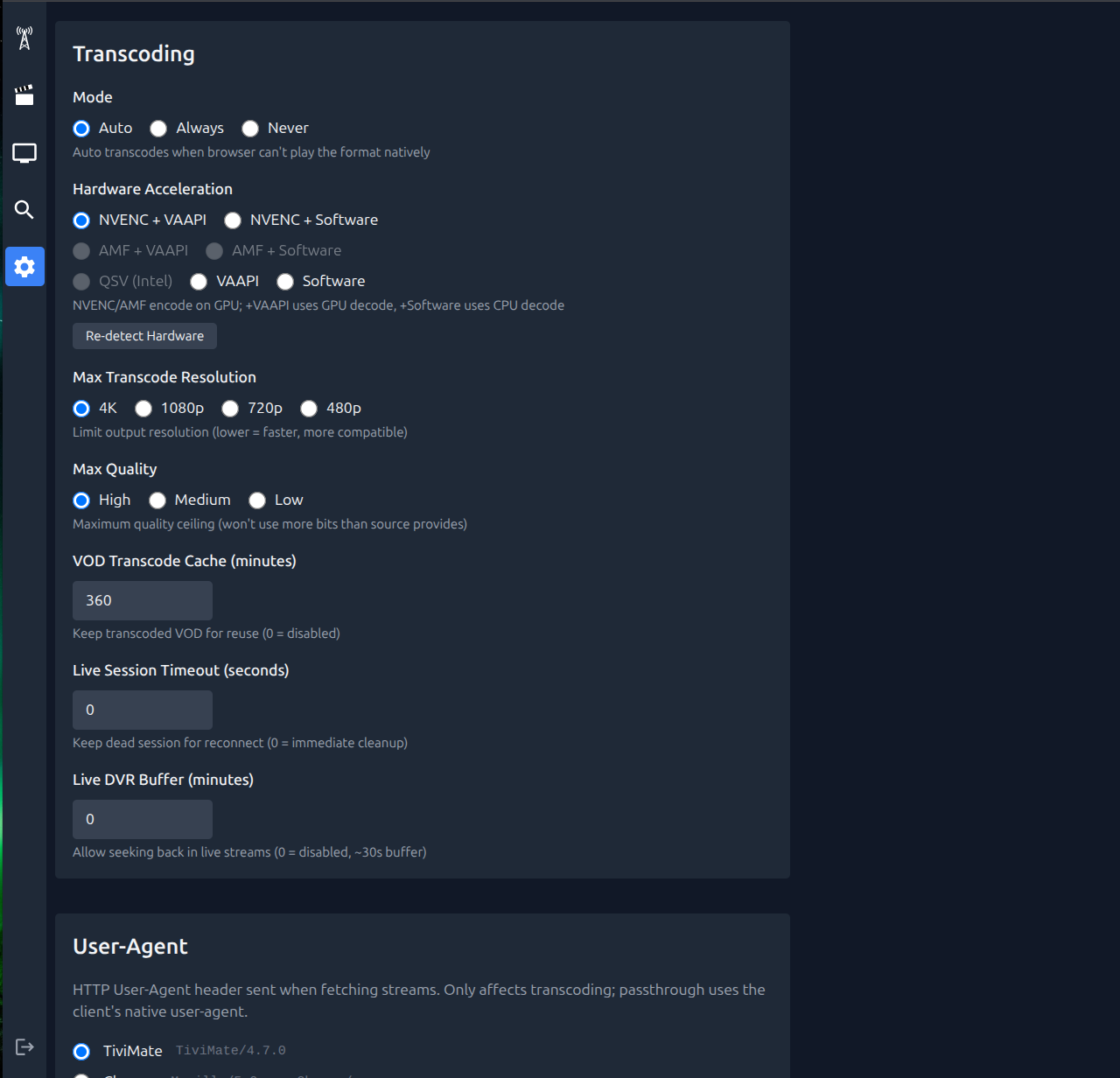
Transcoding
Extensively optimized for minimal latency and CPU usage:
- Smart passthrough - h264+aac streams remux without re-encoding (zero CPU)
- 5.1 surround - Surround audio stays 5.1 (AAC in browsers; Dolby Digital/Digital Plus passes through untouched to the Apple apps)
- Full GPU pipeline - NVDEC decode → NVENC/VAAPI encode, CPU stays idle
- Probe caching - Streams probed once, series episodes share probe data
- Interlace detection - Auto-deinterlaces OTA/cable, skips progressive
- Smart seeking - Reuses segments for backward seeks, only transcodes gaps
- Session recovery - VOD sessions survive restarts, resume where you left off
- HTTPS passthrough - Auto-proxies HTTP streams when behind HTTPS
Apple and web clients share the adaptive live transcoder for configured outputs
above 720p: one upstream ingest feeding one local encoder at the configured
resolution and quality (720p and the low preset when bandwidth saver is requested).
The rendition is published as low.m3u8 for client compatibility. The backend
buffer/throughput policy decides fallback and recovery after sustained bandwidth
improvement. The web player targets 12 seconds behind the live edge when enough
media is available.
A server-owned watchdog also checks process state and completed segment publication. A stalled ingest or encoder output restarts the dependency chain only after the old upstream reader exits. Restarted outputs append to the retained playlists with an HLS discontinuity, preserving the available DVR window under the same session ID. Recovery attempts have cooldowns and a limit of three per five-minute window. Workers that exit bypass the publication grace; a process that remains alive must stop publishing completed media for 45 seconds before the watchdog intervenes, so temporary upstream delivery gaps do not trigger a restart. After a full pipeline recovery, health feedback advances a generation counter so Apple clients reload the recovered playlist in the same session while preserving their playback date and pause state when possible.
Live bitrate targets/maximum settings are 4/6 Mbps for 720p, 6/8 Mbps for 1080p, 10/14 Mbps for 1440p, and 16/20 Mbps for 4K, plus audio and transport overhead. The native gateway's standard live AI-upscale path shares the bitrate policy. VOD seek/resume, lower-resolution single-rendition playback, and direct playback retain their existing contracts. All transcoders share HTTP reconnect and process launching; local inputs do not receive HTTP reconnect flags.
Bulk live/VOD catalog refreshes reuse the per-source loaders used for individual source refreshes. Bulk refreshes do not rewrite saved EPG URLs, and a failed source is logged without preventing other sources from loading.
4K AI Upscaling
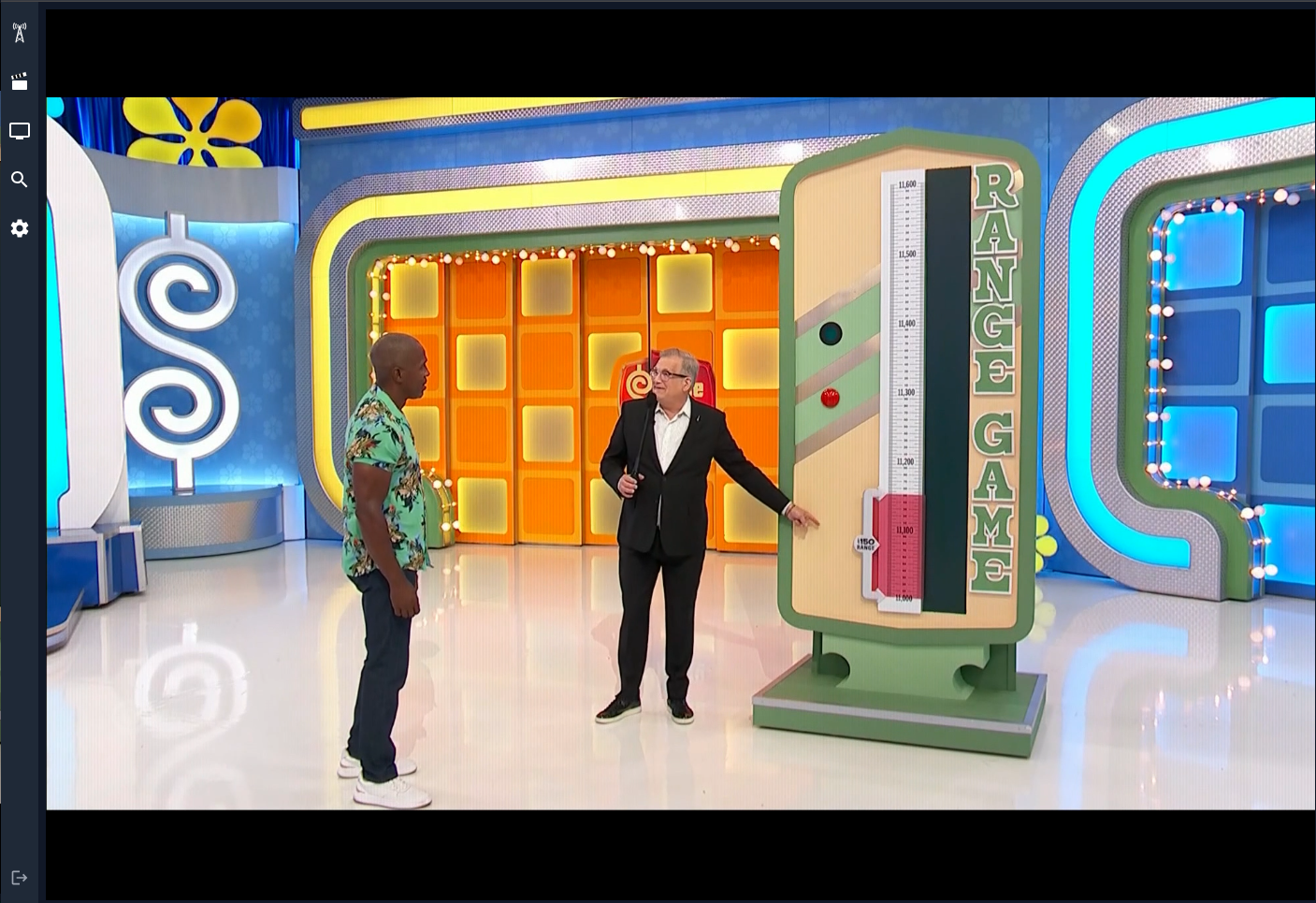
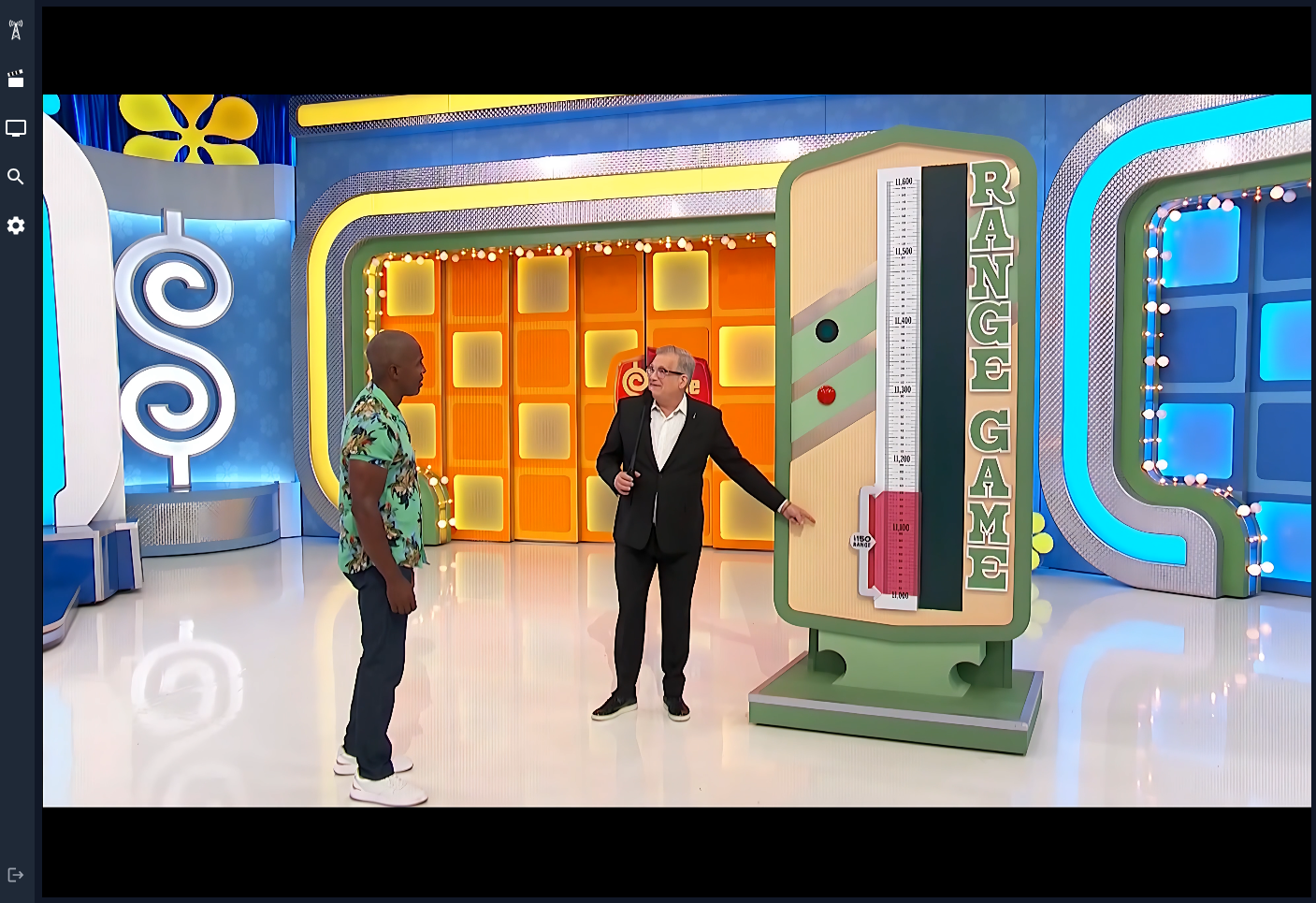
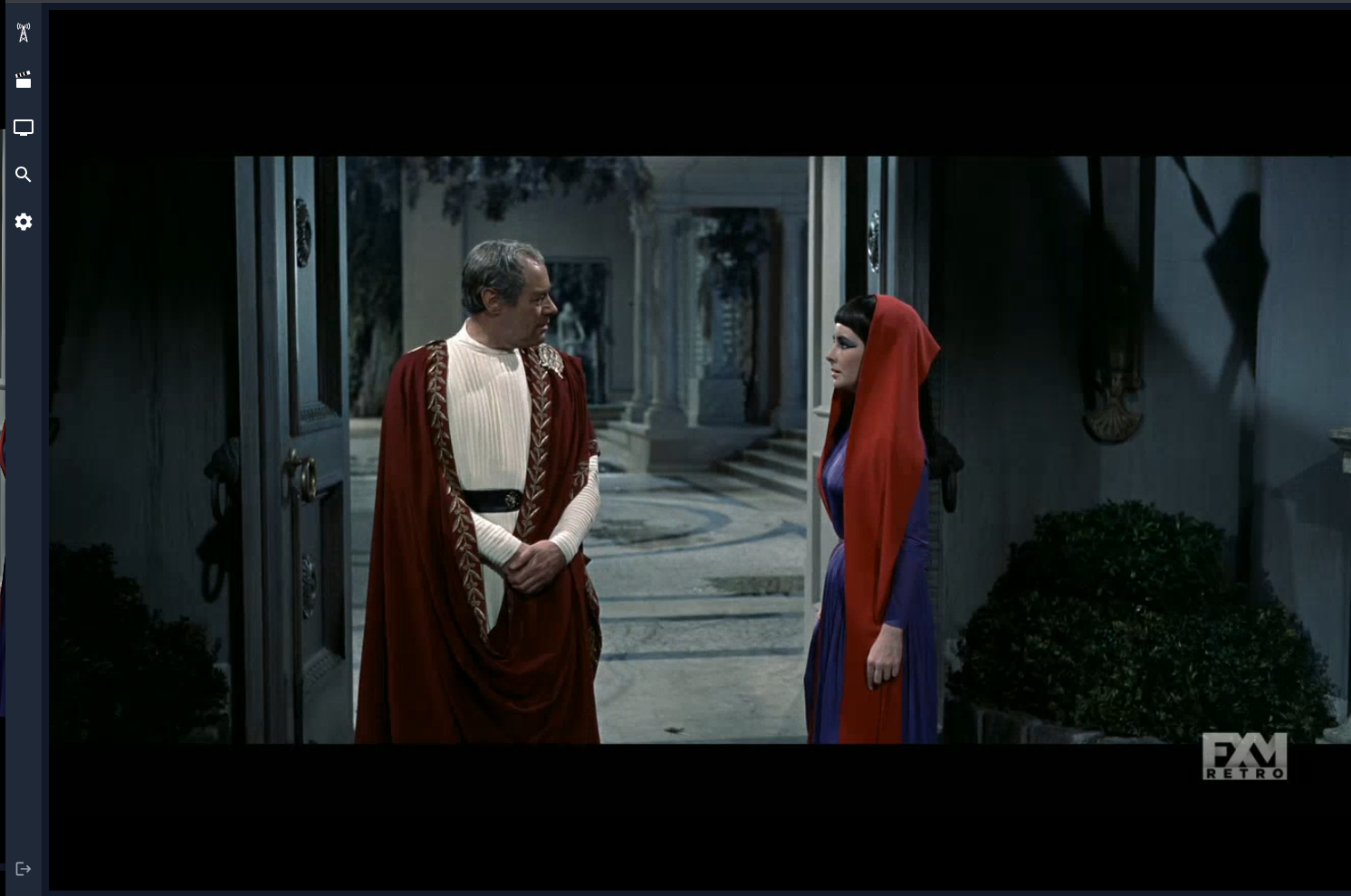
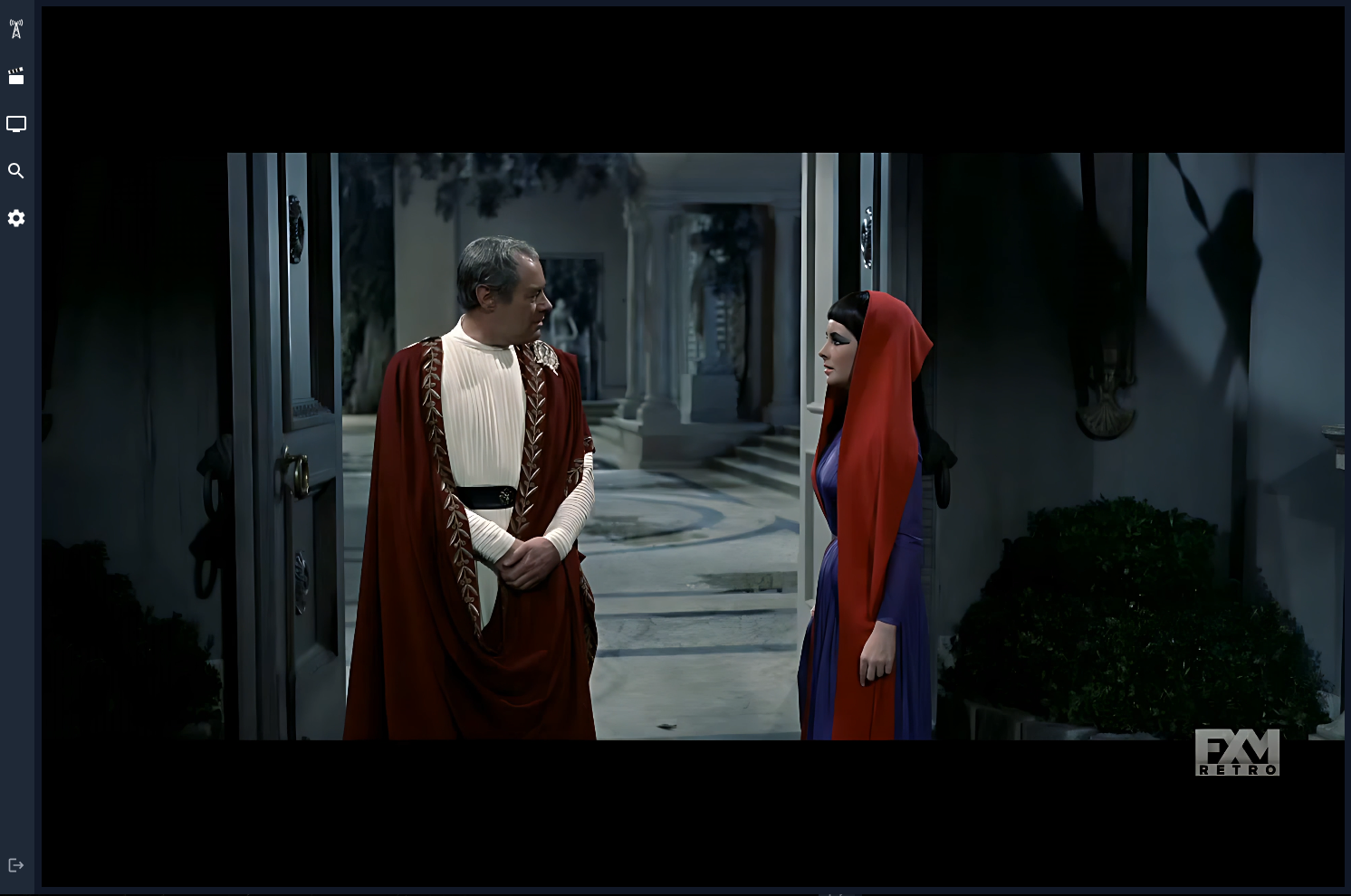
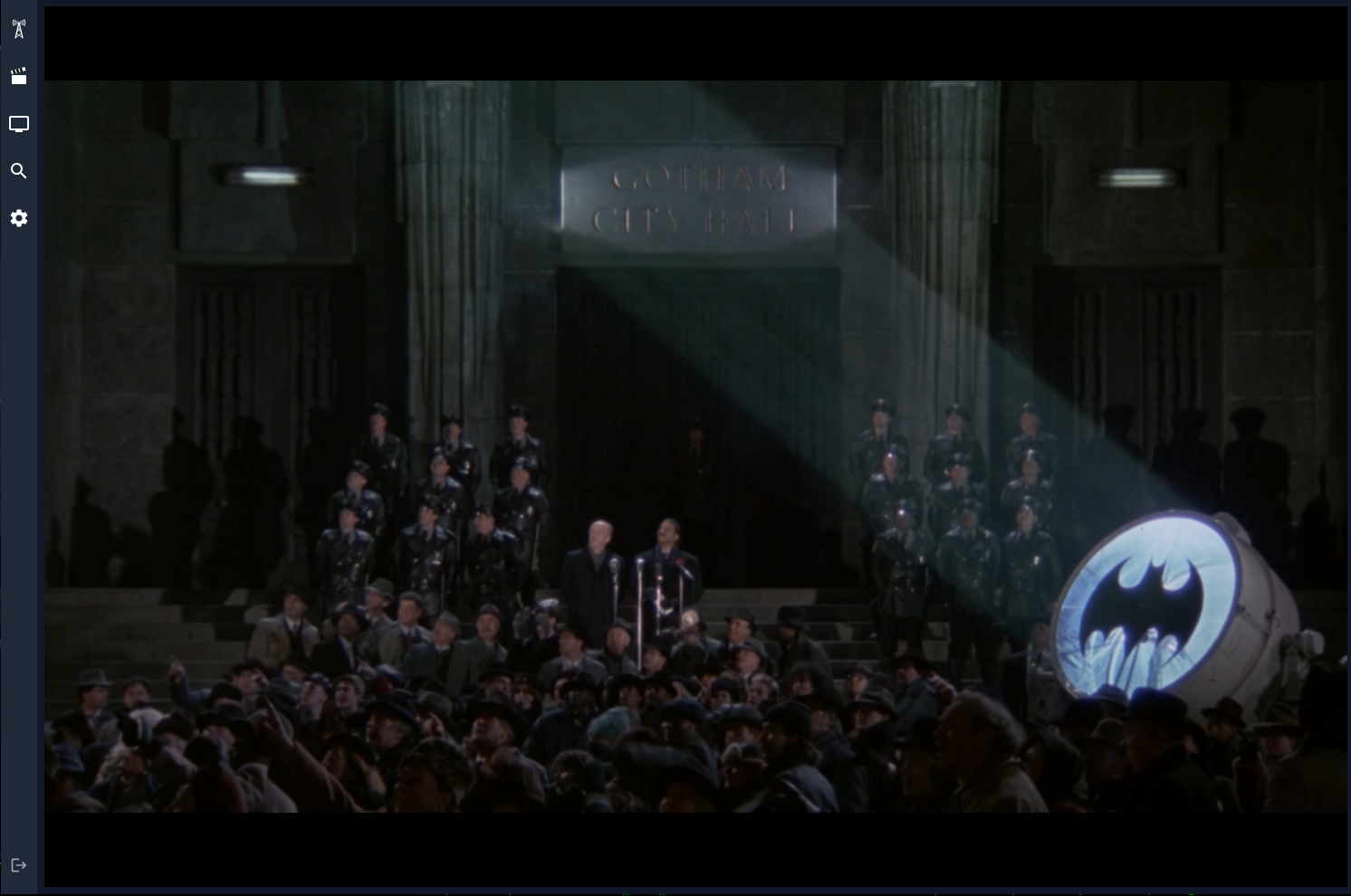
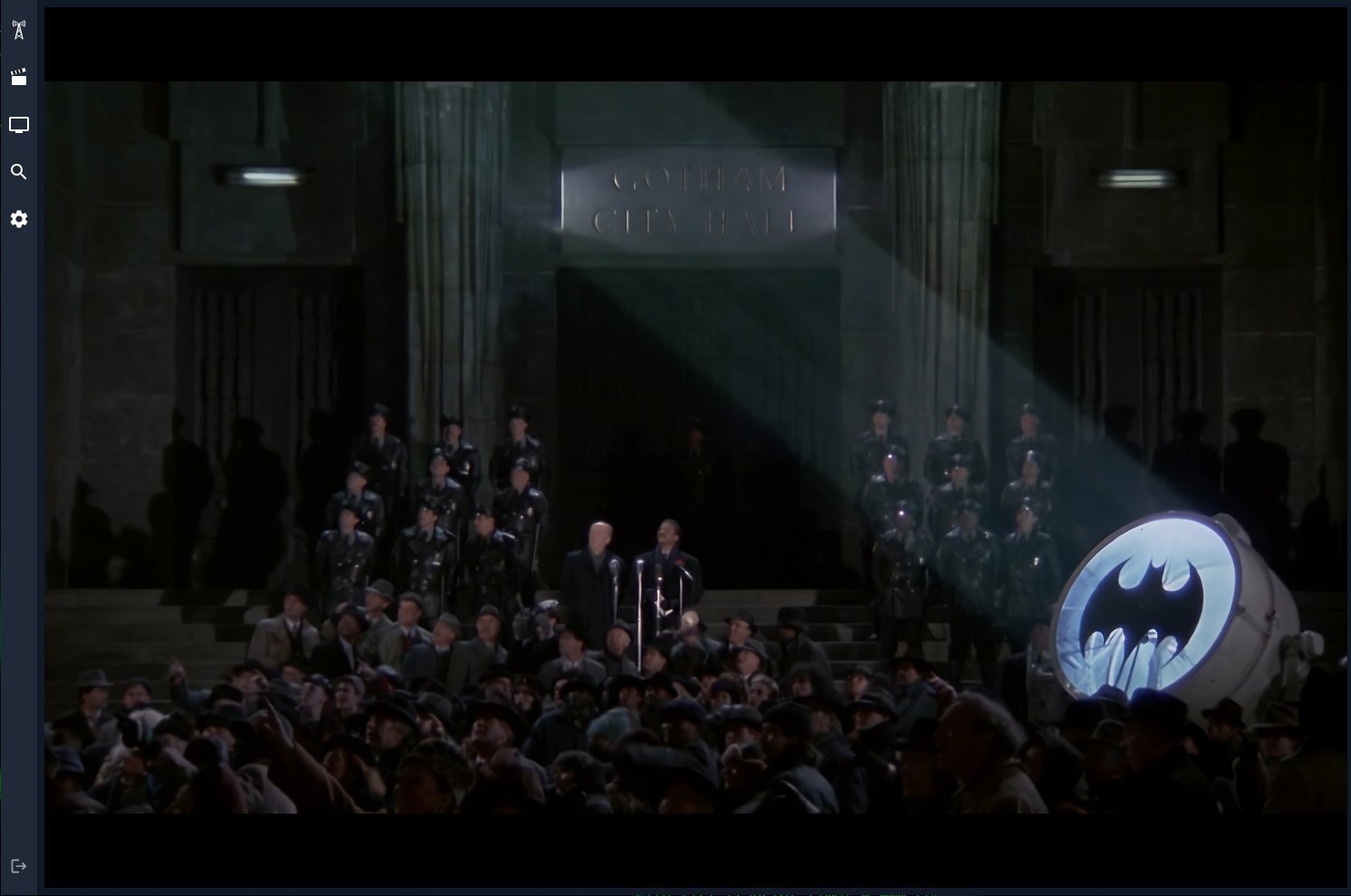
neTV uses NVIDIA TensorRT super-resolution to transform SD and HD channels into sharp 4K video as they play. The optimized 1080p → 4K pipeline exceeds 70 FPS on an RTX 5090, enough for smooth 50/60 FPS live television with headroom to spare. It also handles compression artifacts, noise, and blur, making it especially effective for older shows and lower-bitrate streams.
The same pipeline works in the browser and through the native player gateway on
port 8100, so Apple TV and other Xtream-compatible clients get the same
server-controlled 4K experience.
| Before (720p source) | After (4K AI Upscale) |
|---|---|
 |
 |
 |
 |
 |
 |
Requires an NVIDIA GPU and the AI Upscale image. The Settings page shows AI Upscale options when TensorRT engines are available.
Alternatives
If you want a full-featured media center, you might be happier with:
- Jellyfin - Free, open-source media system
- Emby - Media server with IPTV support
- Plex - Popular media platform with live TV
These are excellent, mature projects with large communities. neTV exists for users who find them overkill and just want a simple IPTV player.
| neTV | nodecast-tv | Jellyfin | Emby | Plex | |
|---|---|---|---|---|---|
| Focus | IPTV | IPTV | General media | General media | General media |
| Xtream Codes | ✅ | ✅ | ❌ | ❌ | ❌ |
| M3U playlists | ✅ | ✅ | ✅ | ✅ | 🟡Via xTeVe |
| XMLTV EPG | ✅ | 🟡Via provider | ✅ | ✅ | ✅ |
| Local media | ❌ | ❌ | ✅ | ✅ | ✅ |
| Live TV | ✅ | ✅ | ✅ | ✅ | ✅ |
| VOD (movies/series) | ✅ | ✅ | ✅ | ✅ | ✅ |
| DVR recording | ❌ | ❌ | ✅ | ✅ | 🟡Pass |
| Catchup/timeshift | ✅ Xtream | ❌ | 🟡Plugin | 🟡Plugin | ❌ |
| Live rewind buffer | ✅ | ❌ | 🟡Via DVR | 🟡Via DVR | 🟡Via DVR |
| Resume playback | ✅ | ❌ | ✅ | ✅ | ✅ |
| Multi-user | ✅ | ✅ | ✅ | ✅ | ✅ |
| User roles | 🟡Admin/viewer | 🟡Admin/viewer | ✅ Granular | ✅ Granular | ✅ Granular |
| Stream limits | ✅ Per-user, per-source | ❌ | 🟡Per-user | 🟡Per-user | 🟡Per-user |
| Library permissions | ✅ Per-source | N/A | ✅ Per-library | ✅ Per-library | ✅ Per-library |
| Favorites | ✅ Drag-and-drop | ✅ | ✅ | ✅ | ✅ |
| Search | ✅ Regex | ✅ Basic | ✅ Basic | ✅ Basic | ✅ Basic |
| Video transcoding | ✅ | ❌ | ✅ | ✅ | ✅ |
| Audio transcoding | ✅ | ✅ | ✅ | ✅ | ✅ |
| Transcode only if needed | ✅ Auto mode | ❌ | 🟡Per-library | 🟡Per-library | 🟡Per-client |
| NVENC | ✅ | ❌ | ✅ | ✅ | 🟡Pass |
| VAAPI | ✅ | ❌ | ✅ | ✅ | 🟡Pass |
| QSV | ✅ | ❌ | ✅ | ✅ | 🟡Pass |
| AI Upscale (Nomos 2x) | ✅ TensorRT | ❌ | 🟡Plugin | ❌ | ❌ |
| Software fallback | ✅ | ❌ Browser | ✅ | ✅ | ✅ |
| Legacy GPU | ✅ Any | ❌ No (browser) | ✅ Any | ✅ Any | 🟡Driver 450+ |
| ffprobe caching | ✅ Dynamic | ❌ None | 🟡Offline | 🟡Offline | 🟡Offline |
| Episode probe reuse | ✅ MRU | ❌ No | 🟡Per-file | 🟡Per-file | 🟡Per-file |
| Session recovery | ✅ Yes | ❌ No | 🟡Via DB | 🟡Via DB | 🟡Via DB |
| Auto deinterlace | ✅ Yes | ❌ No | 🟡Manual | 🟡Manual | 🟡Manual |
| Subtitles | 🟡WebVTT | ❌ No | ✅ Full | ✅ Full | ✅ Full |
| Chromecast | ✅ Yes | ❌ No | ✅ Yes | ✅ Yes | ✅ Yes |
| Keyboard/remote | ✅ 10-foot UI | 🟡Basic | ✅ 10-foot UI | ✅ 10-foot UI | ✅ 10-foot UI |
| Mobile apps | 🟡Web only | 🟡Web only | ✅ Native | ✅ Native | ✅ Native |
| Subscription | ✅ Free | ✅ Free | ✅ Free | 🟡Premiere | 🟡Pass |
| Setup complexity | ✅ Minimal | ✅ Minimal | 🟡Moderate | 🟡Moderate | 🟡Moderate |
| License | Apache 2.0 | GPL v3 | GPL v2 | GPL v2 | Proprietary |
| Stack | Python, FFmpeg | Node.js | .NET, FFmpeg | .NET, FFmpeg | Proprietary |
Corrections welcome — open an issue.
Installation
Python / PyPI
Requires Python 3.12+, uv, and FFmpeg (ffmpeg
and ffprobe on PATH, e.g. brew install ffmpeg or apt install ffmpeg).
Run without a checkout:
uvx --from 'pynetv[server]' netv
Or install all commands for regular use:
uv tool install 'pynetv[server]'
netv
The PyPI package is named pynetv. The server extra installs the web and
gateway dependencies; the base package has no third-party dependencies.
After installing with uv tool, run any included command directly.
Open http://localhost:8000, create an admin account, and add your IPTV source.
Settings and caches persist in ~/.local/share/netv, or $NETV_DATA_DIR when set.
For the native-player gateway, run uvx --from 'pynetv[server]' netv-gateway on port 8100.
Docker
Create a docker-compose.yml:
services:
  netv:
    image: ghcr.io/jvdillon/netv:latest
    ports:
      - "8000:8000"
    volumes:
      - ./cache:/app/cache
      - /etc/localtime:/etc/localtime:ro
    devices:
      - /dev/dri:/dev/dri  # for hardware transcoding (remove if no GPU)
    restart: unless-stopped

  netv-gateway:
    image: ghcr.io/jvdillon/netv:latest
    ports:
      - "8100:8100"
    environment:
      - NETV_MODE=gateway
      - NETV_GATEWAY_PORT=8100
    volumes:
      - ./cache:/app/cache
    restart: unless-stopped
Then run:
docker compose up -d
Open http://localhost:8000. To update: docker compose pull && docker compose up -d
Native player gateway
The gateway exposes the live sources configured in the neTV web UI through a
separate Xtream-compatible endpoint. Configure sources and users at
http://localhost:8000, then enter the following details in a native IPTV
player:
Server:   http://<netv-host>:8100
Username: <your neTV username>
Password: <your neTV password>
The gateway currently supports live categories, live streams, MPEG-TS or HLS M3U playlists, short EPG lookups, user-filtered XMLTV, and live playback. VOD and series will be added in later phases. Remote provider credentials and playback URLs are not returned to the player.
The gateway currently does not enforce the per-user max_streams_per_source
setting or coordinate per-source connection counts with the web process. Use a
provider account with sufficient connections and avoid aggressive multi-channel
preview features in native players.
Use a dedicated non-admin neTV account for native players because Xtream clients include their local credentials in stream URLs.
When running from a source checkout, the gateway has an architecture-neutral image and can be started independently:
docker compose up -d --build netv-gateway
If neTV is behind a reverse proxy or the address seen by the container is not
reachable by the player, set NETV_GATEWAY_PUBLIC_URL to the externally
reachable gateway URL, such as http://192.168.1.20:8100.
Use only a scheme, host, and optional port; path prefixes are not supported.
Forwarded client addresses are trusted only from localhost by default. If a
reverse proxy runs elsewhere, set NETV_GATEWAY_TRUSTED_PROXIES to its IP
address or a comma-separated list of proxy IP addresses.
For restricted users, the gateway hides uncategorized streams because they cannot be proven to belong to an allowed category.
Each source can be shared with all users or limited to selected users under Settings → Sources → Available To, so one server can host separate libraries for different households. Users not selected for a source cannot see or play its content in the web UI, the Apple apps, or the gateway. Admins always see every source.
Native player 4K upscaling
Port 8100 follows the same AI Upscale, maximum resolution, hardware, and
quality settings configured in the web UI. When an AI model is selected, native
player streams use HLS and run through the TensorRT super-resolution pipeline.
When AI Upscale is disabled, the same endpoint returns MPEG-TS passthrough.
The standard architecture-neutral gateway image supports passthrough only. To
make port 8100 GPU-capable, replace it with the NVIDIA gateway service:
docker compose stop netv-gateway
docker compose --profile upscale up -d --build netv-gateway-upscale
Continue using the same server, username, and password in Apple TV or another native IPTV player:
Server:   http://<netv-host>:8100
Username: <your neTV username>
Password: <your neTV password>
Changes made under Settings → Transcoding → AI Upscale apply to new native
player streams without changing the gateway address. Check the active setting
and installed Nomos engine at http://:8100/capabilities.
The first container start builds GPU-specific TensorRT engines and can take a
few minutes.
For a source checkout running directly from .venv, the gateway uses the same
default TensorRT engine directory as the web process:
~/ffmpeg_build/models. Restart the gateway service after updating the code:
sudo systemctl restart netv-gateway.service
The latest image is published on tagged releases, on application changes
merged to main, and when a maintainer triggers a rebuild manually. Scheduled
FFmpeg base-image builds do not republish application images, so
docker compose pull will not report an update every day.
Optional: Nonfree (proprietary) FFMPEG optimized for Nvidia or AMD and/or Intel GPU
We provide a custom built ffmpeg with Nvidia, AMD, and Intel proprietary support for GPUs. Notably, essential packages are built from source and often significantly newer than what is baked into Ubuntu 2024 (LTS).
The custom built ffmpeg is not required unless you want:
- best possible GPU performance,
- bleeding edge capability,
- to use AMD discrete GPU,
- realtime AI upscaling (Nvidia only).
Note: the custom built ffmpeg will generally work even if a dependency is not available. In such cases the specific capability will not be available but other capabilities will still work. In this sense the custom built ffmpeg is a "kitchen sink" build.
| Custom ffmpeg | Ubuntu ffmpeg | |
|---|---|---|
| Intel or AMD Integrated GPU (VAAPI) | ✅ | ✅ |
| Intel Integrated GPU (QSV QuickSync) | ✅ | ✅ |
| Nvidia Discrete GPU (NVENC via LLVM) | ❌ | ✅ |
| Nvidia Discrete GPU (NVENC via nvcc) | ✅ | ❌ |
| AMD Discrete GPU (AMF) | ✅ | ❌ |
| Fraunhofer FDK AAC | ✅ | ❌ |
| Realtime AI Upscale (Nvidia TensorRT/Cuda) | ✅ | ❌ |
| AV1 Vulkan | ✅ | ❌ |
| Torch (Nvidia Cuda) | 🟡Optional | ❌ |
For Nvidia, you will need the nvidia-container-toolkit.
To determine which ffmpeg build for Cuda, check your driver and compute capability:
nvidia-smi --query-gpu=driver_version,compute_cap --format=csv,noheader
# Example: 580.87.02, 8.6 → Driver 580, compute ≥7.5 → use cuda13.0
Find your CUDA version (source):
| Driver |
AI model attribution
The upscaler is based on
Phips/2xNomosUni_compact_otf_medium
by Philip Hofmann and is used under the CC BY 4.0 license.
