


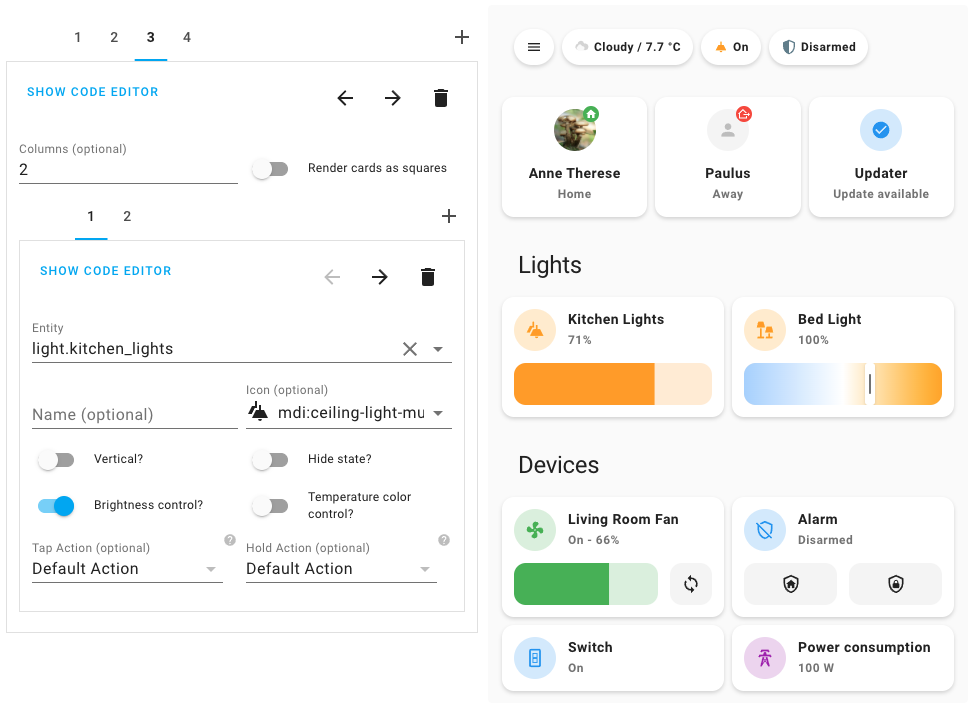
lovelace-mushroom is a free, open source internet of things (iot) project written in TypeScript and released under Apache-2.0. It has 5,180 GitHub stars, 442 forks and 447 open issues, and was last pushed 24 days ago. On this registry it ranks #9 of 57 tracked projects in Internet of Things (IoT), with 5 head-to-head comparisons available.

What is lovelace-mushroom?

Mushroom is a collection of cards for the Home Assistant Dashboard UI, installed through HACS or manually, and built for Home Assistant users who want to assemble a dashboard with easy-to-use components rather than editing YAML.

What it is

Mushroom is a collection of cards for the Home Assistant Dashboard UI. Its stated mission is to propose easy-to-use components for building a Home Assistant dashboard, and it is written in TypeScript under the Apache-2.0 licence. The card set covers common entities and dashboard needs, including Alarm, Chips, Climate, Cover, Entity, Empty, Fan, Humidifier, Light, Lock, Media, Number, Person, Select, Template, Title, Update, and Vacuum cards, plus a template badge for Home Assistant 2024.8 and later. Mushroom also supports Material UI colors, light and dark themes, optional theme customization through Mushroom Themes, and internationalization.

The concrete problem Mushroom solves is the configuration burden of the Home Assistant Lovelace dashboard. Instead of writing YAML to wire up custom cards, users get an editor for all cards and all options, along with an icon picker and a color picker. Because Mushroom has zero dependencies, adopting it does not require installing another card first. It is positioned inside the Home Assistant ecosystem and replaces the need to edit YAML for its own card configuration, though the README explicitly says its goal is not to provide custom cards for deep customization.

Key capabilities

  • A dashboard UI editor for all cards and all options, so card setup does not require editing YAML.
  • An icon picker and a color picker for configuring card appearance.
  • Zero dependencies, meaning no additional card must be installed for Mushroom cards to work.
  • Material UI colors, light and dark theme support, and optional theme customization through Mushroom Themes.
  • Internationalization support.
  • Entity-specific cards for Alarm, Chips, Climate, Cover, Entity, Empty, Fan, Humidifier, Light, Lock, Media, Number, Person, Select, Template, Title, Update, and Vacuum.
  • A template badge for Home Assistant 2024.8 or later, plus a legacy Template card that remains usable but is not in the card picker.

Who uses it and how

  • Home Assistant users who install HACS, open it inside Home Assistant, search for "Mushroom", and click the download button.
  • Administrators who prefer manual installation: download mushroom.js from the latest release, place it in config/www, and add /local/mushroom.js as a JavaScript Module resource through Settings, Dashboards, Resources, or through the lovelace YAML resources section.
  • Dashboard builders who add cards through the Home Assistant UI by clicking the three dots, choosing Edit Dashboard, clicking the plus button, and selecting a Custom: Mushroom card from the list.
  • Home Assistant 2024.8 and later users who need a template badge.
  • Developers who run npm run start:hass to launch a Home Assistant demo instance with Docker and then visit http://localhost:8123.

Getting started

Mushroom is installed through HACS by opening HACS in Home Assistant, searching for "Mushroom", and clicking the download button; alternatively, download mushroom.js from the latest release, place it in config/www, and add /local/mushroom.js as a JavaScript Module resource. For development, run npm run start:hass to start a Home Assistant demo instance with Docker at http://localhost:8123.

How it compares

Among similar tools, the README names UI Lovelace Minimalist and Button card as excellent plugins for deep customization, while Mushroom is positioned as an easy-to-use collection of cards with a graphical editor and zero dependencies. Mushroom therefore fits alongside those tools in the Home Assistant ecosystem rather than replacing them for advanced dashboard work.

When to use it — and when not to

Mushroom is a good fit for Home Assistant users who want entity-specific cards configured through the Dashboard UI editor without touching YAML, and who are prepared to operate a Home Assistant instance and manage the card through HACS or a manual /local/mushroom.js resource. It is not the right choice for users who need deep customization, because the README explicitly points those users to UI Lovelace Minimalist and Button card. The project has 447 open issues and marks some cards as legacy, a maintenance signal worth weighing before adopting it broadly.

project readme (upstream, from github) — read inline

🍄 Mushroom

hacs release downloads build translations

Buy Me A Coffee

Overview

What is mushroom ?

Mushroom is a collection of cards for Home Assistant Dashboard UI.

Mushroom mission is to propose easy to use components to build your Home Assistant dashboard.

Features

  • 🛠 Editor for all cards and and all options (no need to edit yaml)
  • 😍 Icon picker
  • 🖌 Color picker
  • 🚀 0 dependencies : no need to install another card.
  • 🌈 Based on Material UI colors
  • 🌓 Light and dark theme support
  • 🎨 Optional theme customization
  • 🌎 Internationalization

The goal of Mushroom is not to provide custom card for deep customization. You can use the excellent UI Lovelace Minimalist and Button card plugins for this.

Installation

HACS

Mushroom is available in HACS (Home Assistant Community Store).

Use this link to directly go to the repository in HACS

Open your Home Assistant instance and open a repository inside the Home Assistant Community Store.

or

  1. Install HACS if you don't have it already
  2. Open HACS in Home Assistant
  3. Search for "Mushroom"
  4. Click the download button. ⬇️

Manual

  1. Download mushroom.js file from the latest release.
  2. Put mushroom.js file into your config/www folder.
  3. Add reference to mushroom.js in Dashboard. There's two way to do that:
    • Using UI: Settings → Dashboards → More Options icon → Resources → Add Resource → Set Url as /local/mushroom.js → Set Resource type as JavaScript Module. Note: If you do not see the Resources menu, you will need to enable Advanced Mode in your User Profile
    • Using YAML: Add following code to lovelace section.
      resources:
        - url: /local/mushroom.js
          type: module
      

Usage

All the Mushroom cards can be configured using Dashboard UI editor.

  1. In Dashboard UI, click 3 dots in top right corner.
  2. Click Edit Dashboard.
  3. Click Plus button to add a new card.
  4. Find one of the Custom: Mushroom card in the list.

Cards

Different cards are available for differents entities :

Legacy cards

Some cards are considered as legacy, are not available in the card picker but you can still use them :

Badges

A template badge is available if you're using at least Home Assistant 2024.8.

Theme customization

Mushroom works without theme but you can add a theme for better experience by installing the Mushroom Themes. If you want more information about themes, check out the official Home Assistant documentation about themes.

Development server

Home assistant demo

You can run a demo instance of Home Assistant with docker by running:

npm run start:hass

Once it's done, go to Home Assistant instance http://localhost:8123 and start configuration.

Windows Users

If you are on Windows, either run the above command in Powershell, or use the below if using Command Prompt:

npm run start:hass-cmd

Development

In another terminal, install dependencies and run development server:

npm install
npm start

Server will start on port 4000.

Build

You can build the mushroom.js file in dist folder by running the build command.

npm run build

Translations

If you want to help translating Mushroom, you can translate it directly from your browser using Weblate.

Maintainer steps to add a new language

  1. To be compatible with Home Assistant, language tags have to follow BCP 47. A list of most language tags can be found here: IANA subtag registry. Examples: fr, fr-CA, zh-Hans.
  2. Create a new file {language_code}.json with your language code in the translation folder. Examples: fr.json.
  3. Import your file into the localize.ts file and add your language in the languages record.
  4. Don't forget to test locally with the development server by choosing the language with the Home Assistant UI in your profile.

Troubleshooting

I don't see the last changes

  1. Check that your Home Assistant version is the latest. Some new Mushroom features can only be visible for the latest Home Assistant version.
  2. Check that you have the latest Mushroom version on HACS
  3. Check that you have the latest Mushroom version by checking the browser console
  4. Clear your cache :

My card mod configuration doesn't work.

Help about card mod configuration is not provided in this repository. More info in the state of card mod support.

Credits

The design is inspired by 7ahang’s work on Behance and Ui Lovelace Minimalist.

Frequently asked questions

Is lovelace-mushroom free to use?

lovelace-mushroom is open source under the Apache-2.0 licence. There is no licence fee and no seat count — you can self-host it or, where the project offers one, pay a vendor for a managed version instead.

What does lovelace-mushroom do?

Build a beautiful Home Assistant dashboard easily

What is lovelace-mushroom written in?

lovelace-mushroom is primarily written in TypeScript. Its source is publicly available at https://github.com/piitaya/lovelace-mushroom, and it has 5,180 GitHub stars.