
Curate, Annotate, and Manage Your Data in LightlyStudio.





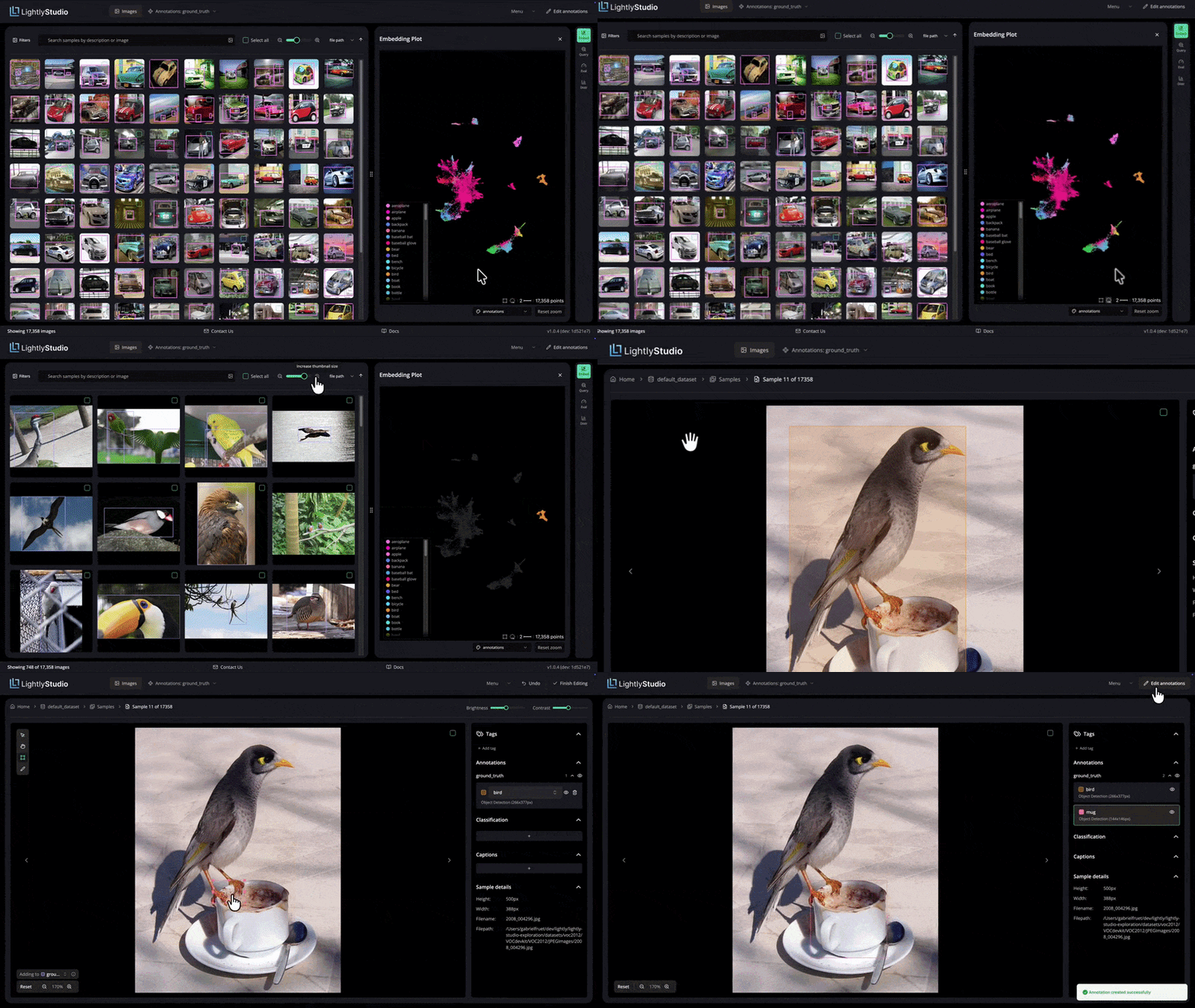
The embedding plot shows how images relate to each other, with a preview on hover. A lasso selection filters the grid to one cluster. A search for "coffee" finds a match, and the annotation editor opens to label it.
⚡ Works smoothly with 2M+ images, embeddings included, on a single MacBook (M1, 16GB RAM).
🚀 Try it in 60 seconds
LightlyStudio runs on your computer and opens in your browser. The following command downloads an example dataset with images, annotations, and evaluation results — no account needed.
pip install lightly-studio
lightly-studio quickstart
- Local only: your images and datasets never leave your machine.
- Your own images: one Python call indexes them, then start the server. See the Image Dataset guide.
- Your own videos: see the Video Dataset guide.
- No install: open the quickstart in Colab
- A guided walkthrough: read the Tutorials below. Curate a Traffic CCTV Dataset for YOLO Training goes from raw images to a trained model.
- Runs on Python 3.9 to 3.14 on Windows, Linux, and macOS. Use Python 3.10 for plugin compatibility, for example SAM autolabeling.
Workflows


Example workflows
LightlyStudio is a browser app that runs on your own computer. Load your data into the local database with a Python script, then start the server and explore it in your browser.
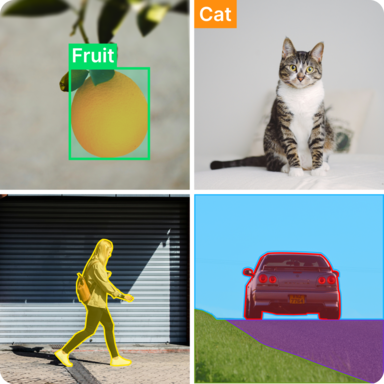
Index a COCO dataset
Create a file named example_coco.py:
import lightly_studio as ls

# Download the example dataset (will be skipped if it already exists)
dataset_path = ls.utils.download_example_dataset(download_dir="dataset_examples")

dataset = ls.ImageDataset.load_or_create()
dataset.add_samples_from_coco(
    annotations_json=f"{dataset_path}/coco_subset_128_images/instances_train2017.json",
    images_path=f"{dataset_path}/coco_subset_128_images/images",
)

# Start the UI server on localhost:8001.
# Pass `host` and `port` parameters to customize it.
# Reopen the app later with `lightly-studio gui` instead of re-running this script.
ls.start_gui()
Run python example_coco.py and open the printed URL to inspect images with their annotations.
To import COCO segmentation masks instead of object detections, pass
annotation_type=ls.AnnotationType.SEGMENTATION_MASK to add_samples_from_coco().
Index a folder of images
Create a file named example_image.py:
import lightly_studio as ls

# Download the example dataset (will be skipped if it already exists)
dataset_path = ls.utils.download_example_dataset(download_dir="dataset_examples")

# Index the images, create embeddings, and store everything in the local database.
dataset = ls.ImageDataset.load_or_create()
dataset.add_images_from_path(
    path=f"{dataset_path}/coco_subset_128_images/images",
)

# Start the UI server on localhost:8001.
# Pass `host` and `port` parameters to customize it.
ls.start_gui()
Run python example_image.py and open the printed URL in your browser.
Other starting points: YOLO datasets, video folders, custom annotations, model evaluation, notebooks, and more in the docs.
📚 Tutorials
Step-by-step guides covering complete workflows — from raw, unlabeled data to a trained and evaluated model:
- Curate a Traffic CCTV Dataset for YOLO Training: Explore embeddings, remove near-duplicates, auto-label with a detection plugin, and review annotations before training.
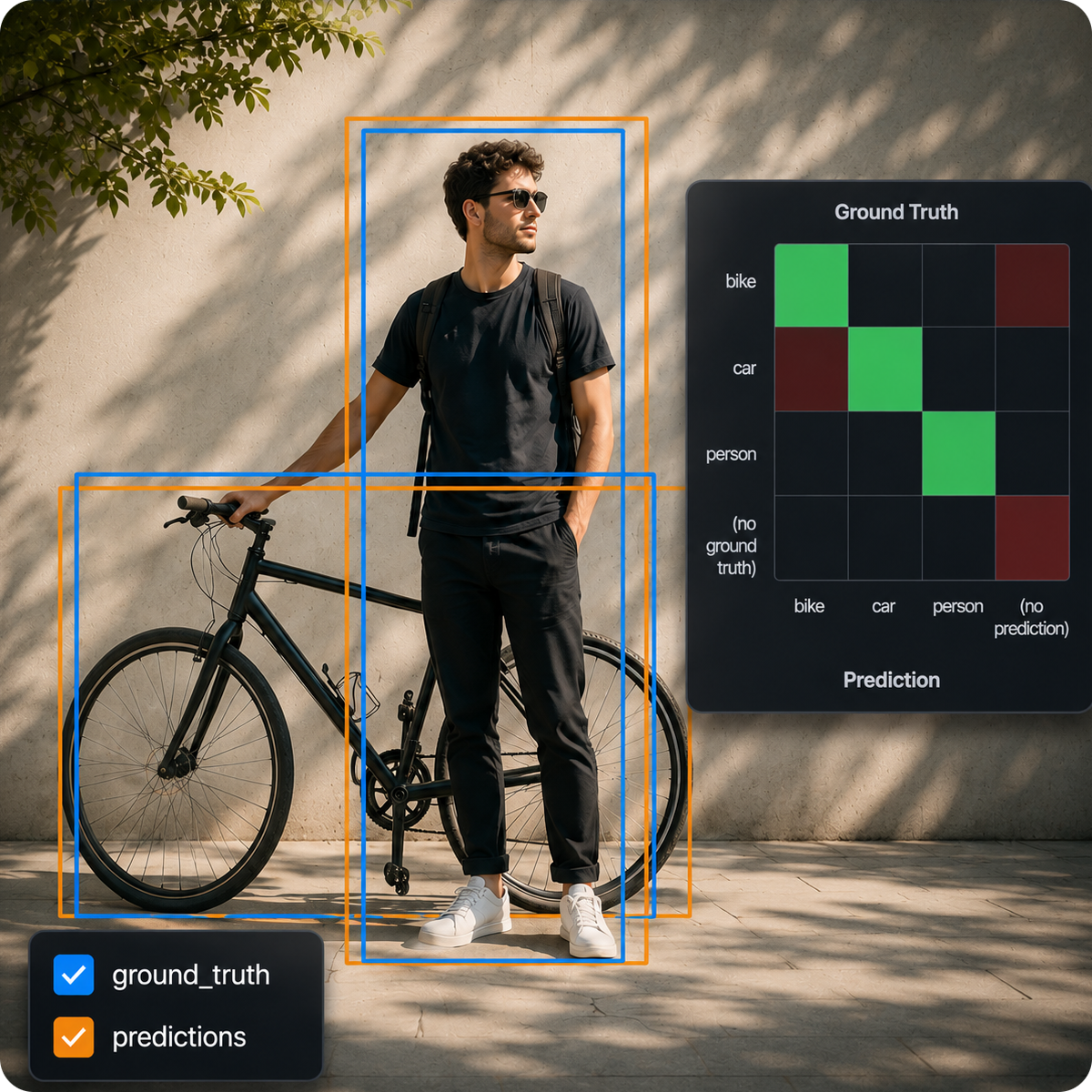
- Evaluate YOLO26 on Your Dataset with LightlyStudio: Compare predictions against ground truth, use the confusion matrix and embeddings to find failure patterns, and export issues for relabeling.
A selection of features
Set up a dataset
- Image datasets — index folders, COCO, and YOLO data
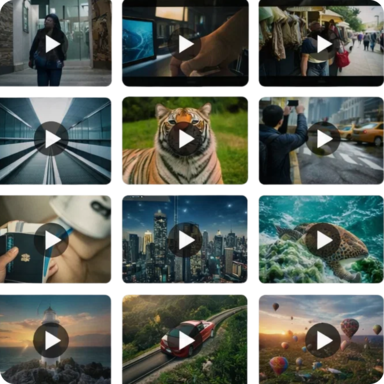
- Video datasets — index videos and work with frames
- Cloud storage — read from S3, GCS, or Azure
- Reuse datasets — append to an existing database, or point at a custom path
- Notebooks — run the GUI inside Jupyter or Colab
Work with your data
- Query, filter, and sort — build reusable subsets in Python
- Lightly Query Language — the query syntax for the GUI query editor
- Annotations, Tags, Metadata, Captions, Embeddings
- Sampling — pick the most typical and diverse samples to cut labeling cost
- Model evaluation — compare predictions against ground truth
- Plugins — auto-label with SAM and other models
- Export — write a query back out as COCO or YOLO
🗄️ Local cloud storage development
Floci emulates AWS S3 locally, and Floci GCP emulates GCS — no cloud account needed.
AWS S3 (Floci)
# Start Floci (creates the default S3 bucket)
make start-floci

# Upload MCAP files and list what's available
make setup-floci FLOCI_MCAP_FILES="~/data/front.mcap ~/data/rear.mcap"

# List uploaded recordings without re-uploading
make list-floci-mcaps

# Stop and remove the container
make stop-floci
Point LightlyStudio at the local S3 bucket before starting the server:
AWS_ACCESS_KEY_ID=test \
AWS_SECRET_ACCESS_KEY=test \
AWS_DEFAULT_REGION=us-east-1 \
AWS_ENDPOINT_URL=http://localhost:4566 \
  lightly-studio ...
GCP Cloud Storage (Floci GCP)
# Start Floci GCP (creates the default GCS bucket)
make start-floci-gcp

# Upload MCAP files and list what's available
make setup-floci-gcp FLOCI_GCP_MCAP_FILES="~/data/front.mcap ~/data/rear.mcap"

# List uploaded recordings without re-uploading
make list-floci-gcp-mcaps

# Stop and remove the container
make stop-floci-gcp
Point LightlyStudio at the local GCS bucket before starting the server:
STORAGE_EMULATOR_HOST=http://localhost:4588 \
  lightly-studio ...
🐍 Python Interface
Everything in LightlyStudio is scriptable: index datasets, query and edit samples, sample subsets, and export the result. See the API reference.
🤝 Contribute
We welcome contributions! Please check our issues page for current tasks and improvements, or propose new issues yourself. See CONTRIBUTING.md for development setup and validation instructions.
💬 Contact





