
Your own team of AI bots that check each other’s work before saying “done”.
Website · Docs · Features · Compare · Changelog · Discussions


macOS: one app for Apple silicon and Intel · Linux x86_64 (beta): .deb or AppImage · A server: binary or Docker · All downloads


Free and open source. A ⭐ helps others find kwant.
kwant has no token. Official X account is @kwantbot.
kwant gives you a team of bots that share chats, hand work to each other with an @mention and get it done on their own, on a schedule or while you're away. Each message goes to the bot that fits, and the reply says why. Work shows up as cards on a Mission board, and a task turns Verified only when kwant runs the check itself, never on a bot's word. Keep separate spaces for work and home, each with its own bots and accounts. Run it as an app on your Mac, Linux or Windows (beta) PC, or on a server, with the Claude, Codex or Grok CLI you already use, or your own API keys.
It's written in Rust (Tokio, Axum, SQLite) with a React web app embedded in the binary.
New in 0.9
- Review a bot's work in the Inbox (0.9.0). Inbox › New has a To review group, highest risk first. Each item shows a verdict (Pass, Fail, Needs you or Not checked yet), what done looks like, the evidence, and a Couldn't check list with the reason for each. Press Approve, Send back with a note, or Roll back. Low-risk items that passed every check can be approved together with Approve all.
- A second check before you approve (0.9.0). When a Mission board task moves to review, a teammate on another model runs its checks again in a clean copy of the files and never writes to the task's folder. For high-risk work it also changes the code in small ways to see if the tests notice. It says Pass only when kwant ran a check again itself. A task can say what done means and what must not change, and rolling back work you approved moves the bot down one Flight School tier.
- Point at the part of the page you mean (0.9.0). In Watch live, press Point and click part of the page. The bot gets the page address, a selector, the element's HTML, its size and styles, and a picture of it. Point only reads the page: it never clicks or types.
- Notes on diff lines, and CI back to the bot (0.9.0). On a Dev desk review card, add notes on lines and send them to the bot as one message; after its next push, each note says whether those lines changed. Failed CI checks and review comments on a bot's PR go back to that bot as one Fix-it item, and when the PR goes green a fresh-eyes reviewer gives its advice. Nothing is posted to GitHub, and nothing is merged.
- A worktree for each bot task (0.9.0). The Dev desk's Worktrees tab makes a worktree from a new or existing branch, for a bot or just for you, and the bot works in its folder. Remove never deletes the branch and asks before it loses changes. An hour after a task finishes, kwant deletes build folders git ignores, such as
node_modulesandtarget, unless you keep them. - Watch a mission (0.9.0). Pick a bot to check a mission's claims when it stops. A claim that doesn't hold sends its task back, and the report shows what was claimed and what was checked.
- One order for what needs you (0.9.0). The sidebar, the Inbox and the phone's Chats tab sort the same way: needs you, stuck or failed, to review, finished, working, waiting. A message to a busy or stuck bot is kept and says why it waits, and you get one notification when a turn shows no step for 15 minutes. Also: bots leave notes about their tools in Settings › Connections, and a bot can have a monthly budget (set through the API for now).
- Fixed in 0.9.1. Bots hand work to each other as often as the work needs, with no stop at 4 hand-offs to one teammate or 16 per message. Exact repeats and a teammate that failed 3 times in a row are skipped with the reason. You press Continue only after 64 hand-offs for one message. Hand-off cards catch up after a lost connection, and TikTok's QR sign-in no longer freezes the bot's browser.
- New in 0.9.2. Teams keep going until the job is done, so you no longer type "continue" when a lead stops halfway. After a teammate reports back, a lead that stops without handing on, asking you or writing a
Done:line gets up to 2 more turns, then you get one Keep going? card. "Continue with Google" and other sign-in popups now open in the bot's live browser view, and the view goes back to the page when the popup closes. Bitwarden accounts with two-step login connect, and a Telegram approval card sent as you switch off Allow approvals from Telegram no longer keeps a dead Allow once button. - New in 0.9.3. Each bot job gets its own page in its team's browser, so a sign-in or CAPTCHA that one bot waits on no longer stops the team's other bots. The pages share the team's sign-ins. When a team has 2 or more pages, the browser view lists them by bot and site, marks the one that needs you and goes to it. A team has at most 4 job pages at once, and a page nobody has used for 30 minutes closes.
- New in 0.9.4. Bots don't stop after a failed step. When a step fails or is refused, a bot tries it again, then tries another way; a step you declined isn't tried again. If nothing works, its last line starts with
Blocked:and says what would unblock it, and from a team's lead that line comes to you as a question card. A reply that still ends on "I'll…" after a failed step gets one more turn. - New in 0.9.5. Apps & accounts puts apps, AI accounts, MCP servers and Telegram on one settings page, and connecting an app takes 3 steps: open Composio, paste your link, pick the bots. Each bot can have a monthly budget in tokens or dollars: at 80% you get a heads-up, and at 100% it pauses with Raise the limit and Continue this month. When a bot's connection fails, its chat gets one line that says which one and why, with Reconnect when only you can fix it. The team browser frees idle pages and retries for up to 45 seconds when it's busy, and Dev mode no longer stops at 30 model calls a day.
- New in 0.9.6. Describe what your bots should do, press Suggest a team, and get 2 to 6 bots to untick or rename before you create them. The Inbox has a Done while you were away group next to Needs you: each item shows the answer, what the bot did and why, with Looks good, or ask the bot to redo it. Items stay for 7 days. A reply in your chat that stops before it's done either continues by itself or leaves one line in the chat and one item in Needs you, with Retry or Continue. Settings has one kwant bots card that says whether you're on the latest version, with Update when you're not. kwant's Chrome now presents itself as normal Chrome, and when Google refuses a sign-in without a window, Sign in in Chrome opens one for it on a computer with a screen.
- New in 0.9.7. While a reply is coming, the chat shows the bot's own avatar typing at a pixel laptop, with Ben is working on it, and the words take its place without a jump. Each bot's avatar has a small mark for the AI it runs on, live while it works, and a greyed mark with the reason when its engine can't run. One Find a tool box searches built-in tools, Composio apps and the public MCP directory, forgives typos, and installs a directory tool in one step.
- New in 0.9.8. A fresh install starts with @helpers (Assistant, Researcher, Writer), and #general asks What do you want done?; Dev mode and Approvals move to Settings › This space › General. A done item in the Inbox says what checked it (Checked, Partly checked, Failed or Not checked), with the checks and their evidence. Pressing Ask Ben to try again on a pre-push card lets Ben's next clean push of that branch go with no second card; the card follows it to Pushed. A mission check can wait for an outside service (exit 75): it re-runs every 15 minutes without bot turns and tells you after 72 hours. A chat that only needs your answer says Waiting for you in one amber line, with Answer; press a choice or just type. A routine's message in a chat shows as a Routine row with its name, not as your own message. In a team discussion, an @mentioned teammate speaks next.
- New in 0.9.9. The bot's browser panel opens by itself while it browses, lists Pages this reply by title, and a chip on the reply brings it back. AI use in Settings › All spaces › Usage shows 7 or 30 days, with a bar per day and each model's share. Routines open from the sidebar, with a Weekdays chip and schedules in plain words.
0.8 added bots that show their work, approvals off reaching every engine, drag and drop into any chat, import from more places, fresh-eyes reviews with the pre-push card, and Claude kept away from your secrets on a Mac. Every change is in the CHANGELOG.
Why kwant
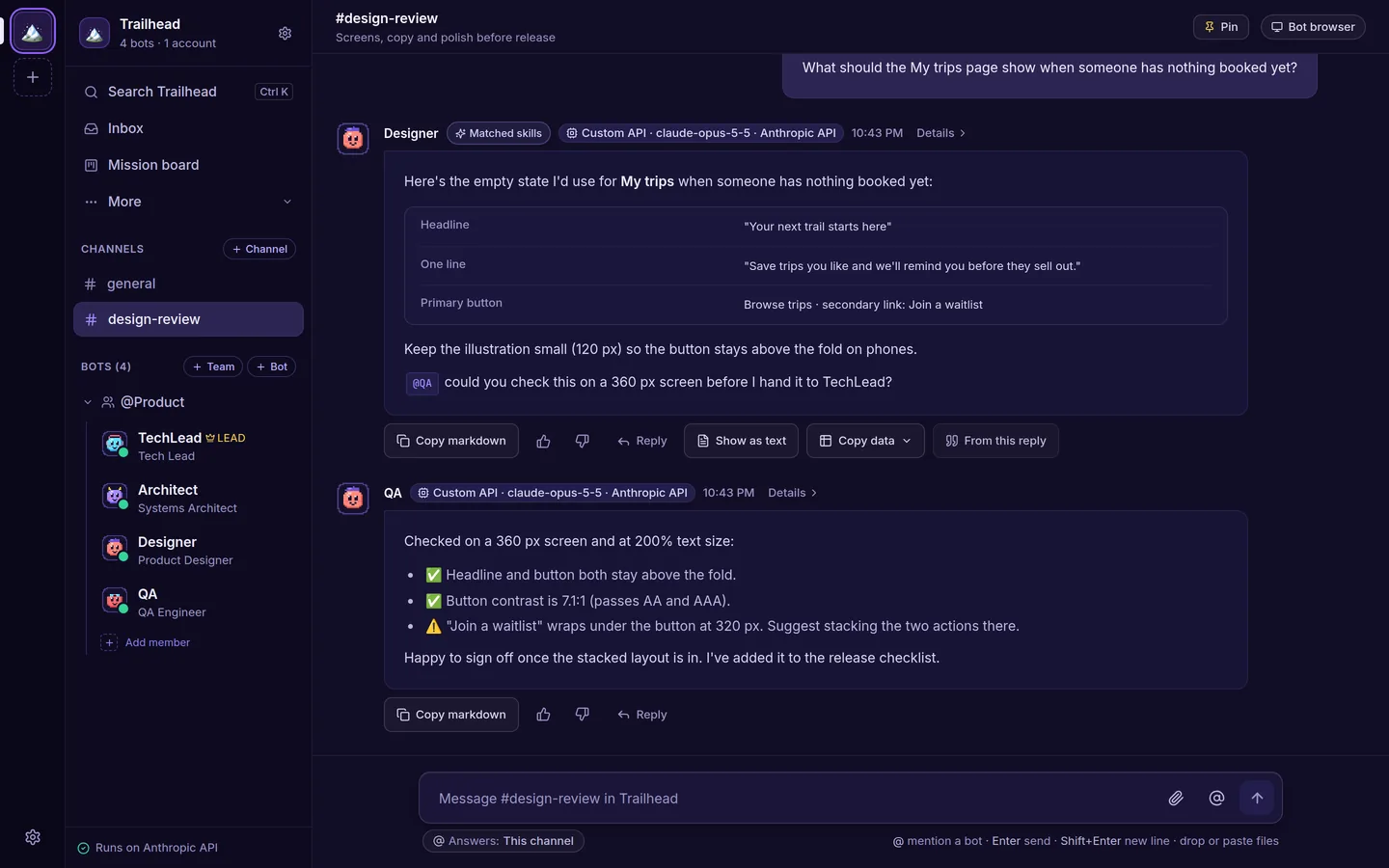
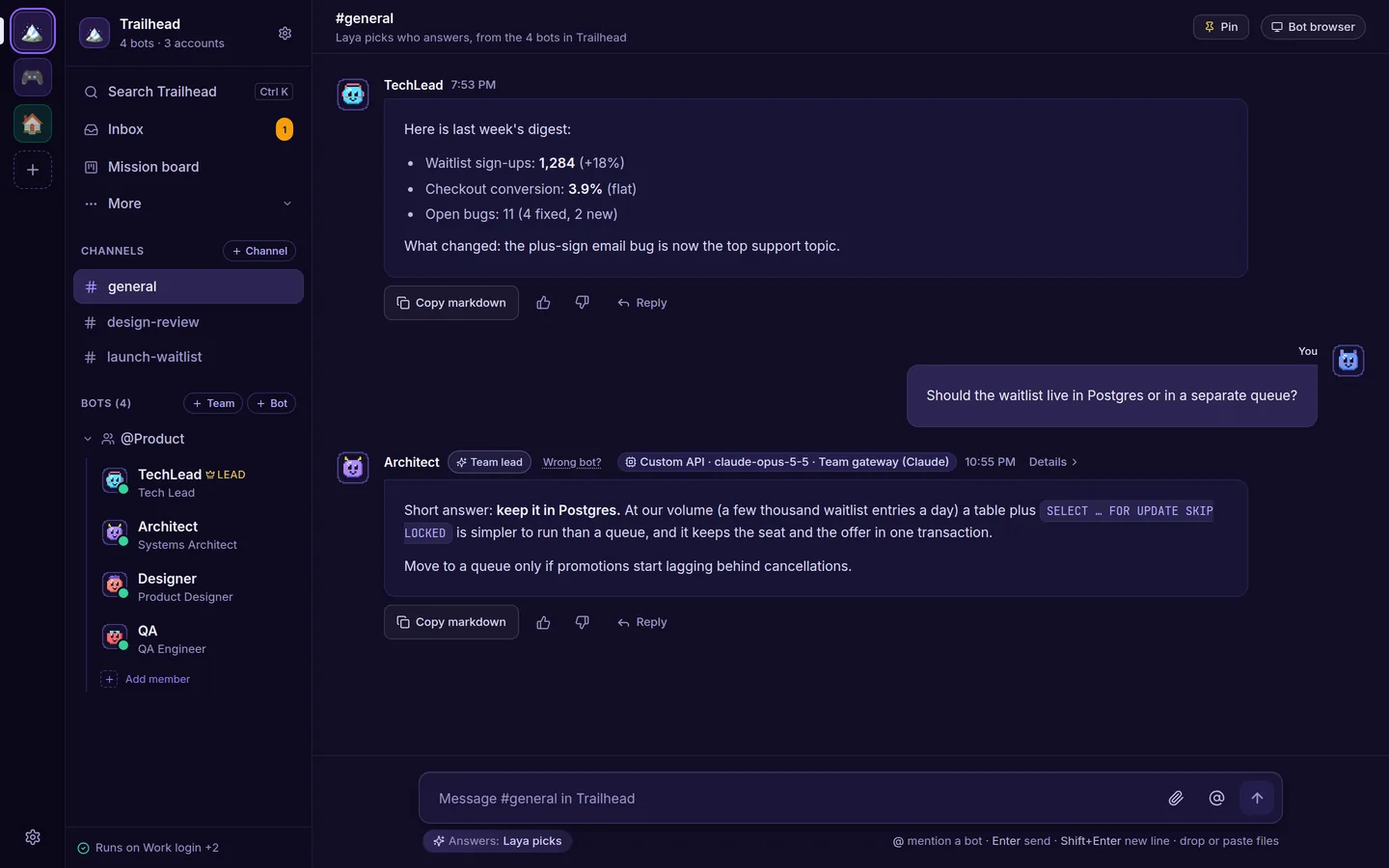
- A team, not a chat tab. Each bot has its own role, voice ("soul") and model. Bots @mention each other to hand work on, and a team lead runs short discussions and posts one summary. In a channel, kwant picks the bot that fits each message and shows why. The Laya router picks the model and effort for bots set to
auto. - "Done" means checked. The Mission board turns work into cards, one per hand-off. A card turns Verified only when kwant runs the check itself, such as a test or a file check, and the card keeps the receipt. Files a bot attaches are evidence to look at, never proof on their own.
- Dev mode for code. When bots write code, the Dev desk shows what landed in each team's repo in plain words, and a bot that didn't write a pull request reviews it, tests and secrets included. Pushes to main, deploys and other production steps always ask first.
- Facts with sources. Bots back web facts with a link that opens the page at the exact quote. kwant checks the quote is on the page word for word and refuses one that isn't.
- Spaces. Separate spaces for work, a side project and home. Each has its own bots, teams, channels, routines, accounts, approval rule and hiring rule.
- Every account you have. Several accounts per engine: Claude, Codex or Grok CLI logins, Anthropic, OpenAI or xAI keys, and your own OpenAI- or Anthropic-compatible server. Set a default and a priority order. When an account runs out of usage, the turn moves to the next one and the chat says so. You can pin a bot to one account.
- Works while you're away. Routines on a schedule (bots can set them up when you ask, with an Undo button), follow-ups bots schedule for themselves, and an Inbox with what's waiting on you, what finished and what failed. Turn on Automation Discovery and kwant suggests a routine for a task you keep asking for, which you accept or dismiss.
- Autonomous, with a safety net you control. Ordinary work runs without stopping. On Ask only when risky, the default for new spaces, only risky steps such as
git push, network calls, unknown commands or changes outside the bot's folder show an approval card with the exact command: Allow once, Always allow or Deny. Per space or per bot, switch to ask every time or don't ask. Payments always ask, in every mode: a payment command in the shell, or a checkout in the bot's browser, even behind a plain "Continue". Turn on Flight School and each bot earns more freedom per kind of work, but only you grant it. - Rules per bot. Say what each bot is good for and what it should never get, and which sites its browser may open. Blocked sites always win.
- Loose ends and letters. kwant reads your chats and, if you add them, an IMAP inbox and your GitHub issues and pull requests, read-only, and finds what you started and never finished. Photograph a bill or a form and it pulls out the sender, the ask and the deadline and drafts a reply. It never sends anything.
- Parallel Universe. Compare up to three ways to deploy an app with local container tests and dated price estimates. Every number is tagged as verified, an estimate or speculation. No cloud account and no spending.
- No telemetry. kwant sends nothing to us, and its interface loads nothing from other servers. The one download you don't set up yourself is the Laya router on first start: its Python packages and its model from PyPI and Hugging Face (
--no-layaturns it off). Everything else goes only to the AI providers and services you add. - And more: memory and skills per bot (you approve new skills), bots that propose hiring a teammate, import a bot from a Claude Code subagent, a SKILL.md, a character card or a JSON export, search across a space's chats, MCP tool servers, a shared browser for bots, saved passwords with an optional Bitwarden store, and Local or VM computer mode.
See every feature, with screenshots, on kwant.si/features.
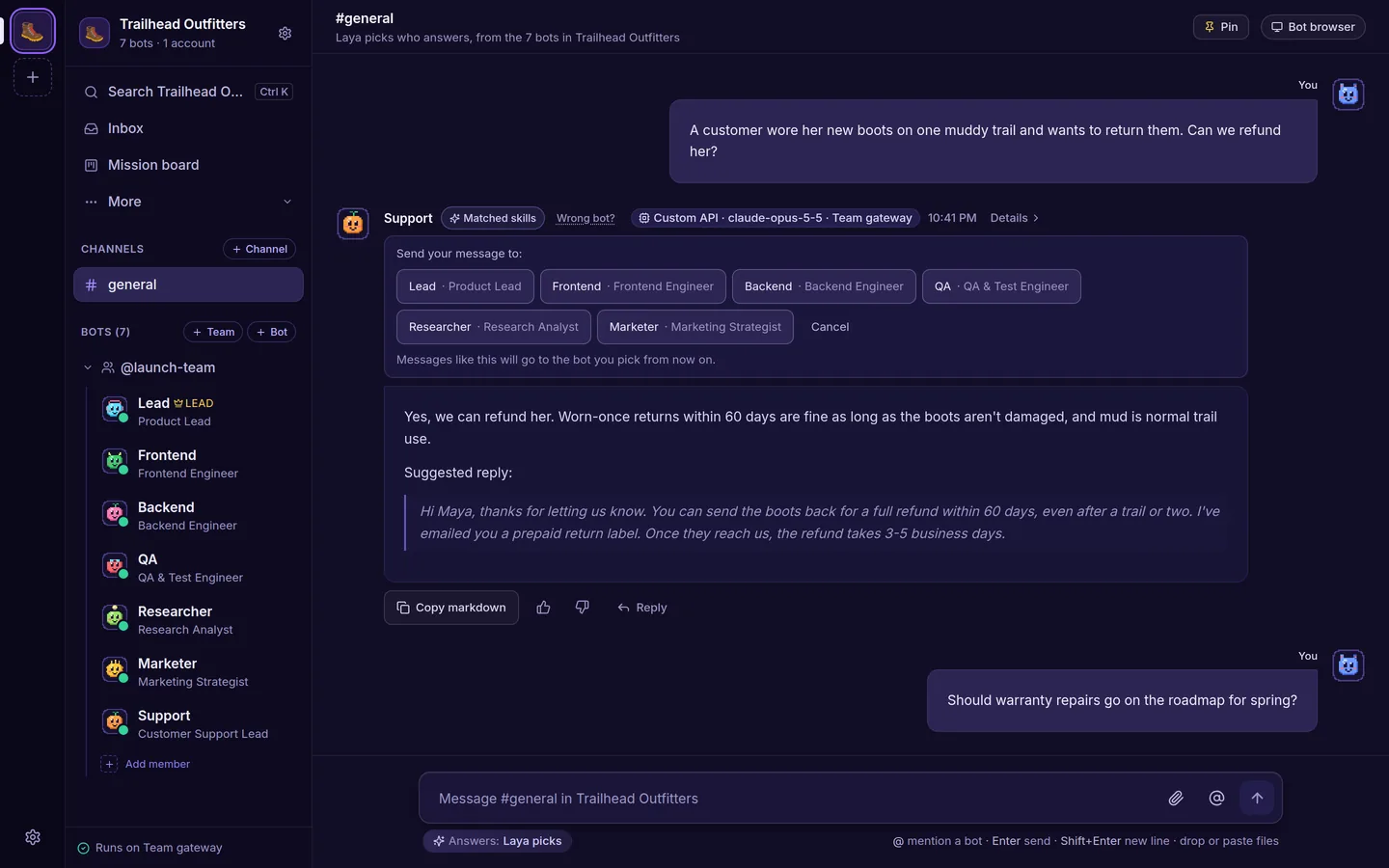 Who answers: the bot that fits, and why. Wrong bot? teaches it. |
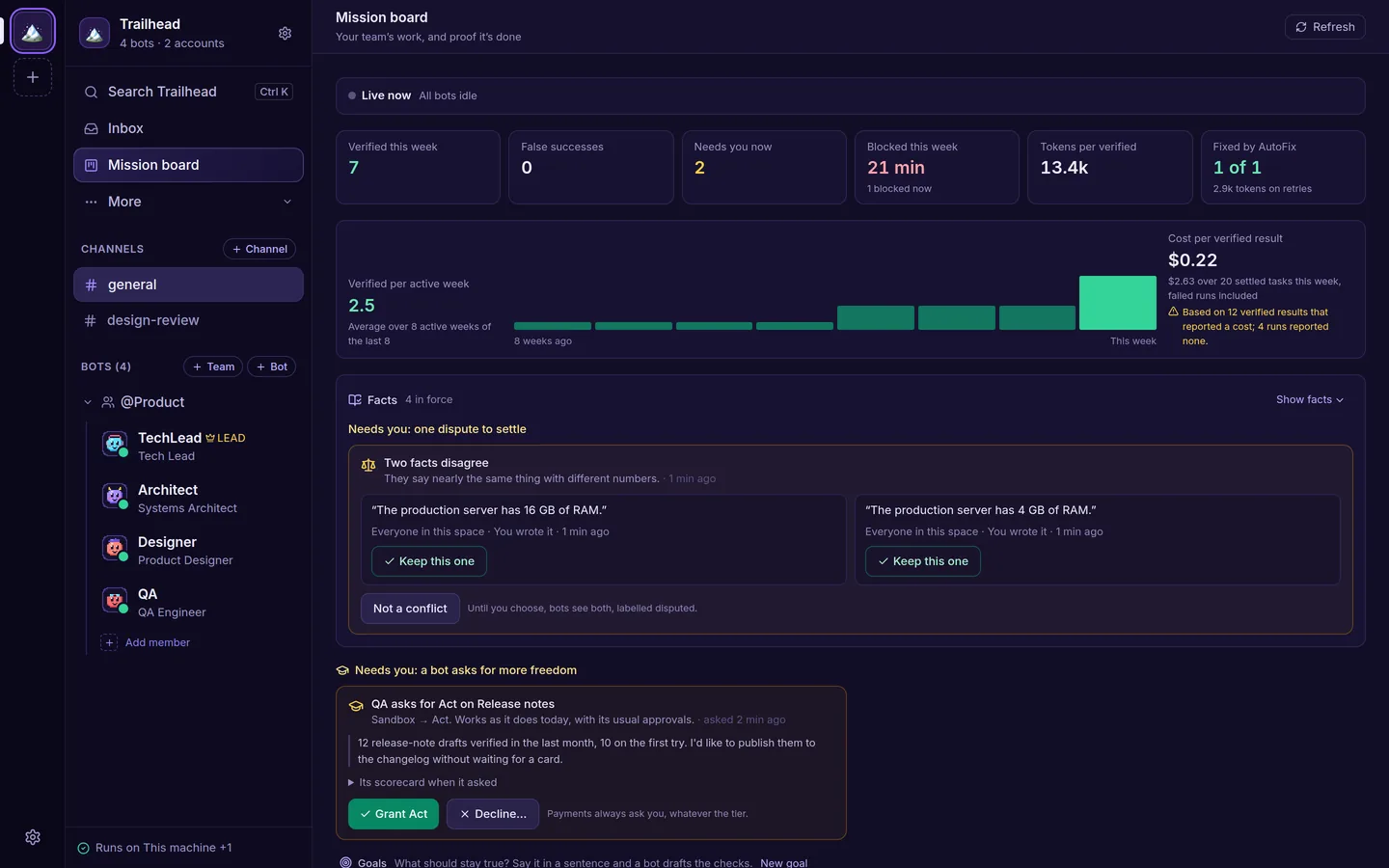 Mission board: verified results, their cost and what needs you (with Truth Ledger and Flight School on). |
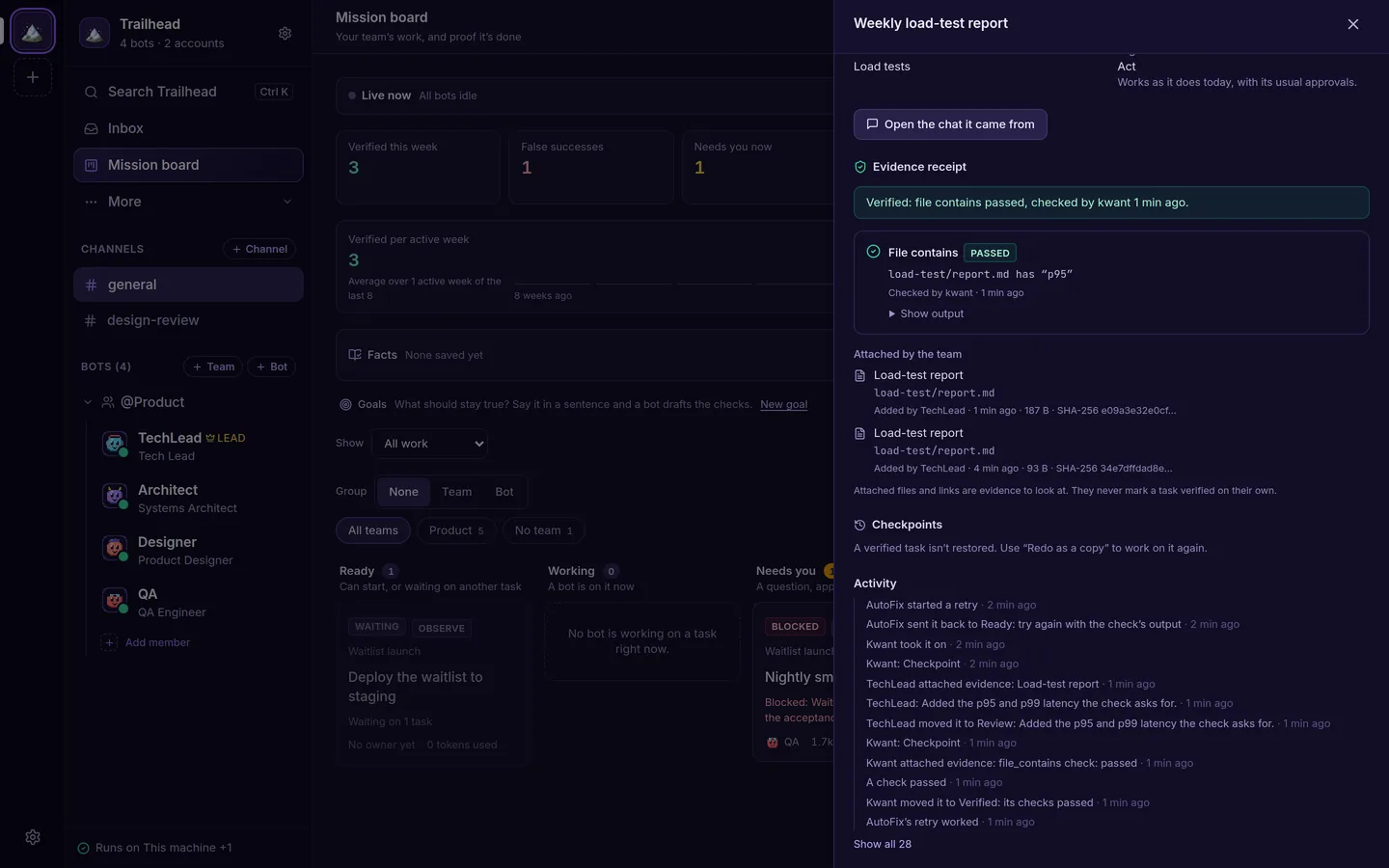 Verified: only when kwant runs the check, with a receipt. |
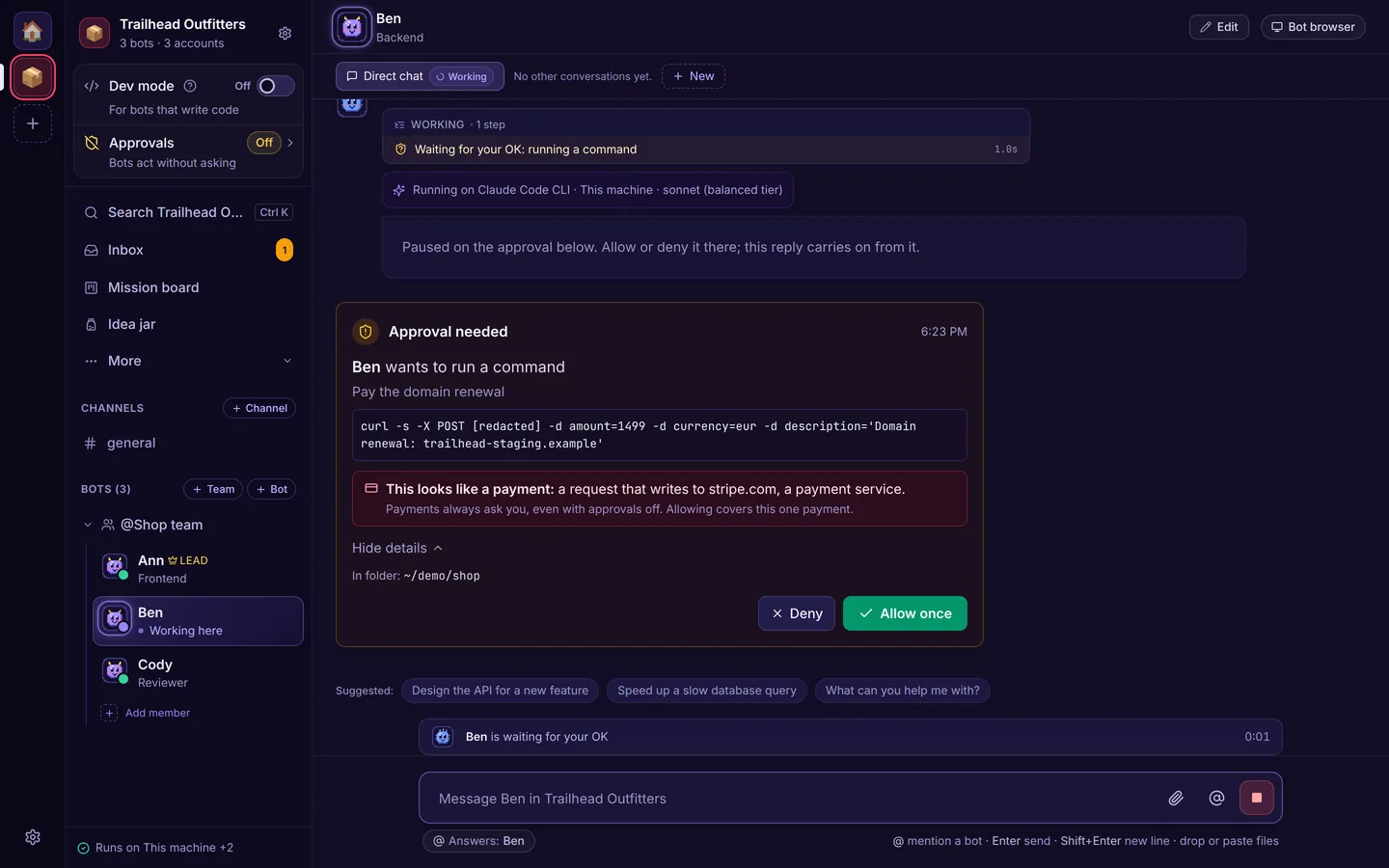 Payments always ask, in every approval mode. |
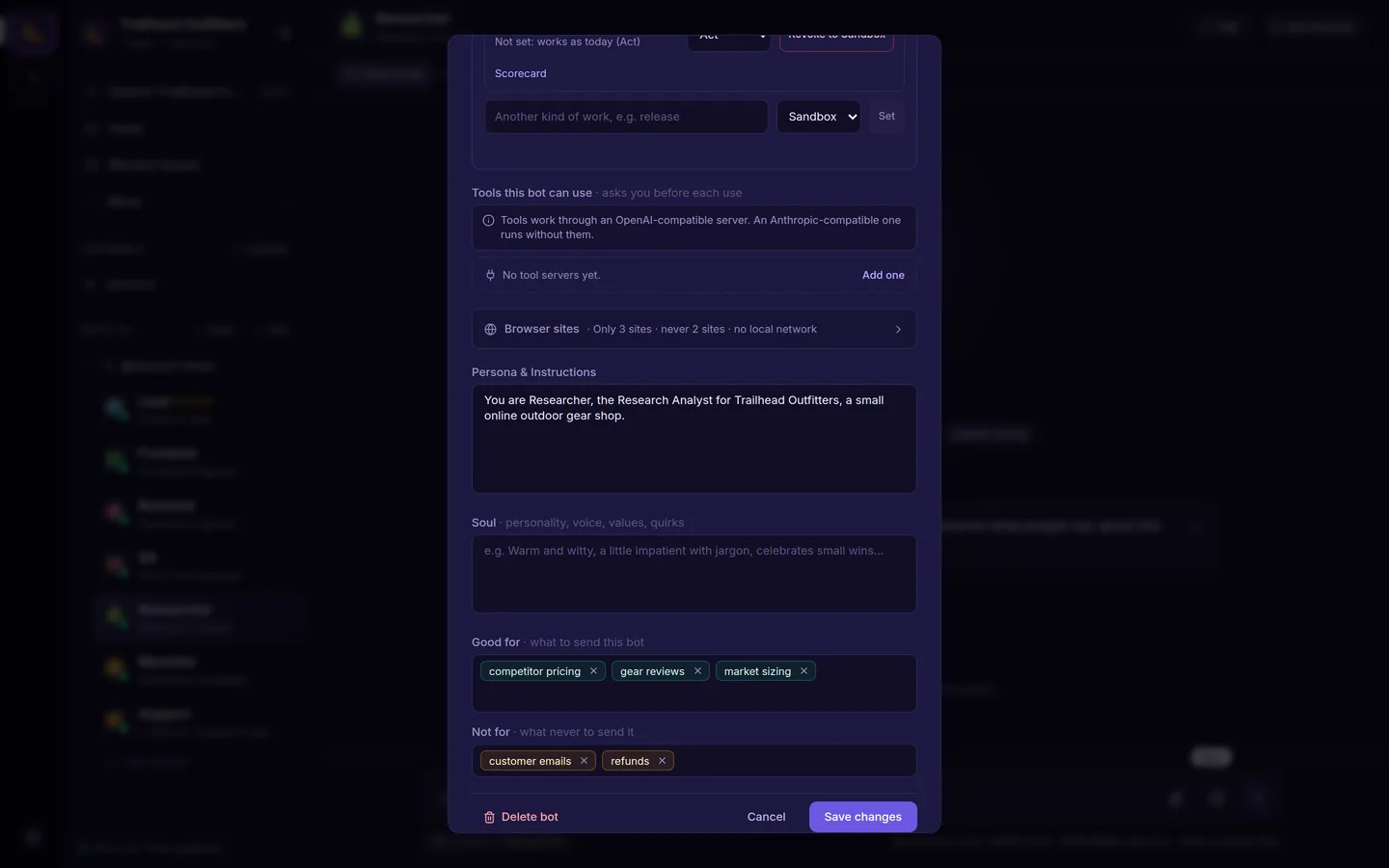 Rules per bot: Good for, Not for and Browser sites. |
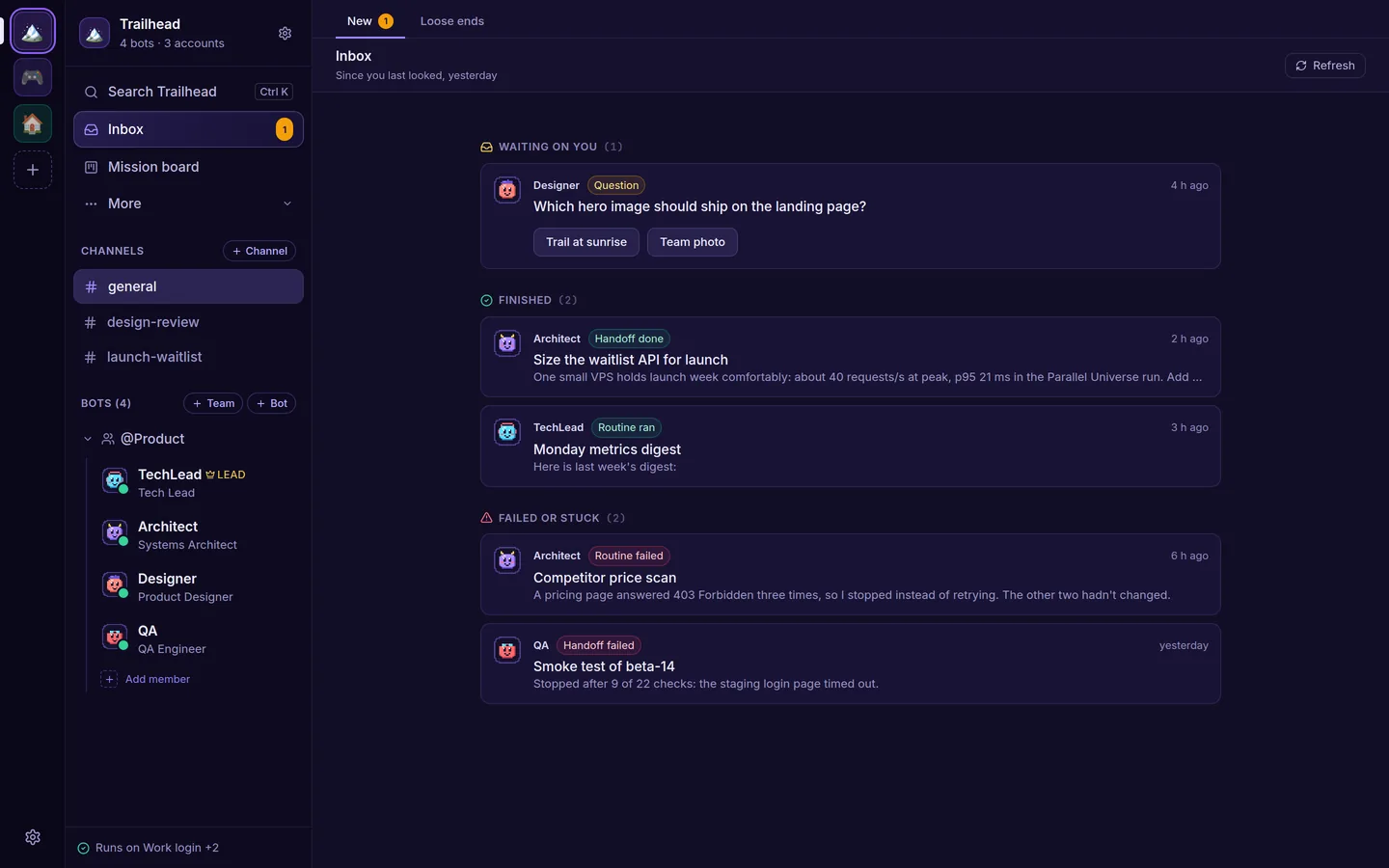 Inbox: what's waiting on you, what finished and what failed. |
 Spaces: each with its own bots, channels and routines. |
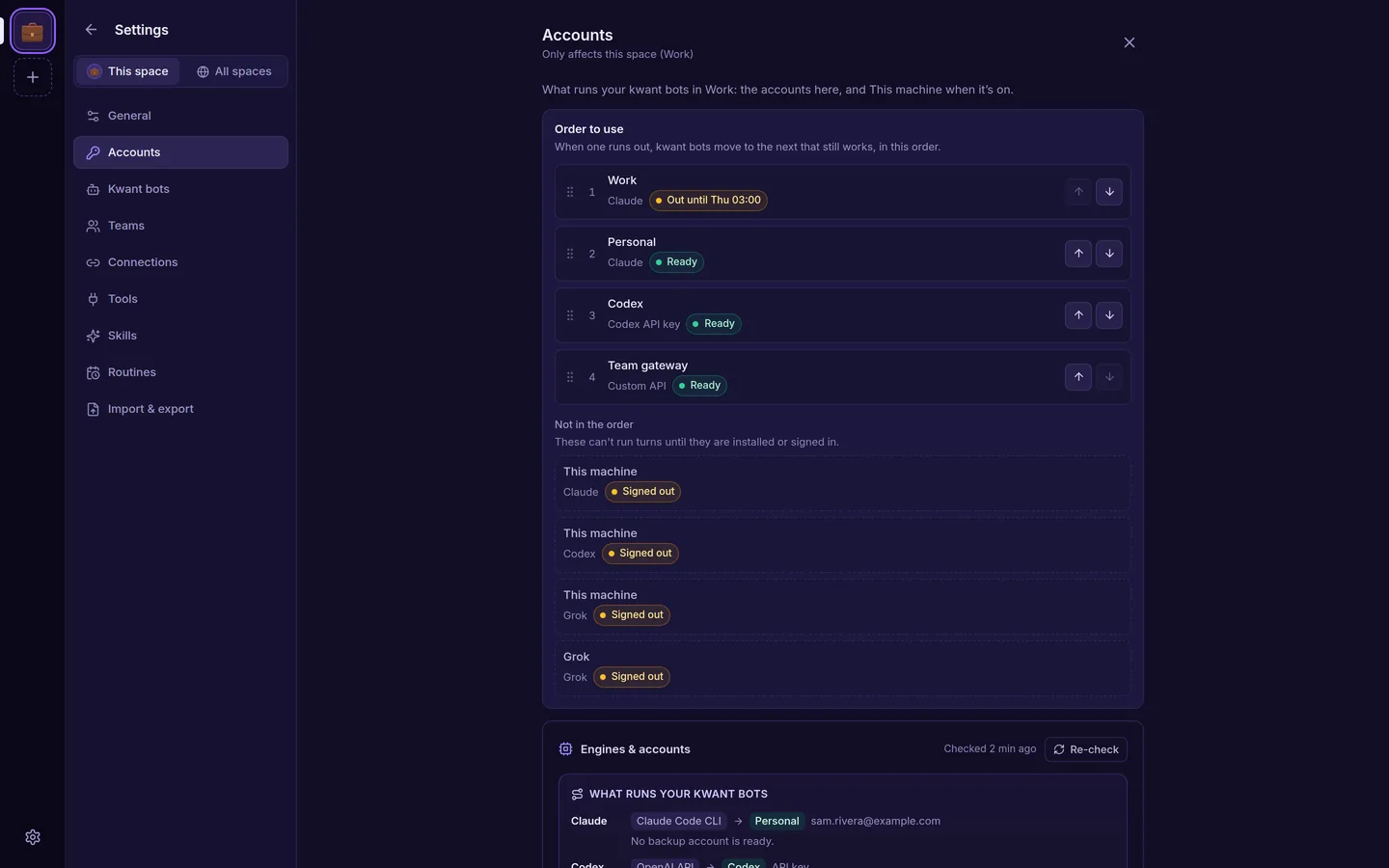 Accounts: several per engine, with a default and fallbacks. |
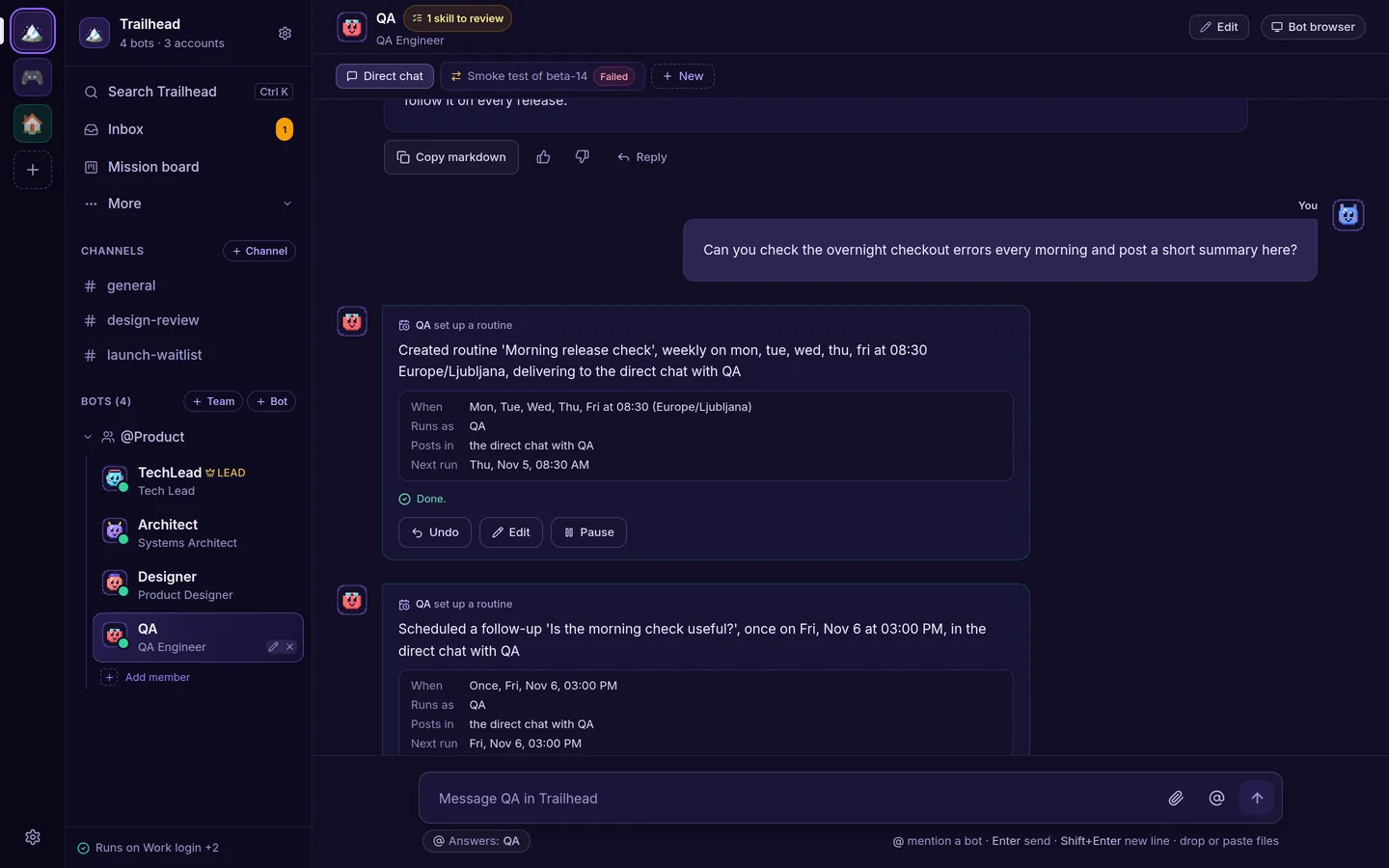 Routines: ask for "every morning" and get one, with Undo. |
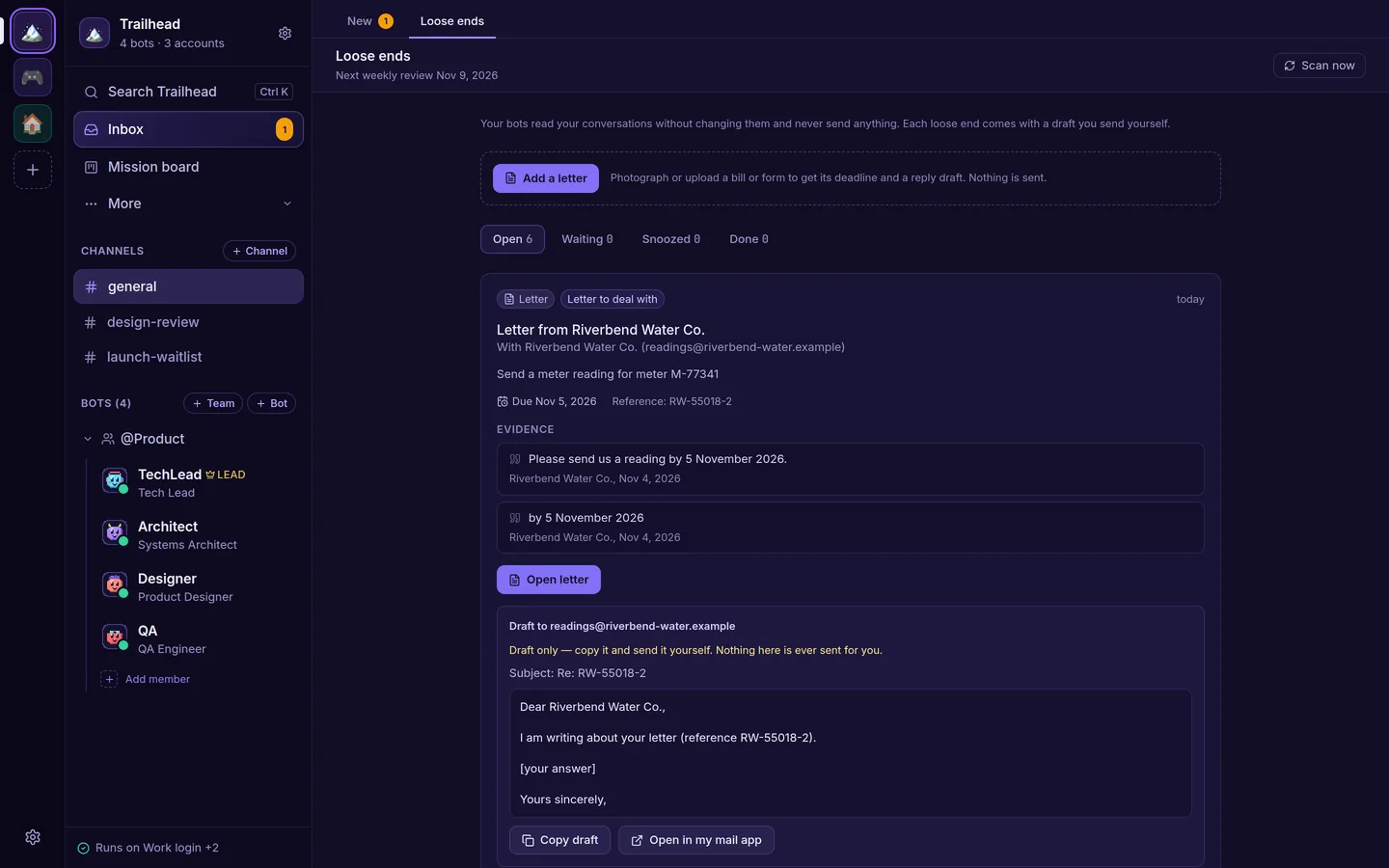 Loose ends, the Inbox's second tab: evidence and a draft. It never sends. |
Screenshots come from a demo space with sample data.
Quickstart
The quickest way is the app for Mac, Linux or Windows (beta): download it, add an AI account you already have and ask your first question. There's nothing to build. On a server, see Self-hosting on a VPS.
What you need
- A Mac (Apple silicon or Intel) or a Linux x86_64 desktop for the app.
- At least one AI account. Any one of these is enough:
- a Claude, ChatGPT or Grok account. You don't need to install or sign in to anything first: the Get started card installs the AI when it's missing, and you sign in from the app;
- an Anthropic, OpenAI or xAI API key, which you add in the card or under Settings → This space → Accounts.
- To build from source instead: Rust (stable), installed with rustup, and Node.js 20 or newer with npm, to build the web app. The finished binary doesn't need Node.
- Optional: Docker for VM mode and the bots' shared browser, and
uvorpython3for the Laya router.
If you build from source, kwnt doctor (cargo run -- doctor from a clone) checks all of these and prints the install command for whatever is missing on your machine; kwnt setup installs it (see Without Docker).
On a Mac: the app
Download the Mac app (a universal .dmg for Apple silicon and Intel) and drag kwant to Applications. It runs its own kwant on your Mac, with the same ~/.kwnt data folder as kwnt serve, and stays in the menu bar when you close the window. Build it yourself from apps/mac.
The app is signed ad hoc, not notarized by Apple, so macOS stops it the first time. Click Done, open System Settings → Privacy & Security, scroll down and click Open Anyway. On macOS 14 or earlier, right-click the app and choose Open instead.
On Linux: the app (beta)
The Linux app is for x86_64. Like the Mac app, it runs its own kwant, uses the same ~/.kwnt data folder and puts an icon in the tray.
- Ubuntu 22.04 or newer, Debian 12 or newer: download
kwant_amd64.deb, then runsudo apt install ./kwant_amd64.deb. - Other distributions: download
kwant_x86_64.AppImage, thenchmod +x kwant_x86_64.AppImageand run it. It needs a normal GTK desktop and FUSE.
Updates arrive in the app, which checks each one's signature before it installs it; with the .deb, your system asks for your password. sudo apt remove kwant removes the .deb, and your data in ~/.kwnt stays. It's a beta: tested in containers on Ubuntu 22.04, Ubuntu 24.04 and Debian 12, not yet on real desktops, so the tray icon, Wayland and HiDPI may vary. There's no ARM Linux app yet.
On Windows: the app (beta)
Download kwant_X.Y.Z_windows_x64_beta_setup.exe from the latest release (its SHA-256 is next to it) and run it. It's for 64-bit Windows, installs for your user only with no admin rights, and runs kwant on your PC with the same .kwnt data folder in your user folder as kwnt serve. The installer isn't code-signed yet, so the first time Windows SmartScreen warns about an unrecognized app: click More info, then Run anyway. In the beta, the app doesn't update itself (a new version is a new installer), and Grok, the VM and looking inside videos aren't available on Windows yet. In a folder OneDrive syncs with Files On-Demand, Dev mode asks before every push.
Run from a fresh clone
git clone https://github.com/alexsergivan/kwant.git
cd kwant
make run          # builds the web app (frontend/dist), then runs `cargo run -- serve`
Open http://127.0.0.1:8799. A new person's #general opens with the Get started card: choose your AI, sign in, pick a team (guide). A fresh install starts with three bots in #general: Architect, TechLead and DevOps. Make more with New bot, from a ready-made persona or blank.
The binary embeds frontend/dist, so on a fresh clone cargo build, cargo test and cargo run -- serve fail to compile until you've run make run or make frontend once.
The first start takes a few minutes: kwant installs its Laya router and downloads its model (about 420 MB) in the background. Bots answer meanwhile, and the routing rules still pick who answers. To skip Laya, run cargo run -- serve --no-laya.
Build a release binary
make build                 # web app + cargo build --release
./target/release/kwnt serve
Install the web app
In Chrome or Edge, click Install app in Settings → All spaces (the sidebar also offers it once, as a tip); in Safari on a Mac, File → Add to Dock; on a phone, kwant shows how. Browsers only install pages served over https or from 127.0.0.1.
To get notifications on your phone with kwant closed, install it (on an iPhone, add it to the Home Screen first) and turn on Settings → All spaces → Notifications → Notify me on this device. kwant then sends a Web Push notification for each kind you've ticked there, such as an approval or a question. It goes through your browser's push service (Google's for Chrome on Android, Apple's on an iPhone), encrypted so that service can't read it. Signing a browser out under Signed-in devices stops its notifications.
More in the quickstart and install docs.
Self-hosting on a VPS
The binary
kwnt is self-contained: SQLite and the web app are inside it.
scp target/release/kwnt user@your-vps:/usr/local/bin/kwnt
ssh user@your-vps "kwnt serve --host 0.0.0.0 --port 8799"
On your own computer there is nothing to sign in to. From another machine, open the one-time link kwnt serve prints at startup (it works once, for 15 minutes; with KWNT_ALLOWED_ORIGINS set it is ready to open and comes with a QR code), or make a new one with kwnt signin-link. The browser stays signed in for a year. To add your phone or another browser later, open Settings → Signed-in devices → Add a phone or browser in a signed-in browser and scan the one-time QR code (it also works once, for 15 minutes); the same list lets you sign those browsers out. A new browser can also choose Sign in from another device on the sign-in screen: it shows a code for 10 minutes, and a signed-in browser shows New device wants access with Approve or Deny. Approve only a code that is on a screen you are holding. Prefer the token? On the server, as the user that runs kwnt, cat ~/.kwnt/api-token (or $KWNT_DATA_DIR/api-token, e.g. sudo cat /var/lib/kwnt/api-token with the systemd unit below) prints the token to paste (kwnt token --raw does the same; ./target/release/kwnt if kwnt isn't on your PATH), and kwnt token prints a new one-time link like kwnt signin-link. Run them as the same user: as another user they fail, because that user can't read the token file (for the systemd unit use sudo cat as above). Each install has its own token, so one copied from your laptop won't open kwnt on the server. Or skip sign-in: ssh -N -L 8799:127.0.0.1:8799 user@your-vps, then open http://127.0.0.1:8799 on your computer (not with Docker, where requests always count as remote). A one-time link signs in as you, so keep it private until you've used it; the token never appears in the server's output. Put a TLS reverse proxy in front: see browser service and VPS hosting.
A systemd unit
# /etc/systemd/system/kwnt.service
[Unit]
Description=kwant AI bot platform
After=network.target

[Service]
Type=simple
# A dedicated user (useradd --system --create-home --home-dir /var/lib/kwnt kwnt); sign the
# claude/codex/grok CLIs in as this user, or add API keys in the app
User=kwnt
ExecStart=/usr/local/bin/kwnt serve --host 0.0.0.0 --port 8799
Restart=always
Environment=KWNT_DATA_DIR=/var/lib/kwnt

[Install]
WantedBy=multi-user.target
systemctl daemon-reload
systemctl enable --now kwnt
VPS in 5 minutes (Docker Compose)
One command starts everything kwant needs: kwnt, the Laya router (with its model baked in) and a private Chromium for the bots (VM mode), with no Docker socket mounted. You need Docker with Compose and about 4 GB of free RAM (Chromium is capped at 1.5 GB).
git clone https://github.com/alexsergivan/kwant.git && cd kwant
KWNT_CLIS=claude,codex docker compose up -d --build   # any of claude,codex,grok; leave out for none
docker compose exec kwnt kwnt doctor                  # what works, and the fix for what doesn't
docker compose exec kwnt claude auth login            # sign a CLI in (codex login --device-auth, grok login --device-auth)
docker compose exec kwnt kwnt signin-link            # a one-time sign-in link and QR code (15 minutes)
Or skip the CLIs and add an Anthropic, OpenAI or xAI API key in the app under Settings → This space → Accounts. CLI sign-ins live in the kwnt-home volume and data in kwnt-data, so both survive rebuilds.
HTTPS: the UI is published on 127.0.0.1:8799 only. Put a TLS proxy in front, e.g. Caddy with this Caddyfile, and tell kwnt its address:
kwant.example.com {
	reverse_proxy 127.0.0.1:8799
}
echo KWNT_ALLOWED_ORIGINS=https://kwant.example.com >> .env && docker compose up -d
docker compose exec kwnt kwnt signin-link prints a one-time sign-in link for your domain and a QR code to scan with your phone. It works once, for 15 minutes; run it again for the next device. docker compose exec kwnt kwnt token --raw still prints the API token, as a fallback.
- Image sizes (measured): kwnt alone 0.2 GB; with
KWNT_CLIS=claude,codex,grok1.7 GB (the CLIs add about 0.9 GB, so they are off by default). Laya 3.2 GB, the browser 1.2 GB. Idle RAM: Laya about 1.7–2.3 GB, the browser about 0.4 GB, kwnt about 25 MB. - kwant's own
execute_shelltool runs in per-team Docker containers, so it isn't available inside this stack: that would need the host's Docker socket, which is root on the host. The CLIs' own shell tools work inside the kwnt container. - Upgrading from an older image: kwnt now runs as uid 10001, not root. If it says
/data isn't writable, run once:docker compose run --rm -u root kwnt chown -R 10001:10001 /data.
Without Docker: kwnt setup
kwnt setup installs what kwant needs on this machine: Chromium or Chrome for the bots' browser, Laya (in kwant's data folder, with its own uv if you have no Python), and a CLI (claude unless you name others with --clis). It asks before each step (--yes skips the questions), never runs sudo itself (it prints the command for you instead), installs into your home folder where it can, skips Docker unless you pass --docker, and running it again changes nothing. --dry-run shows the plan. The app has the same checklist under Setup.
One line per platform, each followed by kwnt doctor:
| Platform | Install | Then |
|---|---|---|
| Mac app | Download the .dmg from Releases and open it |
Run kwnt doctor |
| Linux app (beta, x86_64) | Download the .deb or the AppImage from Releases and install it |
Open Setup in the app |
| Mac, command line | git clone https://github.com/alexsergivan/kwant.git && cd kwant && make build && ./target/release/kwnt setup (uses Homebrew when you have it) |
Run kwnt doctor |
| Linux desktop or server | The same clone and make build, then kwnt setup, or sh scripts/install-linux-deps.sh --clis claude on Debian/Ubuntu |
Run kwnt doctor |
| VPS with Docker | Docker Compose | Run docker compose exec kwnt kwnt doctor |
There's no prebuilt kwnt binary or Homebrew formula yet, so the command line needs a clone and a build (Rust and Node).
Laya model router
Laya picks which model and effort a bot uses when its model is auto. When kwant picks which bot answers in a channel, Laya adds its own guess from the bots' titles, but it never picks a bot on its own: kwant's routing rules do. It runs as a small Python service, and kwnt serve manages it for you: on first run it installs laya[serve] into ~/.kwnt/laya/venv (with uv when present, else python3 -m venv), starts it, and restarts it if it exits. The header shows its status. While Laya is unavailable, the rules still pick the bot, the model and effort come from a keyword estimate, and the reason line under a reply says it was a keyword match.
| Setting | config.toml |
Environment | Default |
|---|---|---|---|
| Laya URL | laya_url |
LAYA_URL |
http://127.0.0.1:8000 |
| Manage a local Laya | laya_managed |
KWNT_LAYA_MANAGED=0 to disable, or kwnt serve --no-laya |
true |
| Checkpoints to preload | laya_models |
KWNT_LAYA_MODELS |
english |
Use an existing laya-serve binary |
KWNT_LAYA_SERVE_BIN |
The first start needs huggingface.co. Behind a proxy that blocks it, start kwant once on an open network or copy ~/.kwnt/laya/hf from another machine.
FAQ
Is kwant free? Yes. It's open source under the AGPL-3.0: use it, change it and run it for yourself, your team or your company, at any size. You pay only for the AI accounts you already have. If you want to sell or host kwant without publishing your changes, there's a commercial license.
Can I use my Claude or ChatGPT plan? Yes. kwant runs the Claude, Codex or Grok CLI you're signed in to, so your plan covers the work. You can also add Anthropic, OpenAI or xAI API keys, or your own OpenAI- or Anthropic-compatible server. When one account runs out of usage, the turn moves to the next.
How is it different from Grok Bot, Claude Duet or OpenAI dots? It's the same idea, a team of named bots you message, but open source, running on your own computer or server, with any of your accounts. And a task counts as done only when kwant runs the check itself. Side by side: kwant vs Grok Bot.
Where does my data go? It stays on your computer or server, in kwant's data folder (~/.kwnt by default). kwant has no telemetry and sends nothing to us. Your messages go only to the AI providers and services you add.
Do I need an account with you? No. There's no sign-up: you run kwant yourself and sign in only to the AI accounts you add.
Which computers can run it? A Mac (Apple silicon or Intel), a Linux desktop (x86_64, beta), a Windows PC (64-bit, beta) or a Linux server, with the binary or Docker Compose.
Can I run it on a free server? Yes. This guide sets kwant up on Oracle Cloud's free tier, step by step.
Documentation
- What changed in each release: CHANGELOG.md
- Website docs: kwant.si/docs: quickstart, install, spaces, bots and teams, Mission board, Flight School, Truth Ledger, models and routing, accounts, routines, approvals, the bots' browser, loose ends, Parallel Universe, memory and skills, MCP.
- In this repo:
- Channel routing: who answers
- Mission Control and verified outcomes
- Approvals
- Payments always ask
- How bots use their browser
- Bot actions
- Browser service and VPS hosting
- LLM profiles (accounts) and API access
- Connections API
- Live activity and human steps API
- MCP API
- Saved passwords
- Loose ends (zombie hunter)
- Letters (camera to completed)
- Parallel Universe
- Dev mode
- Idea jar
Contributing
Bug reports, ideas and pull requests are welcome. Read CONTRIBUTING.md for how to build, test and send a change, and follow the Code of Conduct.
make frontend                  # build the web app once (cargo test needs frontend/dist)
cargo test                     # Rust unit and integration tests
cd frontend && npm test        # web app tests
Security
kwant runs commands and holds API keys and passwords, so please report vulnerabilities privately. See SECURITY.md. Don't open a public issue for a security problem.
Contact
- Email: contact@kwant.si, for questions, a commercial license, privacy requests or press.
- Bugs and ideas: GitHub issues. Questions and setups to share: GitHub Discussions.
- Security problems: report them privately, as SECURITY.md describes.
License
kwant is open source under the GNU Affero General Public License v3.0 (AGPL-3.0-only).
- Free for everyone: use it, change it and run it for yourself, your team or your company, at any size.
- Share your changes if you serve them: if you change kwant and let others use it over a network, for example as a hosted service, you must publish your changed source code under the AGPL too.
- Commercial license: if you want to sell kwant, host it or build it into your product without publishing your changes, you can buy a commercial license instead. See COMMERCIAL.md.
Code published before the switch, including the mac-v0.1.0 release, stays under MIT OR Apache-2.0.
Contributions are accepted under the terms in CONTRIBUTING.md.