 elio
elio
Snappy, batteries-included terminal file manager with rich previews, inline images, bulk actions, and trash support.
Documentation
- Installation: https://elio-fm.github.io/install/
- Docs: https://elio-fm.github.io/docs/
Features
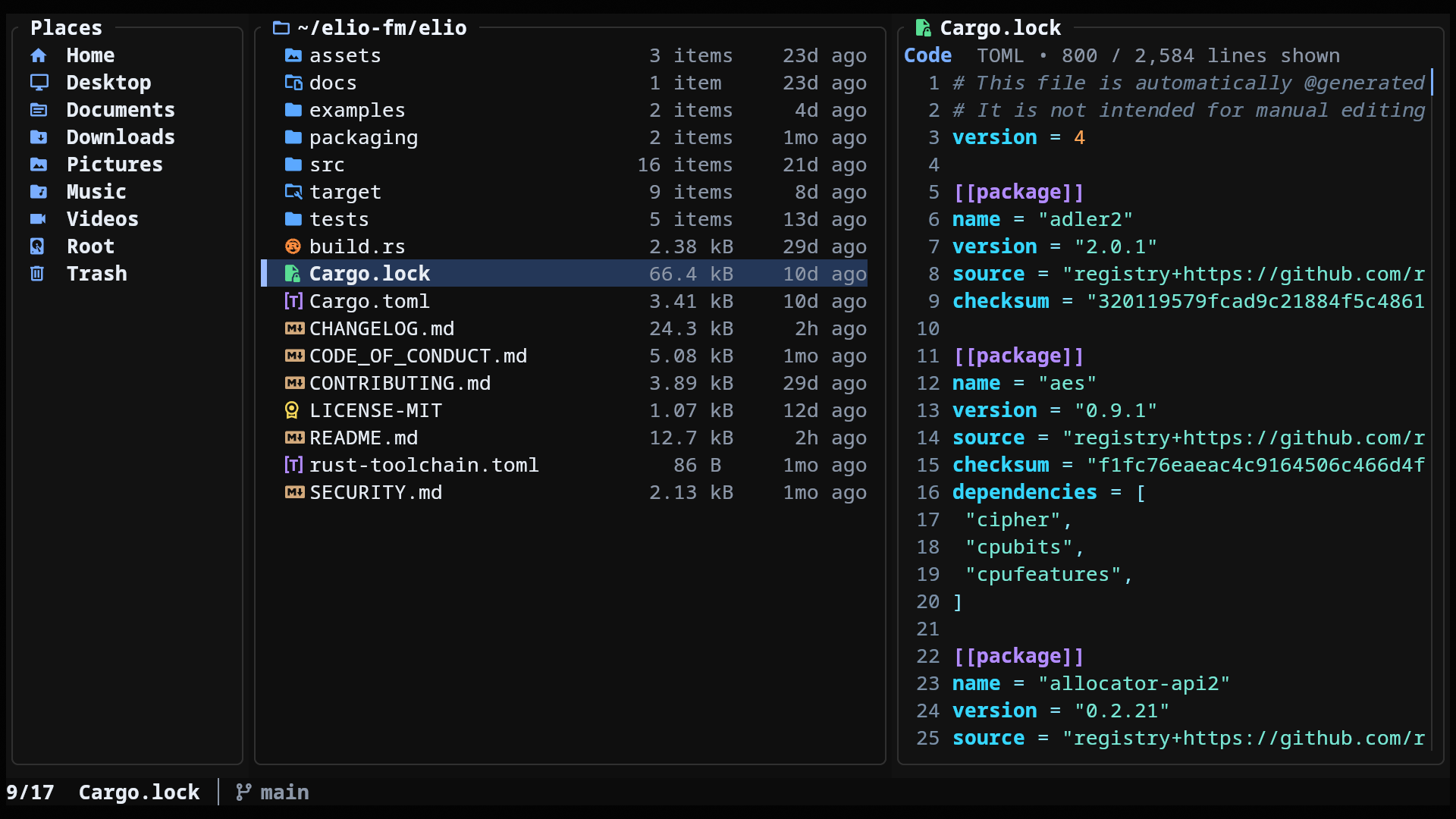
- Three-pane layout — Places, Files, and Preview side by side
- Grid and list views — switch with
v, zoom the grid withCtrl++/Ctrl+- - Keyboard and mouse navigation — browse comfortably either way
- Customizable places and devices — pinned folders and auto-detected drives and mounts
- Quick actions — Go-to, Open With, and copy-to-clipboard
- Trash management — trash, restore, or permanently delete files
- Duplicate Finder — find and safely manage files with identical contents
- Rich previews — text, code, documents, archives, media, and more; see Preview Coverage
- Inline images — rendered directly in supported terminals
- Archive management — extract and create common archive formats
- Fuzzy find — find folders and files quickly
- Zoxide jumps — jump to frequent directories from your zoxide history
- Kitty drag and drop — drop files into elio and drag them out in Kitty 0.47+
- Shell integration — install cd-on-exit wrappers for bash, zsh, fish, and Nushell
- File chooser — use elio as the file chooser on Linux and FreeBSD
- Theming — full palette and file-class control via
theme.toml
Installation
Arch Linux
Install from the AUR with your preferred AUR helper:
paru -S elio
Fedora
Enable the COPR repository and install with dnf:
sudo dnf copr enable miguelregueiro/elio
sudo dnf install elio
Debian and Ubuntu-based Linux
Configure the official apt repository and install with apt:
curl -fsSL https://elio-fm.github.io/elio-apt/install.sh | sudo sh
sudo apt install elio
Manual repository setup is available in elio-apt. To install without adding a repository, download the .deb package from the latest release.
The apt repository currently publishes amd64 and arm64 packages.
Homebrew
Install from Homebrew:
brew install elio
FreeBSD
Install the FreeBSD package:
pkg install elio
Nix
Run from main with Nix flakes:
nix run github:elio-fm/elio/main
Or install from main in your Nix profile:
nix profile add github:elio-fm/elio/main
Cargo
Install from crates.io:
cargo install elio
elio starts in your current working directory by default. Pass a file or directory path to open it instead.
[!TIP] Recommended: use a Nerd Font in your terminal so icons display correctly.
Example Themes
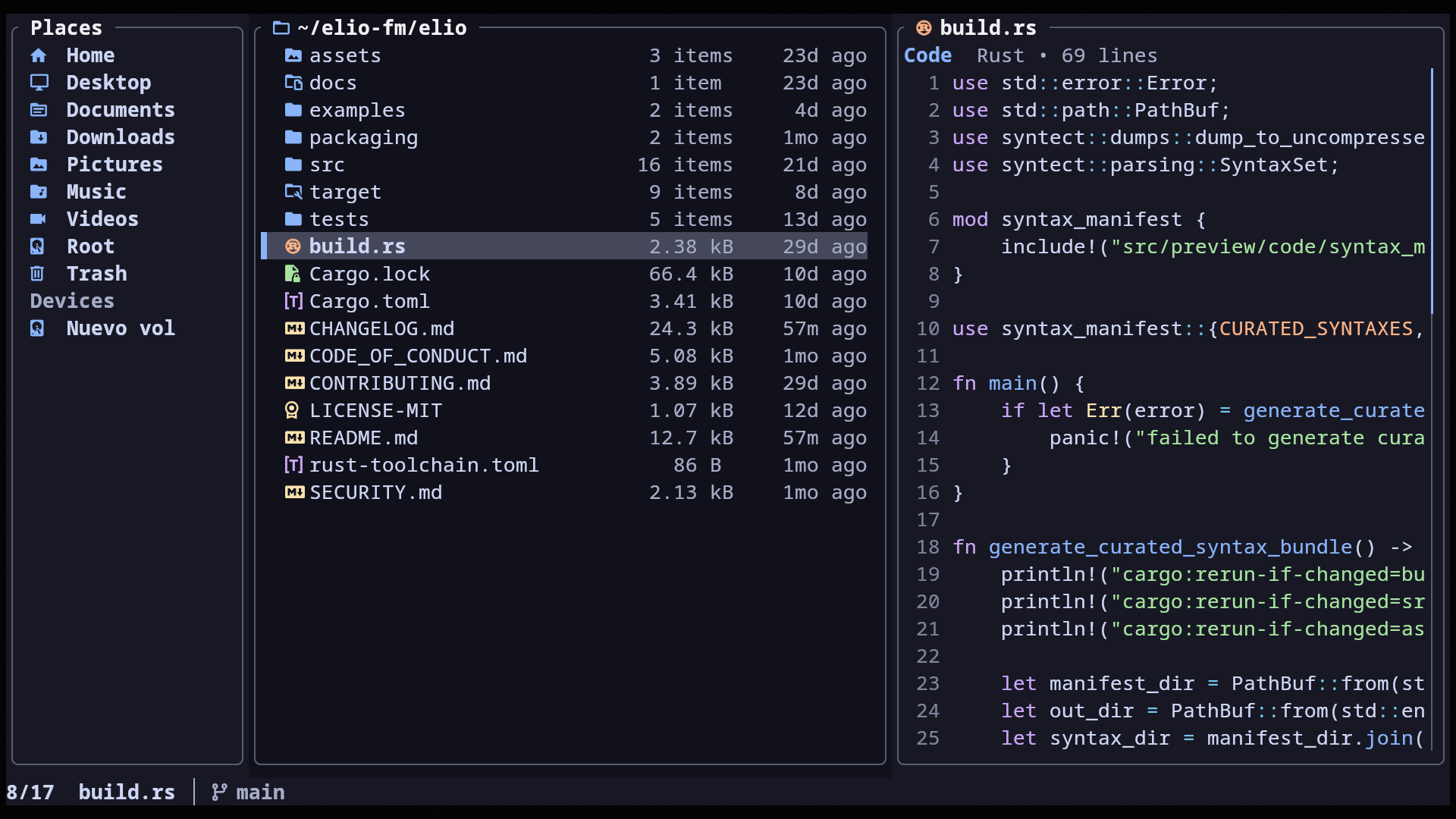
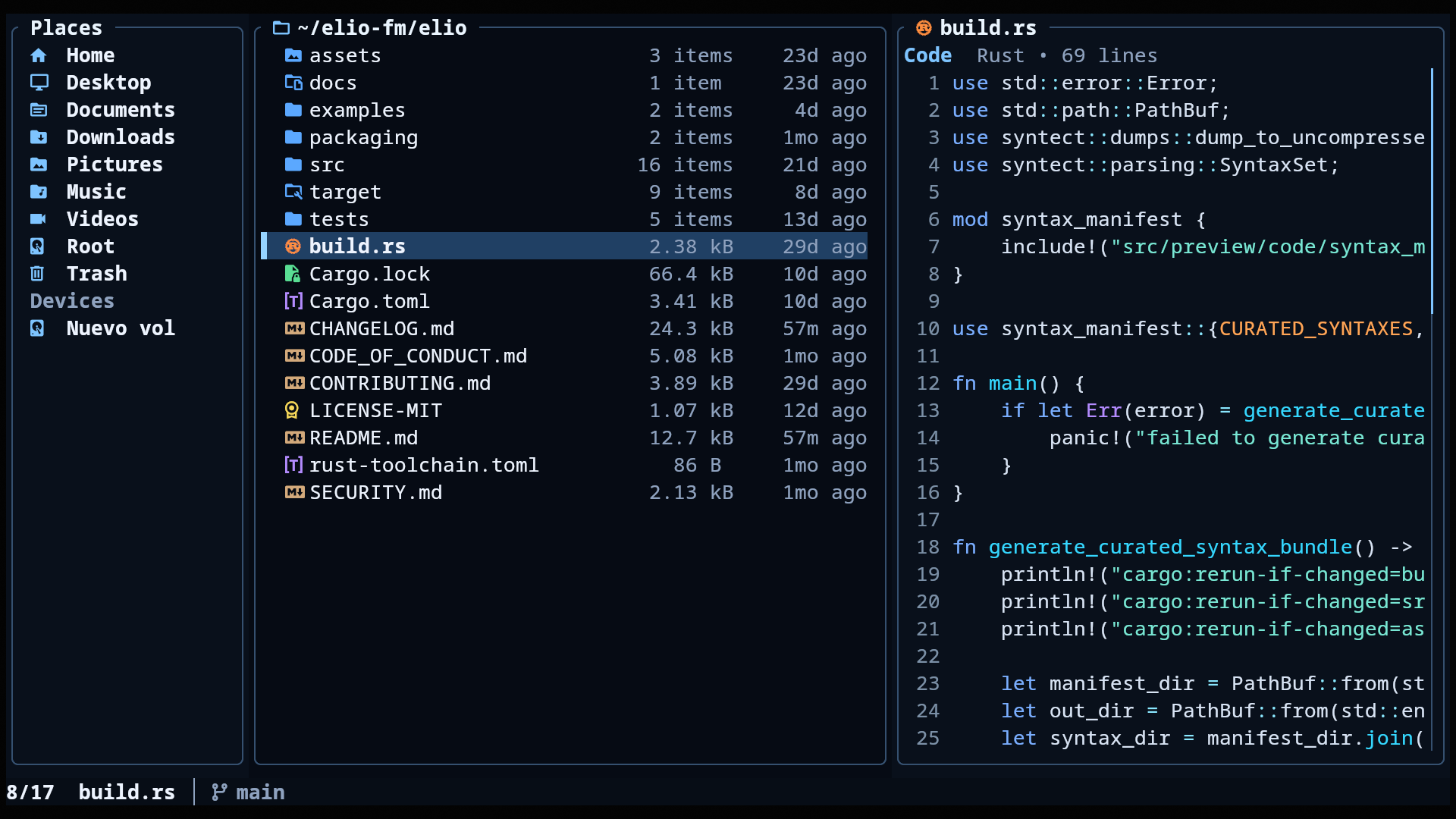
A few bundled themes are shown below. More are available in examples/themes/. See Theming for theme paths and docs.
| Catppuccin Mocha | Navi |
|---|---|
|
|
| Amber Dusk | Blush Light |
|---|---|
|
|
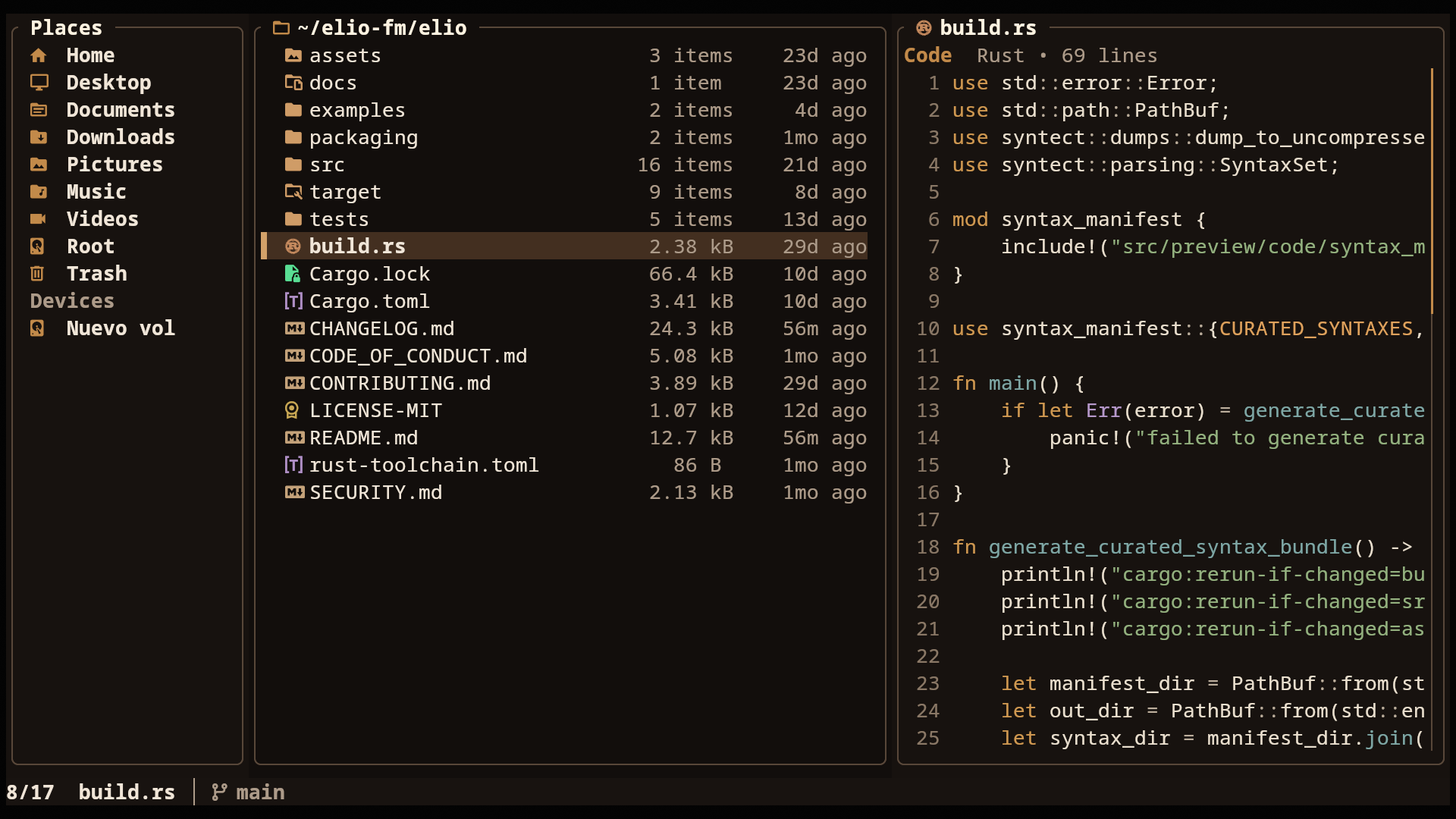
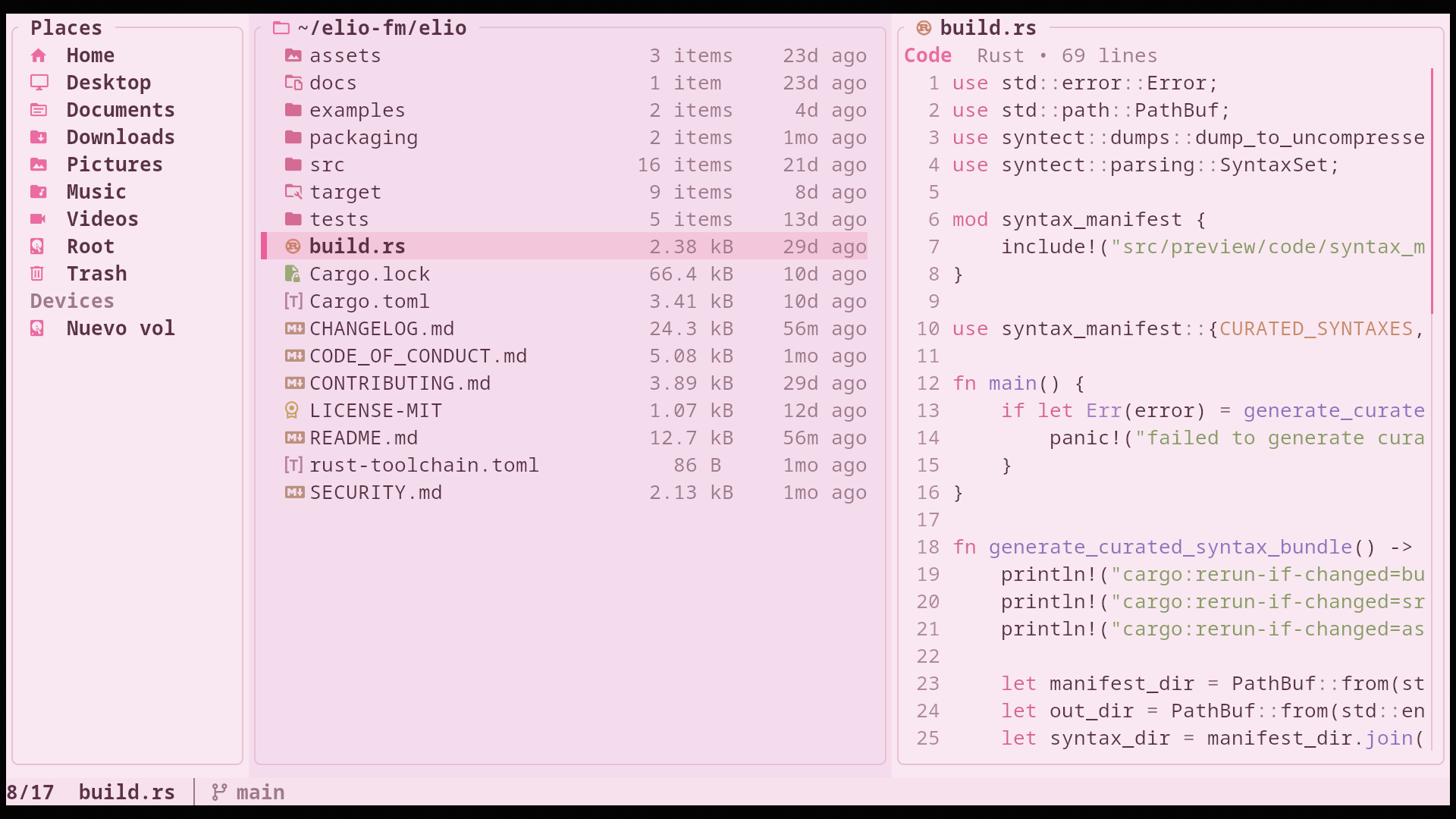
Image Previews
Inline visual previews, including images, covers, thumbnails, and rendered pages, work automatically on supported terminals.
| Terminal | Protocol | Status |
|---|---|---|
| Kitty | Kitty Graphics Protocol | ✓ Auto-detected |
| Ghostty | Kitty Graphics Protocol | ✓ Auto-detected |
| Rio | Kitty Graphics Protocol | ✓ Auto-detected |
| Warp | Kitty direct-placement protocol | ✓ Auto-detected |
| Konsole | Kitty direct-placement protocol | ✓ Auto-detected |
| WezTerm | iTerm2 Inline Protocol | ✓ Auto-detected |
| iTerm2 | iTerm2 Inline Protocol | ✓ Auto-detected |
| foot | Sixel | ✓ Auto-detected |
| Windows Terminal | Sixel | ✓ Auto-detected |
| Alacritty | — | Not supported |
| Other | Kitty Graphics Protocol | Set ELIO_IMAGE_PREVIEWS=1 to enable |
Sixel terminals can render large or first-time previews more slowly than Kitty Graphics or iTerm2 Inline backends.
In Konsole, inline previews are temporarily cleared while modal popups are open to avoid rendering artifacts.
Useful environment variables:
Environment Variables
| Variable | Effect |
|---|---|
ELIO_IMAGE_PREVIEWS=1 |
Force-enable on unrecognized terminals that support the Kitty Graphics Protocol |
ELIO_ZOXIDE_OPTS |
Extra options appended to the zoxide interactive picker options |
ELIO_DEBUG_PREVIEW |
Log image preview activity to elio-preview.log in the system temp directory |
ELIO_LOG_MOUSE |
Log raw mouse events to elio-mouse.log in the system temp directory |
Preview Coverage
elio previews many file types:
- Text, source code, Markdown, logs, and structured data such as JSON, YAML, TOML, CSV/TSV, and SQLite
- Documents such as PDFs, ebooks, Office files, OpenDocument files, and Apple Pages
- Images, audio, and video metadata, with inline images, covers, and thumbnails when supported
- Folders, archives, comic archives, torrents, ISO images, and other container-style files
- Fonts, binary files, and other metadata-focused previews
See the preview docs: https://elio-fm.github.io/docs/previews/
Optional Preview Tools
elio works out of the box. Optional tools unlock richer previews:
popplerfor PDFsffmpeg/ffprobefor media metadata and thumbnailsresvgfor SVG previews- 7-Zip for more archive types, comic archives, and RAR support
See the optional tools docs: https://elio-fm.github.io/docs/optional-tools/
Using elio over SSH
elio works over SSH. For the best experience, use a supported terminal and install optional tools on the remote host.
Opening files with terminal apps works normally inside SSH sessions. Desktop apps may open files on the remote host or do nothing useful.
Shell Integration
elio can leave your shell in the directory you were browsing when you quit:
elio shell install
Restart your shell, then run elio normally. Press q to quit and move your shell to elio's final directory, or Q to quit without changing directories.
See the shell integration docs for uninstall steps, supported shells, and manual setup: https://elio-fm.github.io/docs/shell-integration/
File Chooser
You can make elio your file chooser on Linux and FreeBSD:
elio portal enable
This sets elio as the file chooser for your current desktop environment or window manager. Use elio portal disable to restore the previous file chooser, or elio portal status to check the current configuration.
See the file chooser docs for setup details and supported behavior: https://elio-fm.github.io/docs/file-chooser/
Configuration
elio reads configuration from:
| Platform | Config file |
|---|---|
| Linux / BSD | ~/.config/elio/config.toml or $XDG_CONFIG_HOME/elio/config.toml |
| macOS | ~/.config/elio/config.toml or ~/Library/Application Support/elio/config.toml |
| Windows | %APPDATA%\elio\config.toml |
Use elio --config FILE to load configuration from a custom path instead of the default location.
See examples/config.toml for an annotated example, or the configuration docs:
https://elio-fm.github.io/docs/configuration/
Theming
elio themes are TOML files layered on top of the built-in defaults, so you only need to set the keys you want to change.
| Platform | Theme file |
|---|---|
| Linux / BSD | ~/.config/elio/theme.toml or $XDG_CONFIG_HOME/elio/theme.toml |
| macOS | ~/.config/elio/theme.toml or ~/Library/Application Support/elio/theme.toml |
| Windows | %APPDATA%\elio\theme.toml |
Use elio --theme FILE to load a theme from a custom path instead of the default location.
See assets/themes/default/theme.toml for the full default theme and examples/themes/ for ready-made themes.
For transparent or terminal-palette setups, see examples/themes/transparent/theme.toml and examples/themes/terminal-ansi/theme.toml.
Theme docs: https://elio-fm.github.io/docs/themes/
Controls — press ? in elio to see current bindings, including overrides
Keys marked with * are configurable in [keys] in config.toml. Configurable actions accept one key, a list, or an empty list to unbind the action. See the configuration docs for full key syntax:
https://elio-fm.github.io/docs/configuration/
Navigation
| Key | Action |
|---|---|
k / ↑ * |
Move up |
j / ↓ * |
Move down |
h / ← / Backspace * |
Go to parent directory |
l / → * |
Enter folder |
Enter * |
Enter folder / open file or selection |
g * |
Go To menu (g top, d downloads, h home, c config folder, t trash; configurable in [goto]) |
Home * |
Jump to first item |
G / End * |
Jump to last item |
PageUp / PageDown * |
Page up / down |
Tab / Shift+Tab * |
Cycle places |
Alt+← / Alt+→ * |
Back / forward in history |
Search
| Key | Action |
|---|---|
f * |
Fuzzy-find folders in the current tree |
Ctrl+F * |
Fuzzy-find files in the current tree |
Tab (in Fuzzy Find) |
Switch files/folders without clearing your query |
Alt+D * |
Find duplicate files by content |
z * |
Jump with zoxide directory history |
File Actions
| Key | Action |
|---|---|
o * |
Open focused item or selection with the system default application |
O * |
Open With chooser |
! * |
Open shell in current folder |
a * |
Create file or folder |
d / Del * |
Trash; permanently delete if already in trash |
D / Shift+Del * |
Delete permanently |
r / F2 * |
Rename / bulk rename |
R / Shift+F2 * |
Rename in editor |
r * (in Trash) |
Restore from trash |
View
| Key | Action |
|---|---|
v * |
Toggle grid / list view |
Ctrl++ / Ctrl+- |
Grid zoom in / out |
. * |
Show / hide dotfiles |
s * |
Cycle sort (Name → Modified → Size) |
Preview
| Key | Action |
|---|---|
Shift+K / Shift+↑ * |
Step page (PDF, comic, EPUB) or scroll preview up |
Shift+J / Shift+↓ * |
Step page (PDF, comic, EPUB) or scroll preview down |
Shift+H / Shift+← * |
Scroll preview left |
Shift+L / Shift+→ * |
Scroll preview right |
V * |
Show / hide preview pane |
P * |
Fullscreen preview |
Selection and Clipboard
| Key | Action |
|---|---|
Space * |
Toggle selection |
Ctrl+A * |
Select all |
y * |
Yank (copy) |
x * |
Cut |
p * |
Paste |
- * |
Create absolute symlink from yanked items |
_ * |
Create relative symlink from yanked items |
c * |
Copy path details to clipboard |
Mouse
| Action | Description |
|---|---|
| Click | Select item |
| Double-click | Open item |
| Scroll | Scroll browser or preview |
Shift+Scroll |
Scroll preview sideways |
General
| Key | Action |
|---|---|
? |
Open help overlay |
Esc |
Cancel / clear selection / close overlay |
q * |
Quit |
Q * |
Quit without changing the shell directory |