DirectoryOpus is a free, open source file management & sync project written in Markdown and released under MIT. It has 584 GitHub stars, 26 forks and 0 open issues, and was last pushed 2 months ago. On this registry it ranks #77 of 79 tracked projects in File Management & Sync, with 5 head-to-head comparisons available.

What is DirectoryOpus?

DirectoryOpus is a community-maintained, MIT-licensed Chinese-language manual for the Directory Opus Windows file manager, written as Markdown and published through a GitBook mirror for Chinese-speaking users who would otherwise have only the official English help.

What it is

The repository is a documentation project rather than a piece of software. Its content is Markdown, navigated from a SUMMARY.md table of contents and mirrored to a GitBook site that supports AI search, and the README describes it as one part a personal summary of experience with Directory Opus and one part a supplement to the Chinese DOpus ecosystem; it is explicitly still being written. The project carries the MIT licence, 584 stars, 26 forks, no open issues and a topic list of directory-opus, file-manager, pim and windows. The program it documents is the Windows file manager developed by GPSoftware.

The problem it addresses is a documentation gap around a paid, closed-source tool. Windows File Explorer, the README argues, is not strong on functionality and falls short of most third-party file managers, so anyone who depends heavily on the file system for organising data has a real efficiency stake in choosing one. On Windows the well-known third-party options are Total Commander, Directory Opus and XYplorer, and Directory Opus is characterised here as easy to learn, tightly integrated with the system and powerful — but its official manual is in English. This repository covers file windows, tabs, columns, file operations and the command language in Chinese, and a companion Greasyfork user script named Directory Opus 中文手册 redirects the F1 help key from the official English manual to the corresponding Chinese page.

Key capabilities

  • The manual explains the 文件窗口 (file window) and its parts — file list, folder tabs, status bar, toolbar and folder tree — noting that every component except one file list can be removed, and covers themes such as Arc Dark Theme.
  • It documents the file list views (详细, 列表, 缩略图, 小图标, 大图标, 平铺, 增强模式 and 平面视图) and the column system, including built-in metadata, computed columns such as 子文件数 and MD5, type-specific columns for image resolution, video duration and frame rate, and custom columns through scripts and Shell column handlers.
  • Labelling is covered in depth: custom colours, file and status icons, bold, italic and underline styles, pinning files to the top, automatic assignment through label filters, plus the extended attributes 描述, 标签 and 评分.
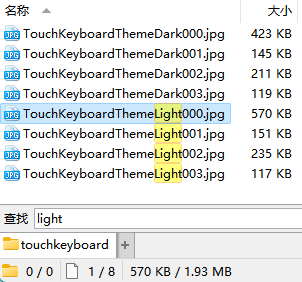
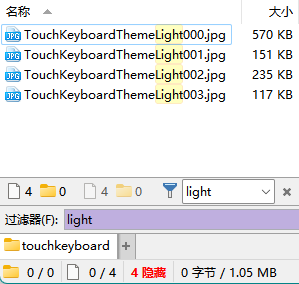
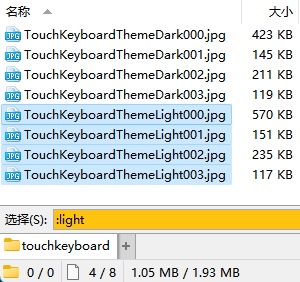
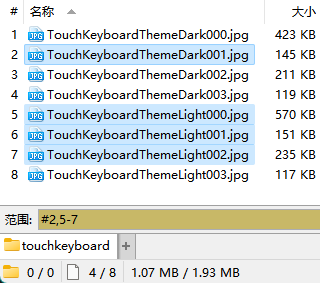
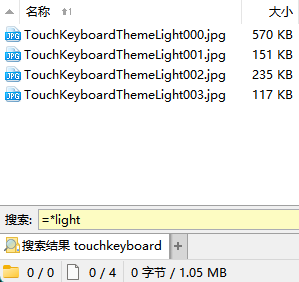
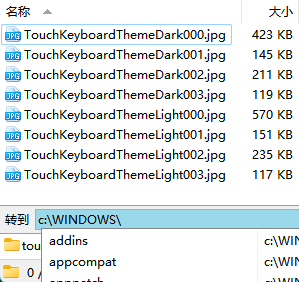
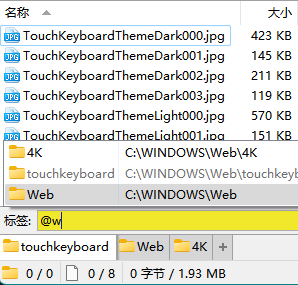
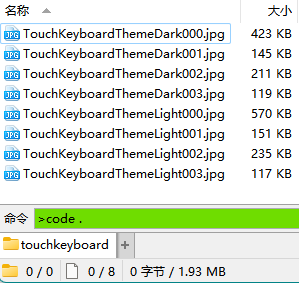
  • 即时查找 (instant find) is described across its modes — find, filter, wildcard and range selection, path and tab jumps, and CLI execution through the >, ? cmd and | WSL prefixes.
  • Source-and-destination operations are documented with their shortcuts: Copy to destination on Ctrl+1, Copy As on Ctrl+Shift+1, Move on Ctrl+2 and Move As on Ctrl+Shift+2, with the dual-pane and single-pane behaviours explained.
  • 高级重命名 (advanced rename, Ctrl+3) covers wildcards, recorded macros, regular expressions, sequence numbers, metadata fields, JS/VBS scripting and saved presets.
  • The 命令 scripting language is explained with worked examples using directives such as @keydown, and the manual shows how commands and JScript or VBScript back toolbar buttons, menu buttons, hotkeys and file-type events, alongside per-type mouse actions, context menus and info tips.

Who uses it and how

  • Chinese-speaking Windows users who organise data primarily through the file system and want the Directory Opus reference in their own language while working.
  • Users of the Greasyfork 中文手册 script, who press F1 inside Directory Opus and are taken to the matching Chinese page instead of the English manual.
  • Readers evaluating third-party file managers against Total Commander and XYplorer, for whom the README's section on why to use one at all frames the trade-offs.
  • People running bulk file work: batch renaming large sets with regular expressions, metadata fields and saved presets, or moving files into a fixed destination folder with Ctrl+1 and Ctrl+2.
  • Customisers who build toolbar buttons, hotkeys and custom columns and need the command and scripting reference to hand.

Getting started

Read the manual at the GitBook mirror, https://chaoses-ib.gitbook.io/directory-opus/, which supports AI search, or browse the Markdown sources in the repository from SUMMARY.md. Directory Opus itself is downloaded from GPSoftware with a 30-day trial that extends to 60 days after registration.

How it compares

This repository does not compete with the file managers it describes; it sits beside the official English manual and supplements it for Chinese readers, with the discontinued Kancloud and FastGit mirrors showing how the hosting has moved. Among the tools the README discusses, Total Commander is described as the best known with the advantage of a Chinese ecosystem and XYplorer as also widely used, while Directory Opus is positioned on ease of learning, system integration and feature depth.

When to use it — and when not to

The README states plainly that the documentation is still being written, so some areas will be thinner than a finished reference, and the project ships no software of its own — it is a manual, not a file manager. Readers should also note that Directory Opus is commercial, and that from version 13 it uses an annual upgrade subscription: updates are free until the subscription expires, after which the earlier version remains usable. Anyone looking for an open-source or free file manager, or for English-language documentation, will not find their answer here.

project readme (upstream, from github) — read inline


Directory Opus

由 GPSoftware 开发的一款上手简单、系统集成度高、功能强大的 Windows 文件管理器

[!TIP] 可安装用户脚本 Directory Opus 中文手册 来在打开 DOpus 的官方英文手册(F1)时自动跳转到中文手册的相应页面。

为什么要使用第三方文件管理器?

文件系统是目前使用最为广泛的数据组织形式,文件管理器是在 GUI(图形用户界面)下对这一系统的主要管理工具。如果你对使用文件系统进行数据组织有较强的依赖,文件管理器的好坏会在一定程度上影响你的工作效率。而 Windows 的官方文件管理器,即 Windows 文件资源管理器(Windows File Explorer)在功能性上并不出色,相比大部分第三方文件管理器都有所欠缺。因此,如果你需要提高自己的文件管理效率,使用第三方文件管理器是一种不错的方法。

在 Windows 上有着许多的第三方文件管理器,其中比较知名的有 Total Commander、Directory Opus 和 XYplorer。Total Commander 知名度最高,有着中文生态的优势;Directory Opus 相对来说具有上手简单、系统集成度高和功能强大的特点;XYplorer 也有不少人在使用。每个人的需求和偏好都有所不同,你可以在亲自尝试各个管理器之后再决定使用哪一个;当然,工具是用来解决问题的,你也可以每个工具都使用。

这个仍在编写中的文档仓库一方面是我对 DOpus 的个人经验总结,一方面是对 DOpus 中文生态的补充,希望能够对你有所帮助。

基本概念

文件窗口
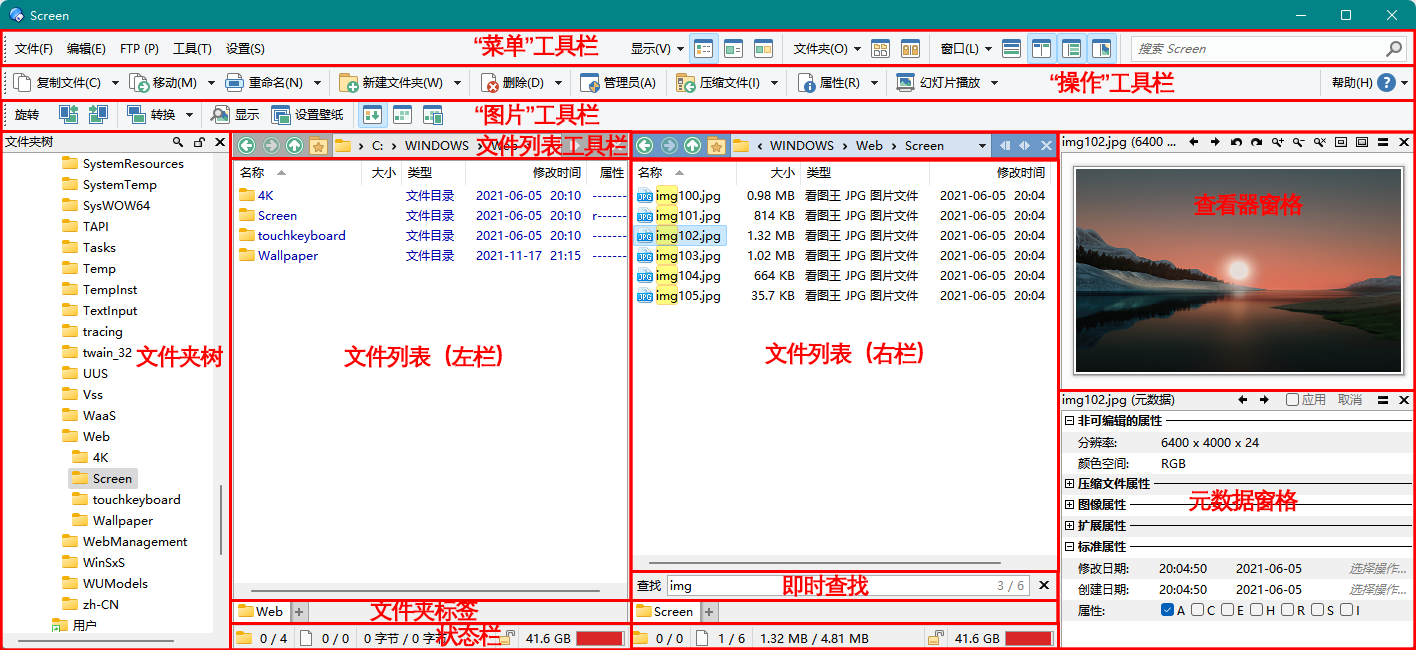
文件窗口由文件列表、文件夹标签、状态栏、工具栏、文件夹树和其它窗格组成。除了必须保留一个文件列表外,文件窗口中的所有其它组件都可移除。

主题
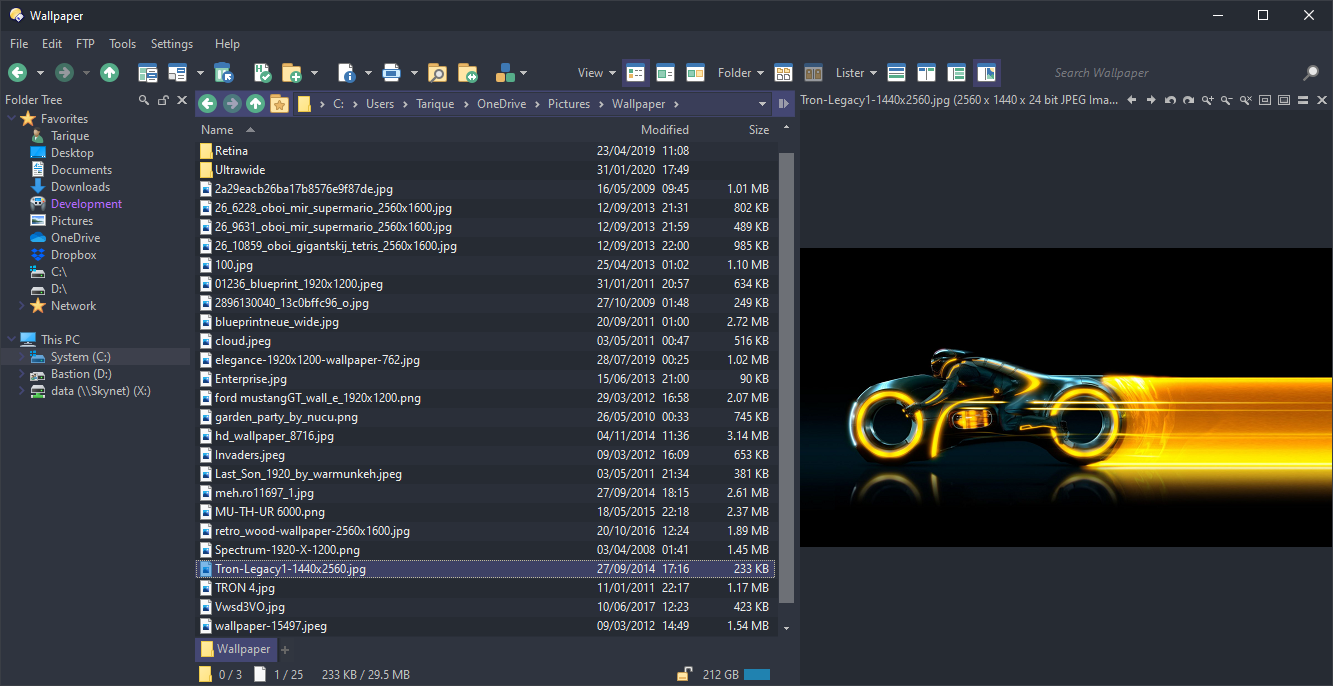
Arc Dark Theme

你可以通过主题来改变文件窗口的外观。

文件列表

视图

可用的视图有:详细、列表、缩略图、小图标、大图标、平铺和增强模式,以及平面视图。

列

列通常是与文件相关的属性,例如文件名、大小和修改日期。除了这些基本属性之外,DOpus 也内置了备注、标签、星级这些常用的元属性,以及子文件数和 MD5 这样的计算型属性。DOpus 也为一些常见的文件类型内置了属性列,例如图片分辨率、视频时长、视频分辨率、视频帧率、音乐艺术家、音乐专辑、程序版本等等。除了这些内置列外,也可使用脚本和 Shell 的列处理器来实现自定义列。

标记
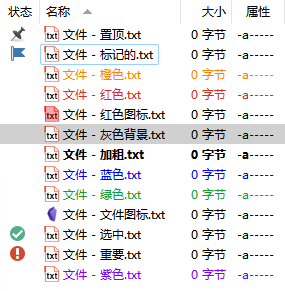
标记可以让文件以自定义的颜色显示,同时也支持设置文件图标和状态图标,设置加粗、斜体和下划线字体样式,以及将文件置顶。标记可以手动设置,也可以用标记过滤器自动分配。

除了标记外,DOpus 还可对文件设置描述、标签和评分这三项扩展属性。

即时查找

即时查找功能可以实现即时查找或过滤文件;通过通配符或范围选择文件;跳转到其它路径或文件夹标签;以及执行 CLI 命令(> 内置命令、? cmd 及 | WSL)。如图所示:

查找 过滤 选择 范围
搜索 跳转 标签页 命令
文件夹格式

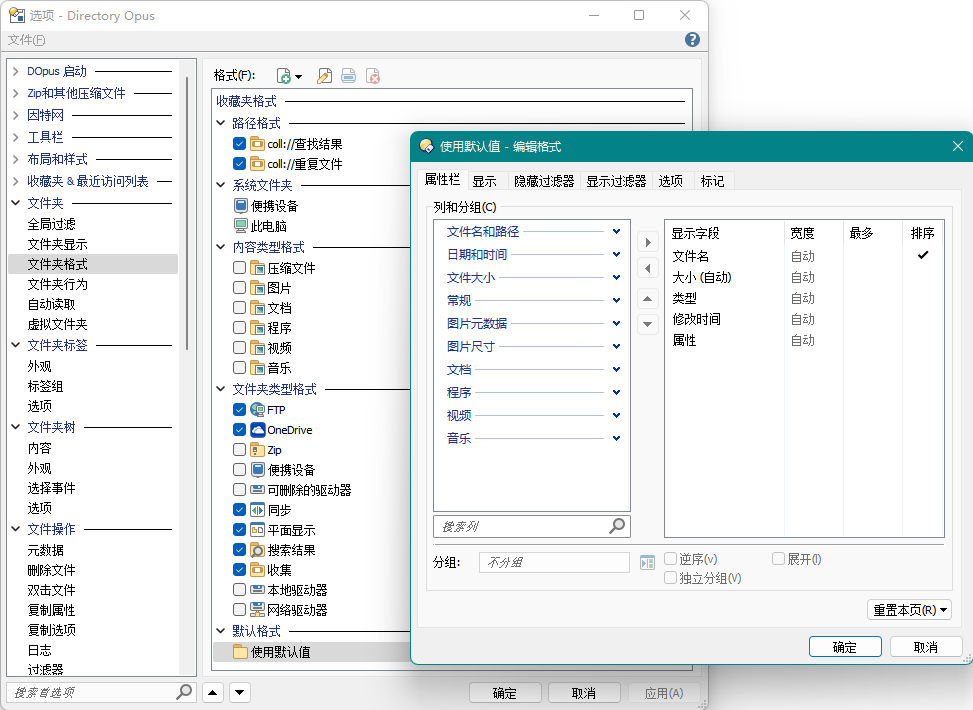
文件夹格式决定了每个文件夹的显示格式,包括视图、列、排序方式、分组方式、文件过滤器、标记过滤器、背景颜色和文件夹标签颜色等选项。文件夹格式可通过文件夹路径、内容类型或文件夹类型来决定生效范围。

文件操作

来源和目标

许多文件操作都是发生在两个或多个目录之间的。对于这些操作,通常的方法是不断复制粘贴,或者来回拖曳,比较繁琐。为了提高操作效率,可以指定其中一个目录为目标目录,当进行复制、移动等操作时直接复制或移动到目标目录,省去每次都要指定目标的麻烦。

使用双栏模式时,当前文件列表为来源目录,对侧文件列表为目标目录;
使用单栏模式时,当前文件窗口为来源目录,最近激活的另一个文件窗口为目标目录,状态栏中会显示所属窗口的状态。

一些相关的内置操作如下:

操作 快捷键 工具栏
复制文件到目标目录 Ctrl+1 操作/复制文件
询问新文件名后复制文件到目标目录 Ctrl+Shift+1 操作/复制文件/复制为
移动文件到目标目录 Ctrl+2 操作/移动
询问新文件名后移动文件到目标目录 Ctrl+Shift+2 操作/移动/移动为
在目标目录创建文件的快捷方式 操作/复制文件/创建快捷方式
高级重命名

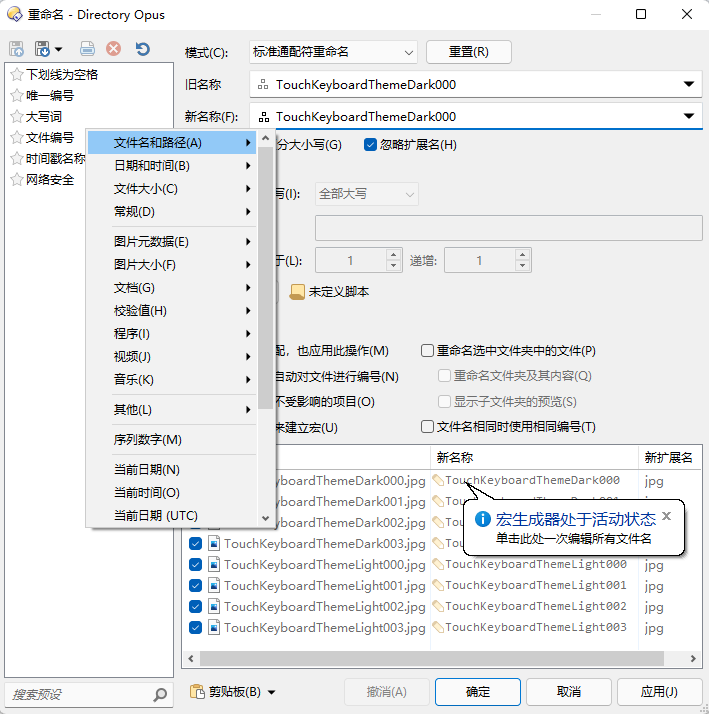
高级重命名可以实现复杂的批量重命名。支持通配符、宏(编辑录制)和正则表达式,能够插入序号和元数据字段,也可以使用 JS/VBS 脚本进行自定义处理。配置好的重命名规则可以保存为预设(上图左侧),便于之后再次使用。

相关的内置操作如下:

操作 快捷键 工具栏
高级重命名 Ctrl+3 操作/重命名
文件类型

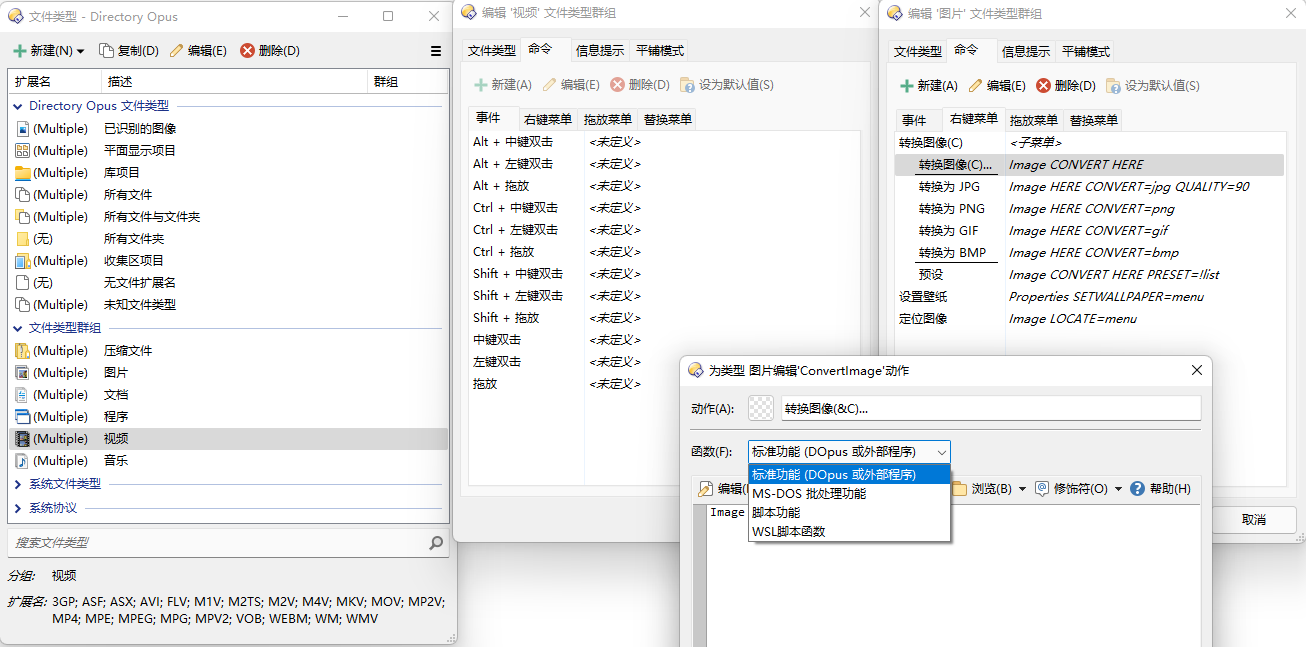
你可以为每个文件类型定义自己的鼠标动作、右键菜单和信息提示。除了独立的文件类型外,DOpus 还有上图中的特殊文件类型和文件类型群组,便于同时为一组文件类型定义动作。

命令

“命令”是 DOpus 内置的一种简易脚本语言,一个例子如下:

@keydown:none   // 如果没有修饰键被按下
Copy            // 复制选中文件到目标目录
@keydown:shift  // 如果 Shift 被按下
Copy AS         // 以指定名称(弹窗输入)复制选中文件到目标目录

DOpus 中的大部分用户操作都是通过命令实现的,包括大部分工具栏按钮、菜单按钮、热键和文件类型事件。换句话说,在这些地方你都可以通过命令来实现自定义功能。

除了命令外,你也可以通过脚本(主要为 JScript 和 VBScript)来实现更为复杂的功能,或者也可以通过脚本来定义自己的命令,扩展命令的功能。

其它

授权

DOpus 自 v13 起采用升级订阅模式,需要按年订阅更新,订阅到期前可免费更新,在订阅到期后可继续使用之前的版本(在之后也有可能会推出终身更新授权)。你可以直接下载 DOpus 开始试用,默认试用期为 30 天,在注册后可以延长到 60 天。

购买渠道 新购 新购 + USB 导出 + 高级 FTP 续期 备注
官网 1+1[^machine-laptop]:89 AUD(~420元)
2+1:129 AUD(~606元)
5+1:249 AUD(~1169元)
黑五:
  • 1+1:53.4 AUD(~251元)
  • 2+1:77.4 AUD(~364元)
  • 5+1:149.4 AUD(~703元)
USB 导出:10 AUD/导出授权
高级 FTP:10 AUD(~47元)
1+1:25 AUD(~117元)
2+1:40 AUD(~188元)
5+1:75 AUD(~352元)
子清 1+1:148元 1+1:195元 ? 无淘宝客服
玩软件吧 1+1:159元 1+1:189元 ? 客服响应不及时
软购 1+1:158元
双十一:124.6元
黑五:158元
1+1:198元
双十一:180.6元
黑五:198元
88元 新用户-5元
不同等级会员每月有不同优惠,可找会员代购
数码荔枝 1+1:189元
APPINN 优惠码:179.55元
定期优惠+优惠码:152.61元
双十一:134.25元
1+1:239元
APPINN 优惠码:227.05元
定期优惠+优惠码:192.99元
双十一:194.25元
? 免费新会员-5元
软购猜价 1+1:历史最低 160元 积分可通过购买会员、软件和评论获得
软购拍卖 不定期开启
子清2 1+1:210.49元 1+1:257.79元 ?
软代[^APSDAI] 1+1:218元 1+1:268元 ?

注意,中国经销商出售的都是中文版授权,只能使用中文语言,不能使用英文等其它语言。

这里不会列出 DOpus 的破解版,如果你确有需要,可以自行加入群组进行获取。

v12 升级 v13:

升级渠道 价格
官网 0~50 AUD(~234元)
折扣幅度取决于购买日期:在 v13 公测的前几个月(约 2023 年初)之后购买的授权可免费升级;折扣后的最高价格为两年续期价格,例如 1+1 授权的最高升级价格为 50 AUD。此外,中文版授权在升级后会变为全语言版,标准版(Light)在升级后会变为专业版。
数码荔枝 109元
APPINN 优惠码:103.55元
七月惠 +优惠码:88.01元
免费新会员-5元
软购 89元
新用户-5元
子清 108元
玩软件吧 105元
软代[^APSDAI] 118元
子清2 118.25元

升级可获得两年更新订阅的优惠已结束,目前升级只能获得一年更新。

[^machine-laptop]: 一台计算机 + 一台笔记本 [^APSDAI]: 也称 APSDAI、SOFTHEAD、奇睿天软

群组

英文资源

v12

也可在 DOpus 中按 F1 打开本地帮助(默认为本地网页,如有需要可在 配置/杂项/高级/行为/help_interface 处更改为 CHM)。

Frequently asked questions

Is DirectoryOpus free to use?

DirectoryOpus is open source under the MIT licence. There is no licence fee and no seat count — you can self-host it or, where the project offers one, pay a vendor for a managed version instead.

What does DirectoryOpus do?

一款上手简单、系统集成度高、功能强大的 Windows 文件管理器

What is DirectoryOpus written in?

DirectoryOpus is primarily written in Markdown. Its source is publicly available at https://github.com/Chaoses-Ib/DirectoryOpus, and it has 584 GitHub stars.