DebugSwift




DebugSwift is a comprehensive toolkit designed to streamline and elevate the debugging experience for Swift-based applications. Whether you are troubleshooting issues or optimizing performance, DebugSwift offers a powerful set of features to make your debugging process more efficient and effective. |
|
📋 Table of Contents
Requirements
- iOS 14.0+
- Swift 6.0+
- Xcode 16.0+
Features
🌐 Network Inspector
- HTTP Monitoring: Capture all requests/responses with detailed logs and filtering
- WebSocket Inspector: Zero-config automatic monitoring of WebSocket connections and frames
- Request Limiting: Set thresholds to monitor and control API usage
- Smart Content: Automatic JSON formatting with syntax highlighting
- Encryption Support: Automatic decryption of encrypted API responses with AES-256/128 and custom decryptors
- Response Modifier: Mock or modify any API responses in real time. Adjust the response body and status based on URL or patterns, enable or disable rules individually, import/export configurations via CSV, body editor, and generate rules from live network traffic.
⚡ Performance
- Real-time Metrics: Monitor CPU, memory, and FPS in real-time
- Memory Leak Detection: Automatic detection of leaked ViewControllers and Views
- Thread Checker: Detect main thread violations with detailed stack traces
- Performance Widget: Overlay displaying live performance stats
📱 App Tools
- Crash Reports: Detailed crash analysis with screenshots and stack traces
- Console Logs: Real-time console output monitoring and filtering
- Device Info: App version, build, device details, and more
- APNS Tokens: Easy access and copying of push notification tokens
- Custom Actions: Add your own debugging actions and info
🎨 Interface Tools
- Grid Overlay: Visual alignment grid with customizable colors and opacity
- View Hierarchy: 3D interactive view hierarchy inspector
- Touch Indicators: Visual feedback for touch interactions
- Animation Control: Slow down animations for easier debugging
- View Borders: Highlight view boundaries with colorization
- SwiftUI Render Tracking (Beta): Automatically detect and visualize SwiftUI view re-renders with dedicated settings screen
- Documentation Recorder: Record app interactions with annotated screenshots — taps shown as numbered circles, scrolls as arrows. Save, copy as grid, or share recordings
📁 Resources
- File Browser: Navigate app sandbox and shared app group containers
- UserDefaults: View and modify app preferences at runtime
- Keychain: Inspect keychain entries
- Database Browser: SQLite and Realm database inspection
- Push Notifications: Simulate push notifications with templates and test scenarios
- SwiftData Browser (iOS 17+): Inspect registered SwiftData containers, browse models, inspect properties/relationships, edit values, and export JSON
Installation & Setup
🍃 Swift Package Manager (Recommended)
Add to your Package.swift:
dependencies: [
    .package(url: "https://github.com/DebugSwift/DebugSwift.git", from: "1.0.0")
]
Or add through Xcode: File > Add Package Dependencies > Enter URL:
https://github.com/DebugSwift/DebugSwift
🎯 CocoaPods
Option 1: Source Distribution (Standard)
Add to your Podfile:
pod 'DebugSwift'
Option 2: XCFramework Distribution (Faster Builds) ⚡
Add to your Podfile:
pod 'DebugSwift', :http => 'https://github.com/DebugSwift/DebugSwift/releases/latest/download/DebugSwift.xcframework.zip'
🍎 Apple Silicon Support
DebugSwift fully supports Apple Silicon Macs with native arm64 simulator builds! No more architecture exclusions or compatibility issues.
Supported Architectures:
- 📱 iOS Device: arm64
- 🖥️ iOS Simulator: arm64 (Apple Silicon) + x86_64 (Intel)
Migration Note: If you were using architecture exclusions like 'EXCLUDED_ARCHS[sdk=iphonesimulator*]' => 'arm64', you can now remove them as they are no longer needed.
Basic Setup
import DebugSwift

@main
class AppDelegate: UIResponder, UIApplicationDelegate {
    private let debugSwift = DebugSwift()

    func application(
        _ application: UIApplication,
        didFinishLaunchingWithOptions launchOptions: [UIApplication.LaunchOptionsKey: Any]?
    ) -> Bool {

        #if DEBUG
        debugSwift.setup()
        // debugSwift.setup(disable: [.leaksDetector])
        debugSwift.show()
        #endif

        return true
    }
}
Shake to Toggle (Optional)
extension UIWindow {
    open override func motionEnded(_ motion: UIEvent.EventSubtype, with event: UIEvent?) {
        super.motionEnded(motion, with: event)

        #if DEBUG
        if motion == .motionShake {
            if let appDelegate = UIApplication.shared.delegate as? AppDelegate {
                appDelegate.debugSwift.toggle()
            }
        }
        #endif
    }
}
Open Debugger Programmatically
You can get the debug menu as a standalone UIViewController and present it however you like — push, present modally, embed in your own navigation. No floating ball required.
// 1. Setup (without floating ball)
#if DEBUG
DebugSwift().setup()
// Don't call .show() — no floating ball will appear
#endif

// 2. Get the debug view controller and present it yourself
let debugVC = DebugSwift.debugViewController()

// Push into your navigation stack
navigationController?.pushViewController(debugVC, animated: true)

// Or present modally
let nav = UINavigationController(rootViewController: debugVC)
present(nav, animated: true)
SwiftUI
Wrap in a UINavigationController so the close button and dark nav bar match the FloatingView experience:
struct DebugViewControllerRepresentable: UIViewControllerRepresentable {
    let onDismiss: () -> Void

    func makeUIViewController(context: Context) -> UINavigationController {
        let debugVC = DebugSwift.debugViewController()

        let closeButton = UIBarButtonItem(
            image: UIImage(systemName: "xmark"),
            style: .plain, target: context.coordinator,
            action: #selector(Coordinator.close)
        )
        closeButton.tintColor = .white
        debugVC.navigationItem.rightBarButtonItem = closeButton

        let nav = UINavigationController(rootViewController: debugVC)
        let appearance = UINavigationBarAppearance()
        appearance.configureWithTransparentBackground()
        appearance.backgroundColor = .black
        nav.navigationBar.standardAppearance = appearance
        nav.navigationBar.scrollEdgeAppearance = appearance
        nav.navigationBar.compactAppearance = appearance
        nav.overrideUserInterfaceStyle = .dark
        return nav
    }

    func updateUIViewController(_ uiViewController: UINavigationController, context: Context) {}
    func makeCoordinator() -> Coordinator { Coordinator(onDismiss: onDismiss) }

    class Coordinator: NSObject {
        let onDismiss: () -> Void
        init(onDismiss: @escaping () -> Void) { self.onDismiss = onDismiss }
        @objc func close() { onDismiss() }
    }
}

// Usage — fullScreenCover matches the FloatingView full-screen appearance
@State private var showDebugger = false

Button("Open Debugger") {
    DebugSwift.debugViewControllerWillPresent()
    showDebugger = true
}
// Use onDismiss: on fullScreenCover — not inside the representable — so the
// floating ball is restored even when the sheet is dismissed via Escape/swipe.
.fullScreenCover(isPresented: $showDebugger, onDismiss: {
    DebugSwift.debugViewControllerDidDismiss()
}) {
    DebugViewControllerRepresentable(onDismiss: { showDebugger = false })
        .ignoresSafeArea()
}
🔧 Troubleshooting
Apple Silicon Build Issues
If you encounter build errors like error unsupported Swift architecture or DebugSwift.framework only contains x86_64 slice for simulator on Apple Silicon Macs:
Solution 1: Update to Latest Version
Ensure you're using the latest version of DebugSwift which includes full Apple Silicon support:
# CocoaPods
pod 'DebugSwift', '~> 1.8.1'

# Swift Package Manager - update to latest
Solution 2: Use XCFramework Distribution (Recommended)
For faster builds and guaranteed architecture compatibility:
pod 'DebugSwift', :http => 'https://github.com/DebugSwift/DebugSwift/releases/latest/download/DebugSwift.xcframework.zip'
Solution 3: Remove Architecture Exclusions
If you have custom architecture exclusions in your project, remove them:
# Remove this from your Podfile or target configuration:
# config.build_settings['EXCLUDED_ARCHS[sdk=iphonesimulator*]'] = 'arm64'
Solution 4: Clean Build
Clean your build folder and derived data:
# Xcode
Product → Clean Build Folder (⌘⇧K)

# Command line
rm -rf ~/Library/Developer/Xcode/DerivedData
Build Performance
- XCFramework Distribution: Up to 50% faster build times
- Source Distribution: Full source access and debugging capabilities
Choose XCFramework for production builds, source for active development.
Examples
Enhanced Hierarchy Tree for Deeper Application Insights (Beta)
Harness the Power of Visual Information within the iOS Hierarchy Tree to Uncover Intricate Layouts and Element Relationships in Your Application.
How to Use
Simply press and hold the circle button to reveal the Snapshot and Hierarchy for a comprehensive overview.
Results:
Explore Additional Details
Enhance your understanding by pressing and holding on a specific view to reveal information such as:
- Class
- Subviews
- Background Color
- Specific attributes based on the type (e.g., UILabel: Text, Font, and TextColor).
Results:
App Custom ViewControllers in Tab Bar
DebugSwift.App.shared.customControllers = {
    let controller1 = UITableViewController()
    controller1.title = "Custom TableVC 1"

    let controller2 = UITableViewController()
    controller2.title = "Custom TableVC 2"
    return [controller1, controller2]
}
Custom Debug Actions
// Add custom debugging actions
DebugSwift.App.shared.customAction = {
    [
        .init(title: "Development Tools", actions: [
            .init(title: "Clear User Data") {
                UserDefaults.standard.removeObject(forKey: "userData")
            },
            .init(title: "Reset App State") {
                // Your reset logic here
            }
        ])
    ]
}
Results:
App Custom Data
DebugSwift.App.shared.customInfo = {
    [
        .init(
            title: "Info 1",
            infos: [
                .init(title: "title 1", subtitle: "title 2")
            ]
        )
    ]
}
Results:
APNS Token Integration
// In your AppDelegate
func application(_ application: UIApplication, didRegisterForRemoteNotificationsWithDeviceToken deviceToken: Data) {
    DebugSwift.APNSToken.didRegister(deviceToken: deviceToken)
    // Your existing token handling code
}

func application(_ application: UIApplication, didFailToRegisterForRemoteNotificationsWithError error: Error) {
    DebugSwift.APNSToken.didFailToRegister(error: error)
    // Your existing error handling code
}
Configuration
Network Filtering
// Ignore specific URLs
DebugSwift.Network.shared.ignoredURLs = ["https://analytics.com"]

// Monitor only specific URLs
DebugSwift.Network.shared.onlyURLs = ["https://api.myapp.com"]
Network History Management
// Clear HTTP/HTTPS request history (useful when switching environments)
DebugSwift.Network.shared.clearNetworkHistory()

// Clear WebSocket connection history
await DebugSwift.Network.shared.clearWebSocketHistory()

// Clear all network data (HTTP + WebSocket)
await DebugSwift.Network.shared.clearAllNetworkData()

// Example: Clear network data when switching environments
DebugSwift.App.shared.customAction = {
    [
        .init(title: "Environment", actions: [
            .init(title: "Switch to Production") {
                // Your environment switch logic
                DebugSwift.Network.shared.clearNetworkHistory()
            },
            .init(title: "Switch to Development") {
                // Your environment switch logic
                DebugSwift.Network.shared.clearNetworkHistory()
            }
        ])
    ]
}
Custom Request Logging (gRPC and other non-URLSession transports)
DebugSwift captures URLSession traffic automatically, but traffic that bypasses
URLSession — gRPC over SwiftNIO, custom sockets, hand-rolled transports — is
invisible to the swizzler. Use logRequest to record those calls manually; they
show up in the Network tab next to the captured traffic and respect
ignoredURLs/onlyURLs:
// Example: logging a gRPC call from a grpc-swift client interceptor
DebugSwift.Network.shared.logRequest(
    url: URL(string: "grpc://api.example.com/example.v1.UserService/GetUser")!,
    method: "POST",
    requestHeaders: requestMetadata,
    requestBody: requestJSON.data(using: .utf8),
    responseStatusCode: status.isOk ? 200 : 500,
    responseHeaders: responseMetadata,
    responseBody: responseJSON.data(using: .utf8),
    error: transportError,
    startTime: callStartDate,
    endTime: Date()
)
Manual URLSessionConfiguration Injection
If you create URLSessionConfiguration instances before calling DebugSwift.setup(), you can manually inject the network monitoring protocol:
// Option 1: Inject into existing configuration
let config = URLSessionConfiguration.default
DebugSwift.Network.shared.injectIntoConfiguration(config)
let session = URLSession(configuration: config)

// Option 2: Get pre-configured default configuration
let config = DebugSwift.Network.shared.defaultConfiguration()
let session = URLSession(configuration: config)

// Option 3: Get pre-configured ephemeral configuration
let config = DebugSwift.Network.shared.ephemeralConfiguration()
let session = URLSession(configuration: config)

// Option 4: Direct protocol class injection (advanced)
var config = URLSessionConfiguration.default
var protocolClasses = config.protocolClasses ?? []
protocolClasses.insert(CustomHTTPProtocol.self, at: 0)
config.protocolClasses = protocolClasses
Note: This is particularly useful when migrating from other network debugging tools like Netfox or when working with pre-existing URLSession configurations.
Network Encryption/Decryption
DebugSwift supports automatic decryption of encrypted API responses, making it easier to debug apps with end-to-end encryption.
// Enable decryption feature
DebugSwift.Network.shared.setDecryptionEnabled(true)

// Register decryption key for specific API endpoints
if let key = "your-32-byte-aes-key-here-123456".data(using: .utf8) {
    DebugSwift.Network.shared.registerDecryptionKey(for: "api.example.com", key: key)
}

// Register custom decryptor for complex encryption schemes
DebugSwift.Network.shared.registerCustomDecryptor(for: "api.myapp.com") { encryptedData in
    // Your custom decryption logic here
    return customDecrypt(encryptedData)
}
Selective Features
debugSwift.setup(
    hideFeatures: [.performance, .interface], // Hide specific tabs
    disable: [.leaksDetector, .console]       // Disable specific monitoring
)
Beta Features
// Enable beta features (disabled by default)
debugSwift.setup(
    enableBetaFeatures: [
        .swiftUIRenderTracking,      // Enable experimental SwiftUI render tracking
        .networkSessionPersistence   // Enable experimental network session history
    ]
)
SwiftData Browser (iOS 17+)
import SwiftData

// Define your model registrations
let swiftDataModels: [SwiftDataModelRegistration] = [
    .init(Trip.self),
    .init(Accommodation.self)
]

// Register one or more containers
DebugSwift.Resources.shared.configureSwiftData(contexts: [
    .init(name: "Main", container: appModelContainer, models: swiftDataModels)
])

// Optional: lock browser editing
DebugSwift.Resources.shared.swiftDataReadOnly = true
App Group Configuration
// Configure app groups for file browser access
DebugSwift.Resources.shared.configureAppGroups([
    "group.com.yourcompany.yourapp"
])
Performance Monitoring
// Configure memory leak detection
DebugSwift.Performance.shared.leakDetector.onDetect(detectionDelay: 1) { leakData in
    print("🔴 Memory leak detected: \(leakData.message)")
}
Push Notification Simulation
// Enable push notification simulation
DebugSwift.PushNotification.enableSimulation()

// Simulate a notification
DebugSwift.PushNotification.simulate(
    title: "Test Notification",
    body: "This is a test notification"
)
SwiftUI Render Tracking (Beta)
⚠️ Beta Feature: SwiftUI render tracking is experimental and must be enabled explicitly.
// First enable the beta feature in setup
debugSwift.setup(enableBetaFeatures: [.swiftUIRenderTracking])

// Then enable SwiftUI render tracking
DebugSwift.SwiftUIRender.shared.isEnabled = true

// Configure persistent overlays (stay visible until manually cleared)
DebugSwift.SwiftUIRender.shared.persistentOverlays = true

// Set overlay style (border, borderWithCount, none)
DebugSwift.SwiftUIRender.shared.overlayStyle = .borderWithCount

// Configure overlay duration
DebugSwift.SwiftUIRender.shared.overlayDuration = 1.0

// Enable console logging
DebugSwift.SwiftUIRender.shared.loggingEnabled = true

// Clear render statistics
DebugSwift.SwiftUIRender.shared.clearStats()

// Clear persistent overlays
DebugSwift.SwiftUIRender.shared.clearPersistentOverlays()
Network Session History (Beta)
⚠️ Beta Feature: Network session history is experimental, requires iOS 17 or later, and must be enabled explicitly.
debugSwift.setup(enableBetaFeatures: [.networkSessionPersistence])

// Optional: change how many days sessions are kept and how often new requests are written to disk.
DebugSwift.Network.configureSessionHistory(retentionDays: 14, batchSize: 1)
After enabled, the Session History menu appears in the top toolbar. DebugSwift shows all captured network sessions within the retention period(default: 7 days), and you can directly import a full session into Response Modifier rules to mock the complete API state from that session.
⭐ Support the Project
If you find DebugSwift helpful, please consider giving us a star on GitHub! Your support helps us continue improving and adding new features.

Contributors
Our contributors have made this project possible. Thank you!
Contributing
Contributions are welcome! If you have suggestions, improvements, or bug fixes, please submit a pull request. Let's make DebugSwift even more powerful together!
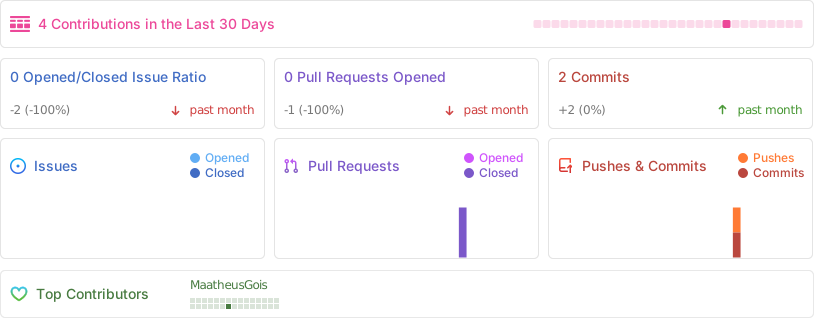
Repo Activity
Star History
License
DebugSwift is licensed under the MIT License - see the LICENSE file for details.